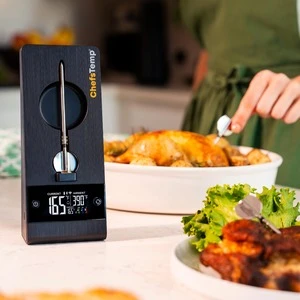
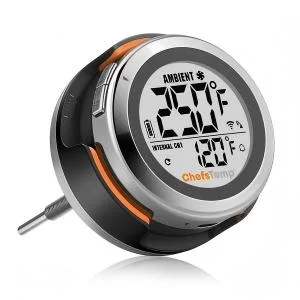
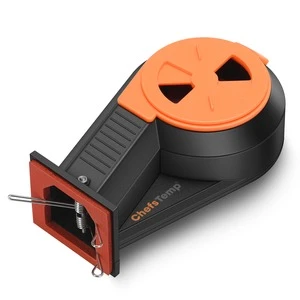
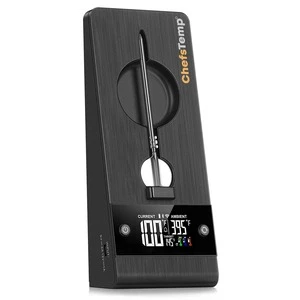
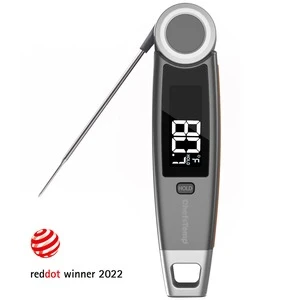
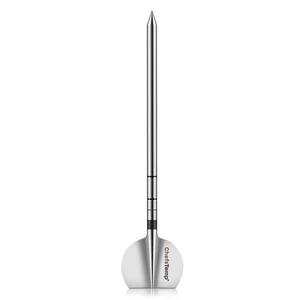
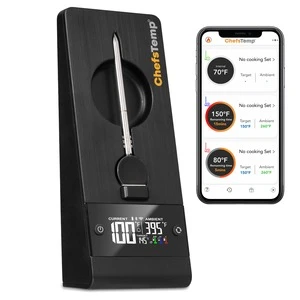
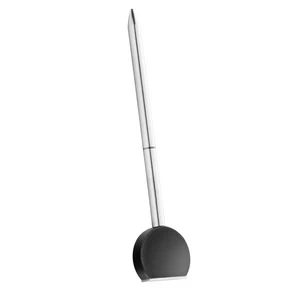
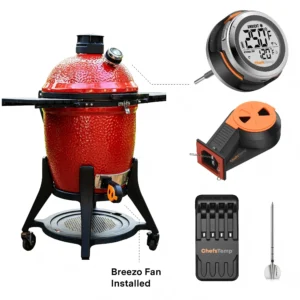
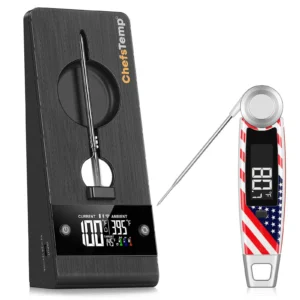
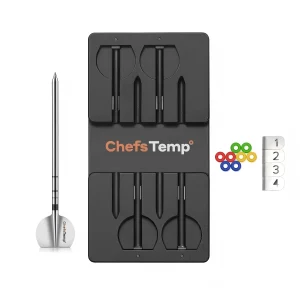
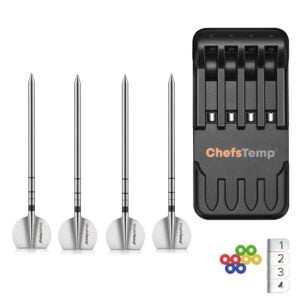
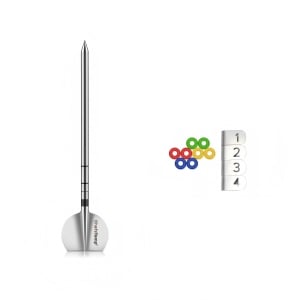
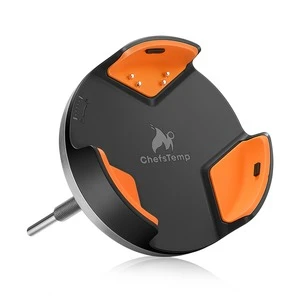
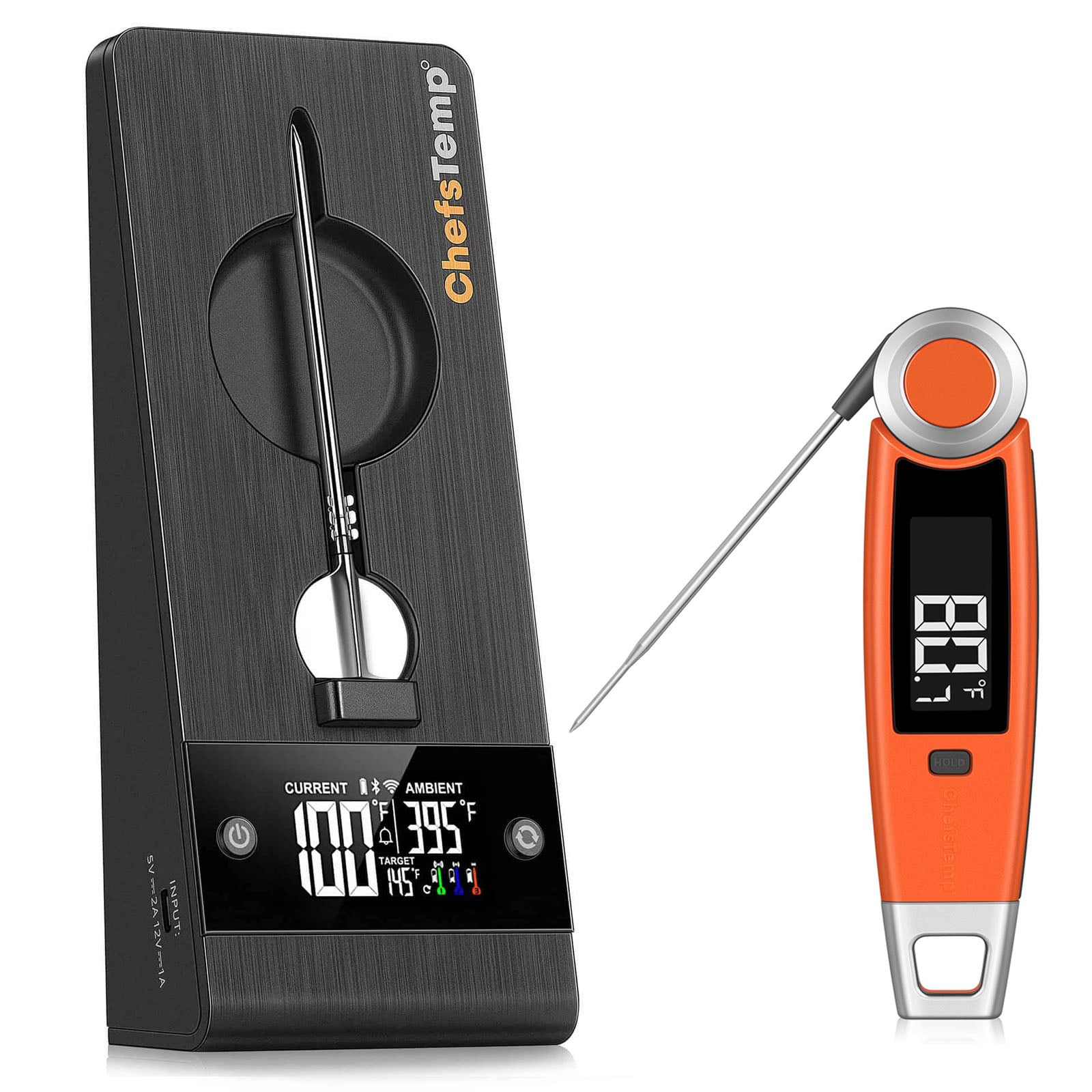
When you charge your probe on the ProTemp Plus Stand, the colored battery icon on the screen animates. Once fully charged, the icon will show as full and flash, indicating the probe is ready for at least 30 hours of use. If you are not sure whether the probe is fully charged or can't be charged, go to My Connections>>My Paired Probes and tap it to check the battery.
A green probe-channel icon on the stand does not, by itself, confirm the probe is fully charged. Check the probe’s battery level in the ChefsTemp app under My Connections → My Paired Probes, then select the probe. Tell support whether you use the Original ProTemp Plus or the ProTemp 2 Plus, because their displays and charging indicators can differ.
If the app shows a low battery shortly after charging, record the battery level when you remove it and again when it drops. Include the elapsed time and whether another probe charges normally on the same stand.
If the probe isn’t charging properly, please try the following:
- Clean the remaining grease on the probe before charging.
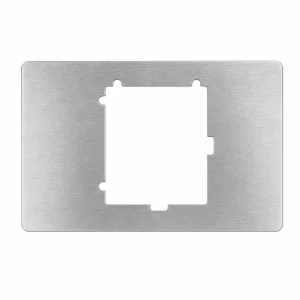
- Adjust the metal plate in the Stand’s charging slot to ensure proper contact with the probe: Fix Your Plus Charging Stand: Solve Loose Contact Issues Fast!
- Restart the stand, then place the probe in another slot to charge it. (Both the front and back slots can be used to charge the probe.)
If the issue persists, please try these steps:
- Download the LightBlue app and check if "Probe" appears in the device list. Each charged probe should display as a separate entry.
- Record a short video showing the probe charging and send it to [email protected]. We'll review it promptly and resolve the issue.