To ensure everything is set up correctly, please watch this video on How to Fix Bluetooth & Wi-Fi Pairing Issues on ProTemp Plus or ProTemp 2 Plus and follow the checklist below to troubleshoot:

1. Check App Permissions: Make sure the ChefsTemp app has all required permissions—especially location access—permanently enabled on your device. Otherwise, you’ll need to reconnect each time you exit and reopen the app.

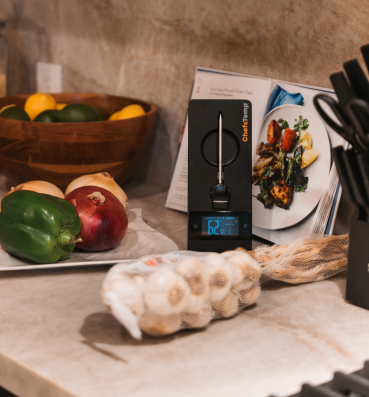
2. Charge the devices: Low battery or no power will prevent Bluetooth detection. Use the original charger to fully charge the Probe and Stand. Clean the probe to remove any debris. Adjust the metal plate in the Stand’s charging slot to ensure contact with the probe properly.

3. Remove the probe from the Stand: The probe must be removed from the charging base to activate Bluetooth pairing. Bluetooth cannot be detected while the probe is charging on the Stand.

4. Check for existing pairings: Ensure the probe is not already paired with another device. A probe can only be connected to one device at a time (including ProTemp S1 and ProTemp Plus Series).

5. Restart and reset: Power off the Stand completely, and restart it. Try pairing again from the beginning. Otherwise, reset your device via the Reset Button on the backside.

If needed, simply delete all existing connections in the app, reconnect your device, and add your extra probes. If it is still not working, please download the LightBlue app to test whether the “Probe” and “ProTemp Stand” are broadcasting Bluetooth signals.

Rest assured that your unit comes with a 1-year warranty. Please let us know the results after trying these steps. We’re here to help until everything is working smoothly.