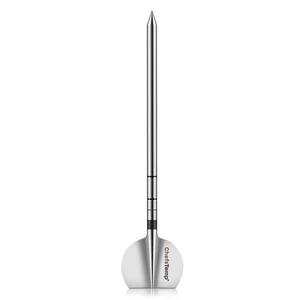
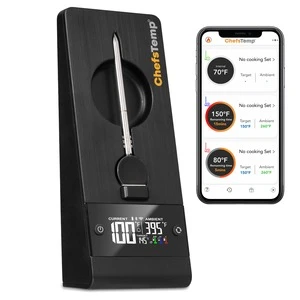
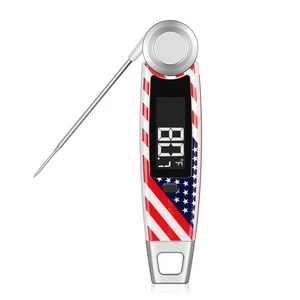
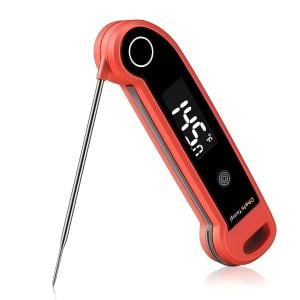
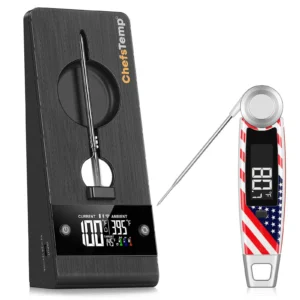
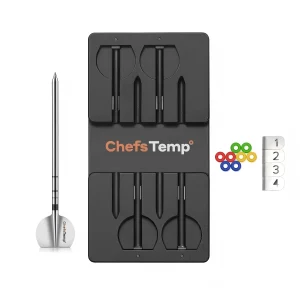
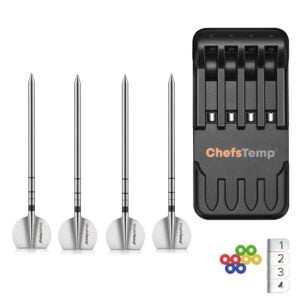
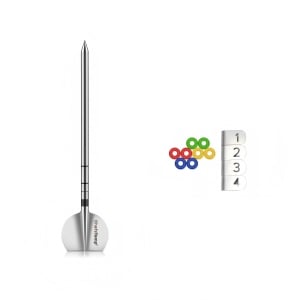
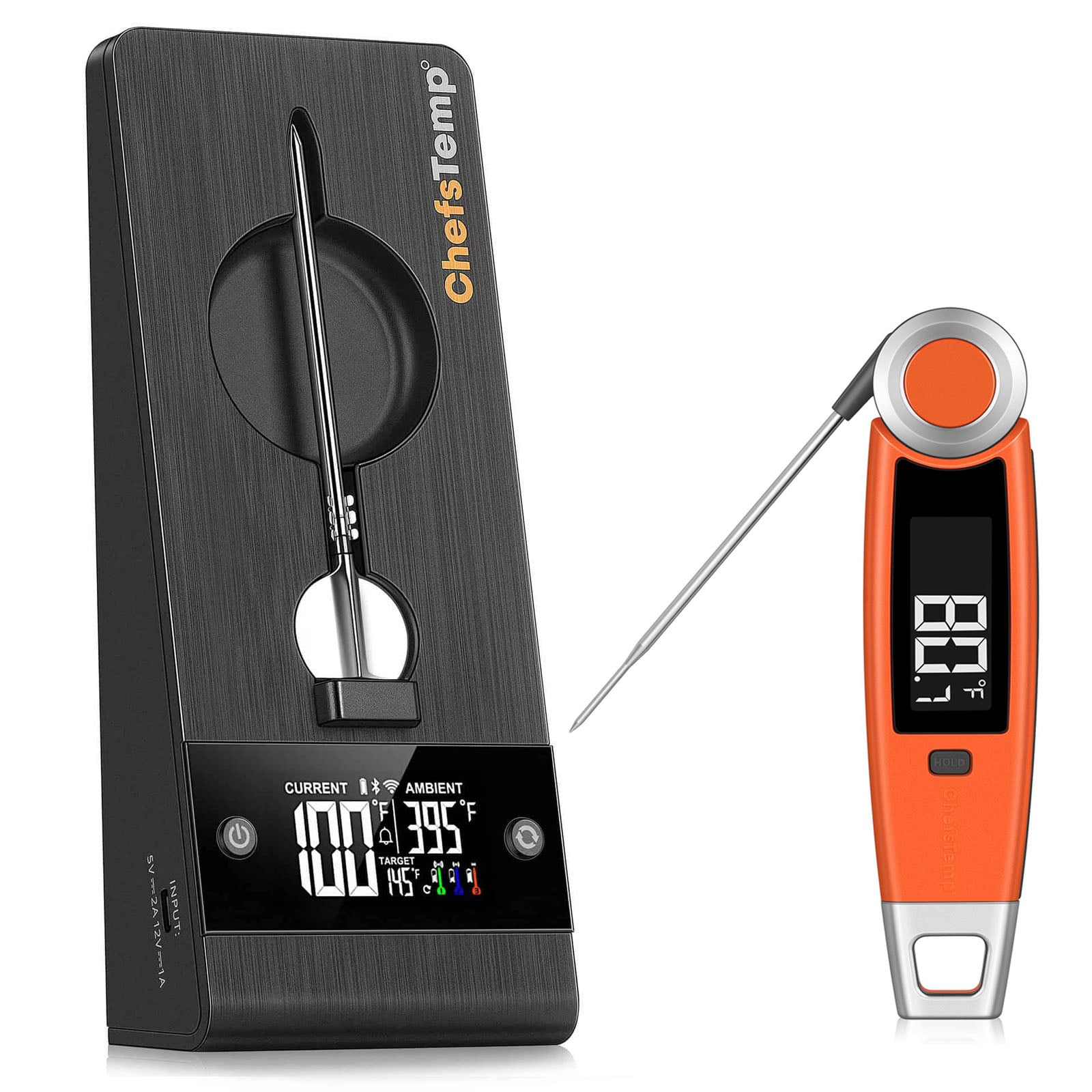
Test the probes individually instead of removing them all from the charger at once.
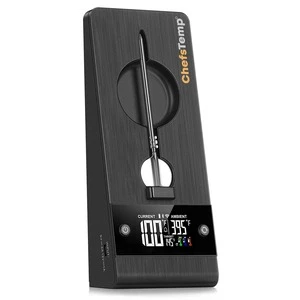
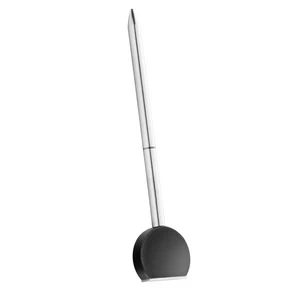
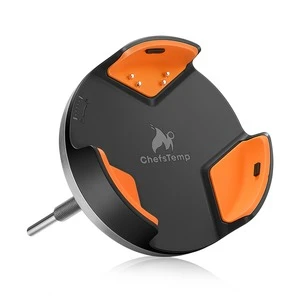
1. Charge your probes in a compatible, powered ChefsTemp charger or stand. Leave the other probes docked while testing one.
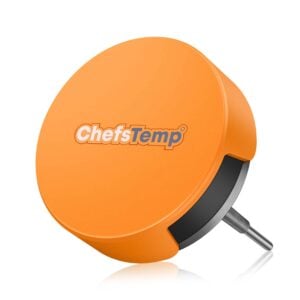
2. Remove only one probe and use the LightBlue app to check for a “Probe” entry. A probe stops transmitting while charging and becomes available for wireless detection after you remove it.
3. Check that probe’s connection and temperature readings in the ChefsTemp app through its paired S1 or Plus-series device.
4. Record which physical probe you tested and whether it was detected, connected, and displayed temperature data. Return it to the powered charger before testing the next probe.
If one probe consistently fails, send its model, test results, screenshots, and app error logs to [email protected]. Seeing LightBlue confirms that a signal is being detected; it does not prove that temperature readings or the connection are working correctly.
CHEFSTEMP SUPPORT
Probe: How can I identify a faulty wireless probe when several devices appear as “Probe”?
WE’RE HERE TO HELP
Still need help?
Contact our support team for help with your ChefsTemp products.