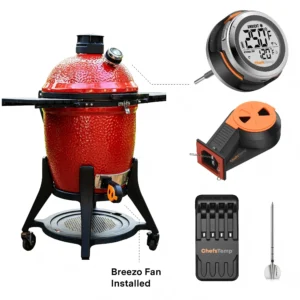
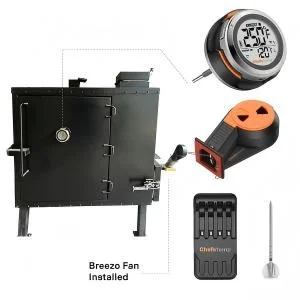
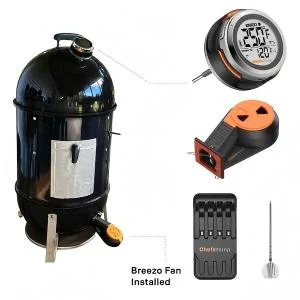
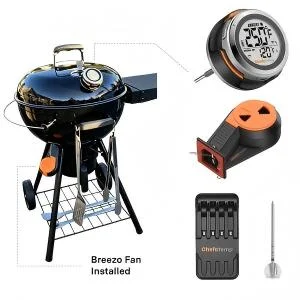
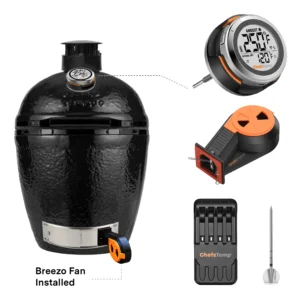
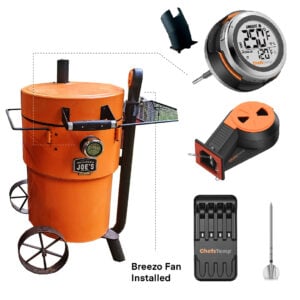
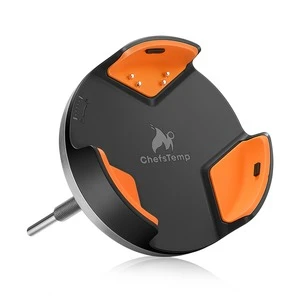
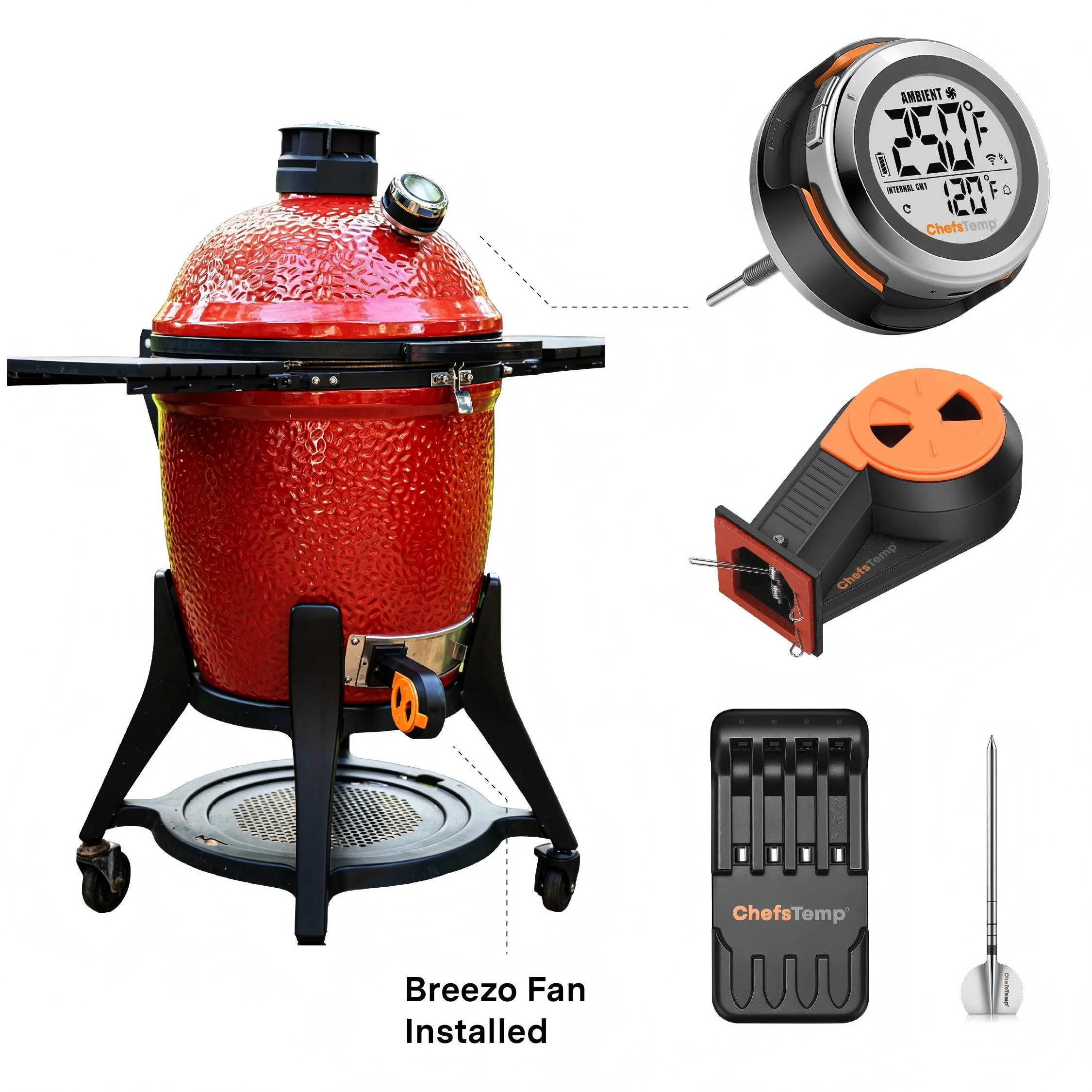
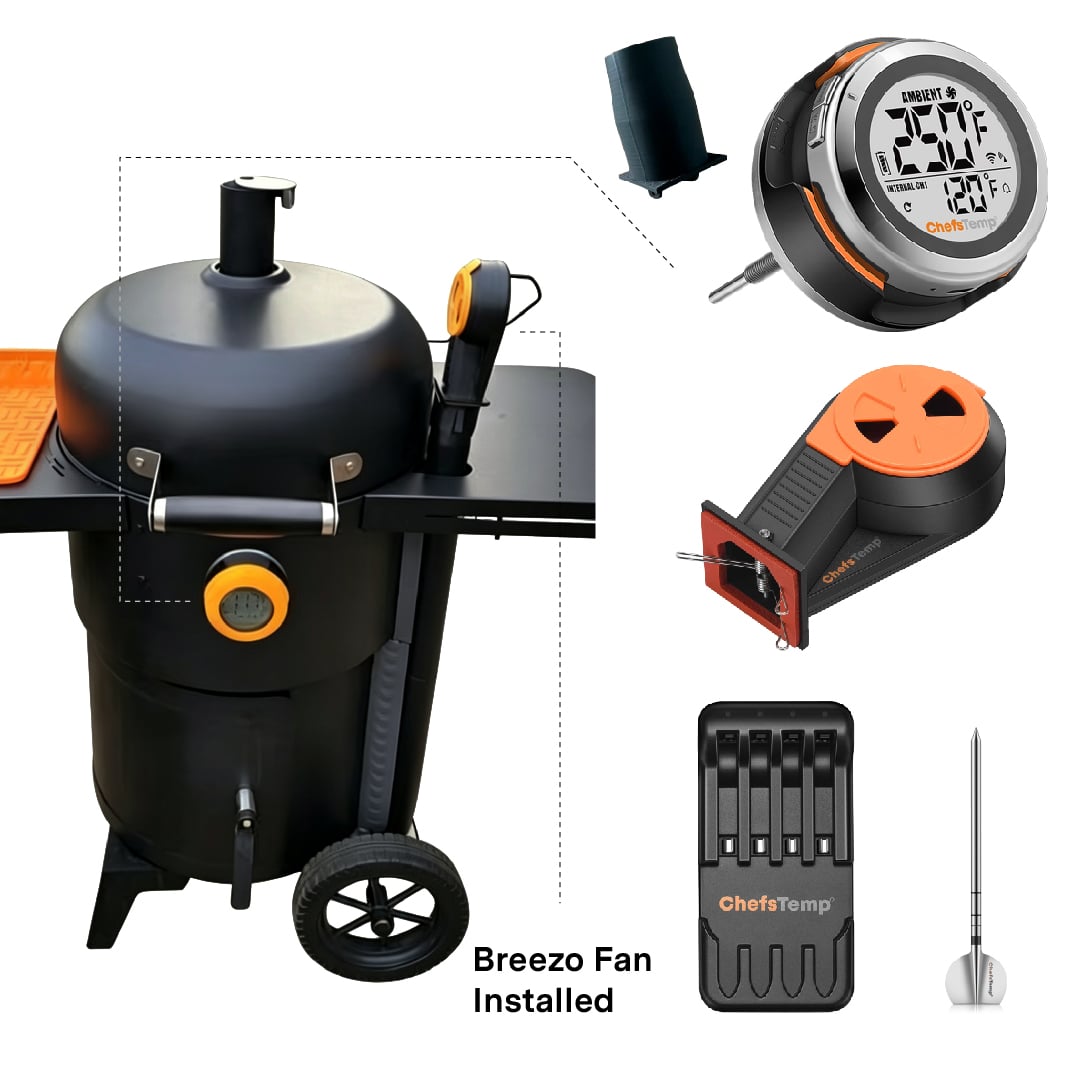
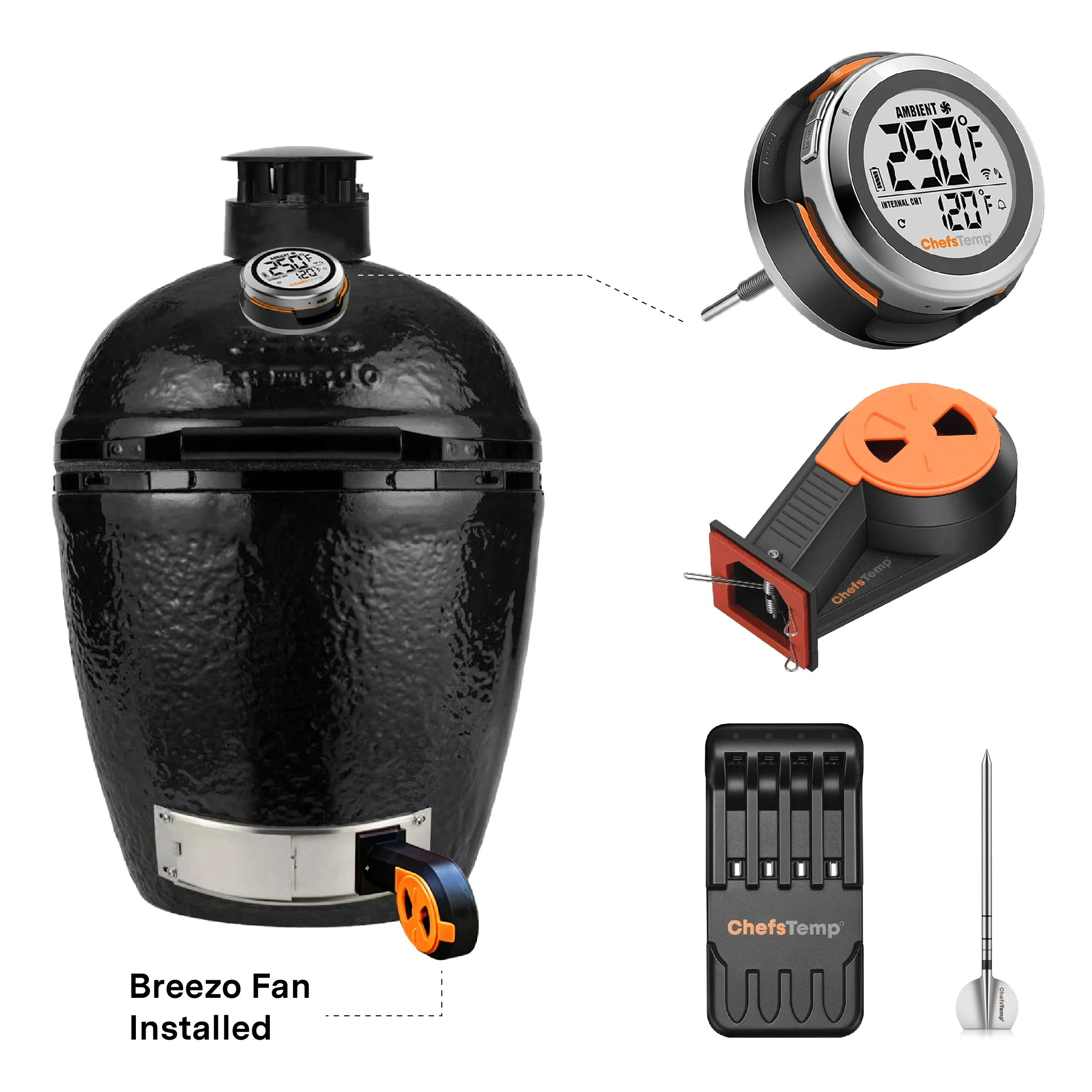
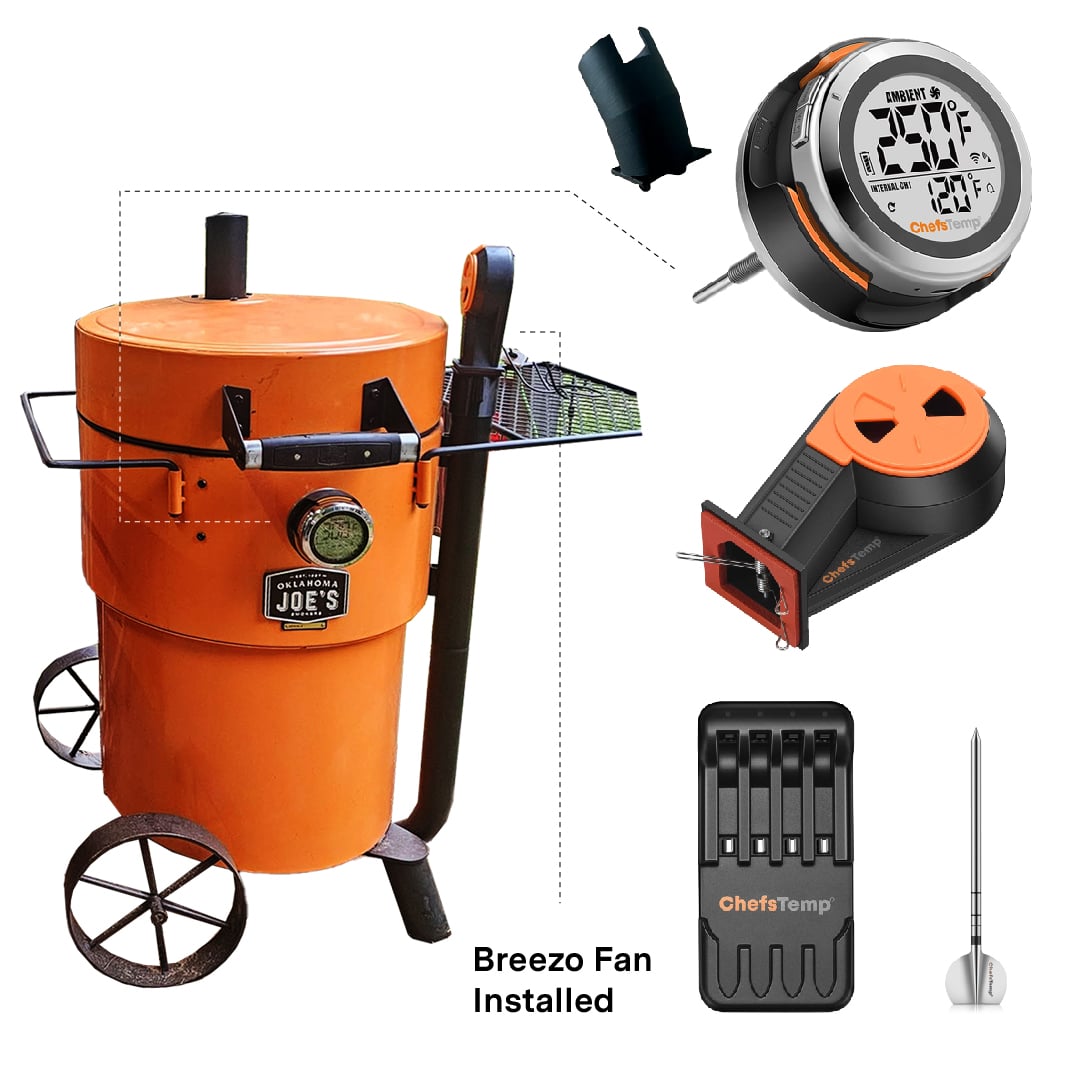
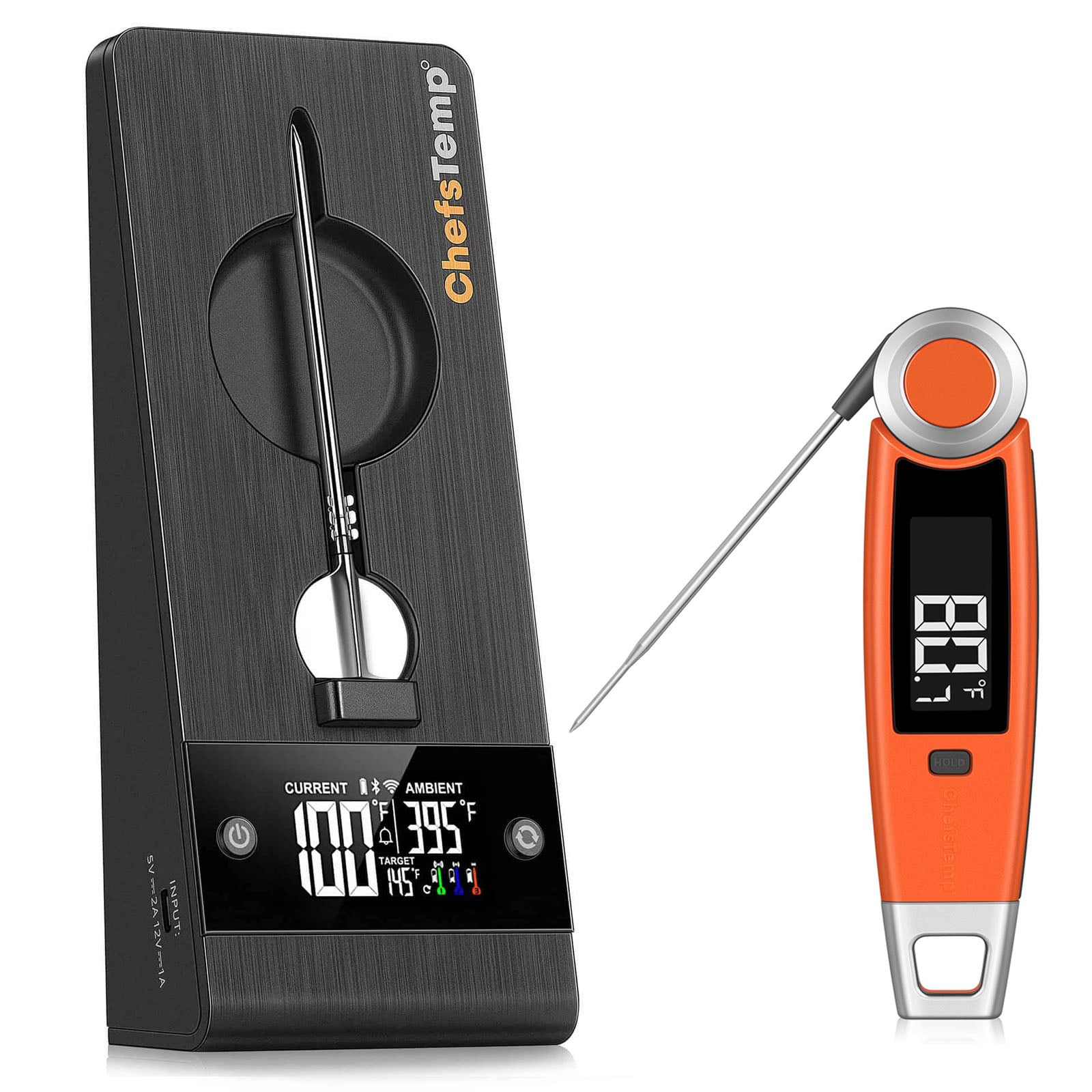
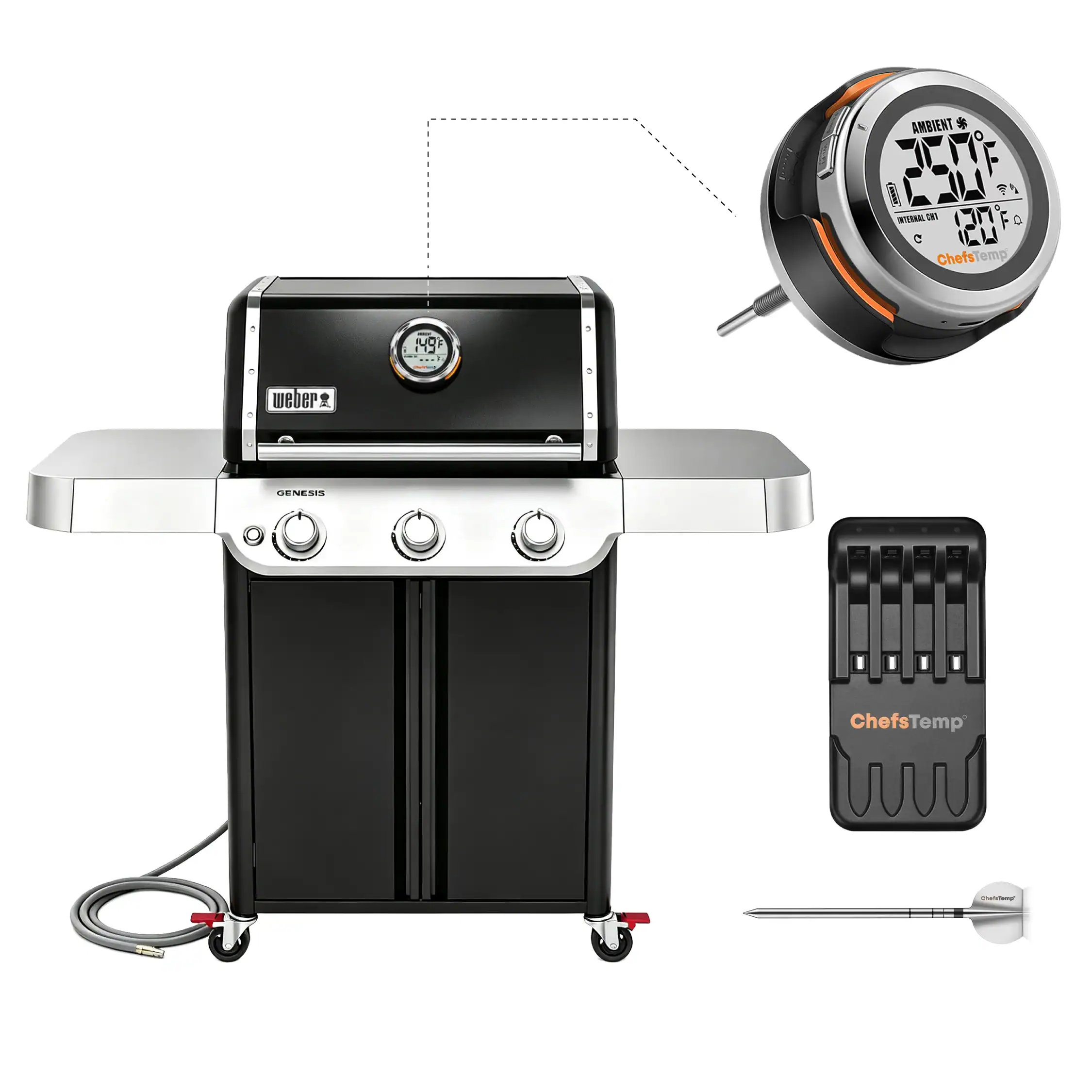
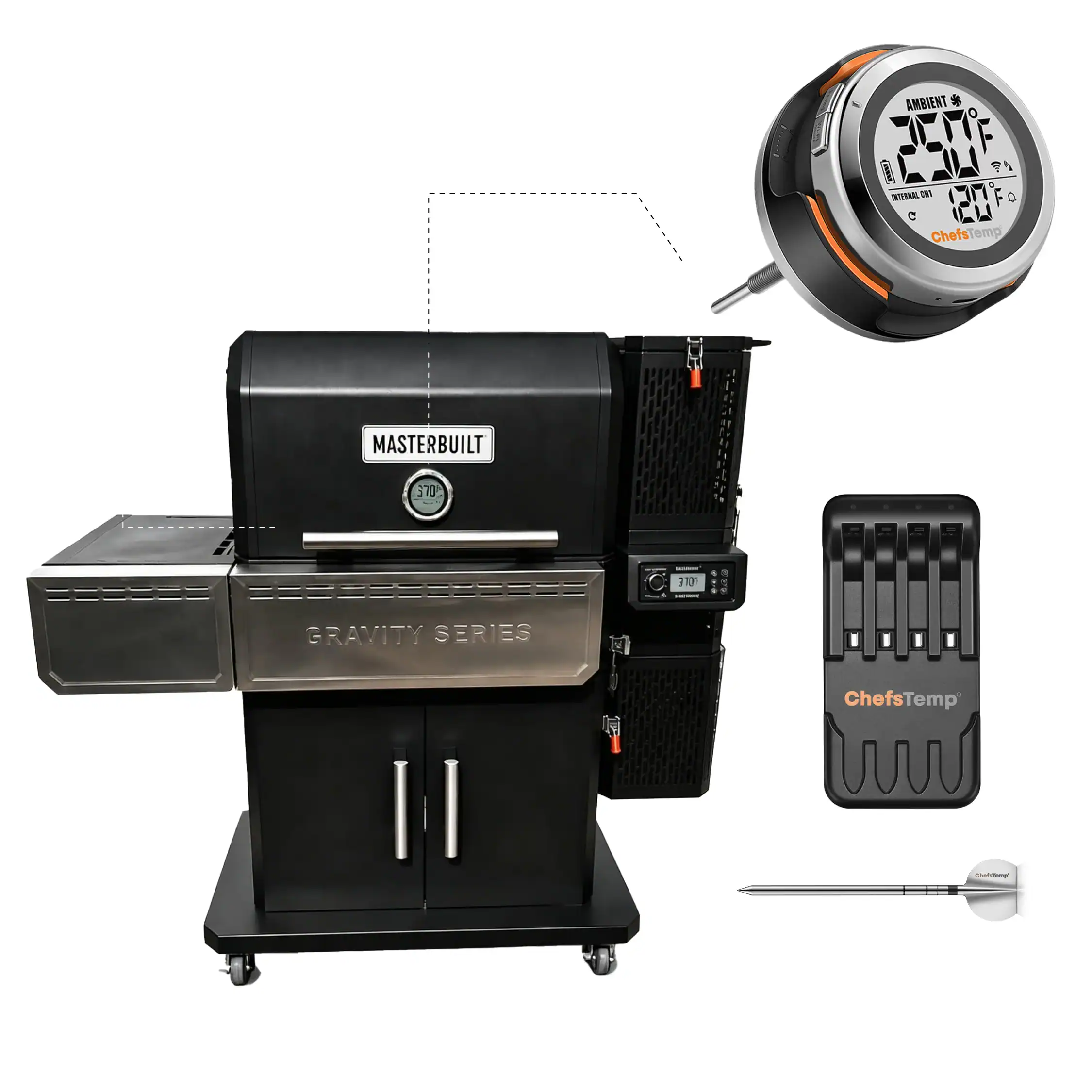
An app connection indicator alone doesn't confirm the Breezo Fan is physically running. For cable-powered Breezo models, check power, manual operation, and app control separately.
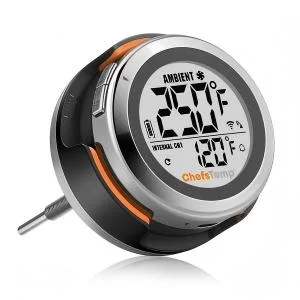
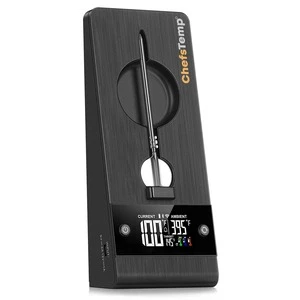
1. Check power and connections. Use the supplied adapter and cable. If using a power bank, follow the recommended Type-C-to-Type-C cable setup. Confirm that your ProTemp S1 displays temperature readings normally.
2. Check the software. Update the ChefsTemp app and S1 firmware. Update the fan firmware if your Breezo model supports updates.
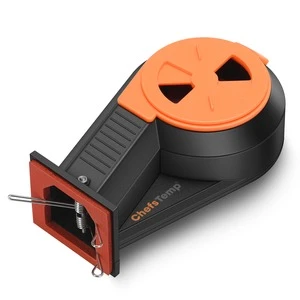
3. Test manual operation. Turn off fan control in the app. With Breezo connected to power, press its button once to start the fan, then twice to stop it.
4. Test app control. If manual operation works, try starting the fan through the app. If it does not respond, repeat the pairing procedure: with Breezo powered and S1 on, hold the fan button for approximately four seconds until the fan briefly turns. Press it twice to stop, then test app control again.
If manual operation fails despite correct power, or app control still fails after pairing, send your order number and a short video showing power connection, button operation, and the app status to [email protected].
Note:
● Confirm that your Breezo and S1 are connected correctly. You can watch this video: How to Wirelessly Connect the Breezo Fan to ProTemp S1?
● Check that your S1 and Breezo firmware are up to date. You can watch this video: How to Update Firmware on ProTemp S1 & Breezo Fan | Step-by-Step Guide.