Please watch our tutorial video to ensure you’re following the correct Wi-Fi setup process: How to Pair Your ProTemp S1 with Bluetooth and Wi-Fi | Step-by-Step.
If you are still stuck on the Wi-Fi connection step, please check the following tips:
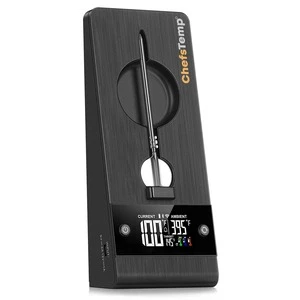
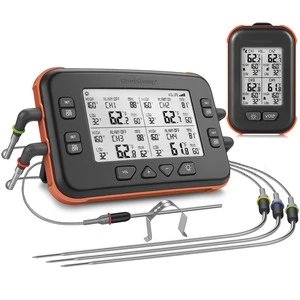
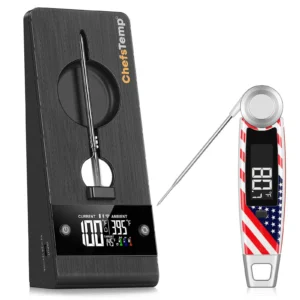
- 1. Confirm the Wi-Fi icon on your S1 screen is solid (not flashing). A missing icon indicates Wi-Fi is off, while a flashing icon suggests an unstable connection.
- 2. Check App Permissions: Make sure the ChefsTemp app has all required permissions—especially location access—enabled on your device.
- 3. Check Wi-Fi Settings: Ensure your Wi-Fi is on a 2.4GHz network. If 5GHz Wi-Fi only, simply create a guest 2.4GHz Wi-Fi network in the router app, making it easier for smart devices to join.
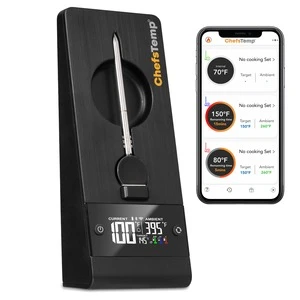
- 4. Password and SSID: Use the orange magnifying glass to auto-detect the SSID, and double-check that the Wi-Fi password is entered correctly, as spell-check may alter it.
- 5. Router Settings: Disable fast roaming (e.g., 802.11r) on your router, as it may prevent the S1 from connecting.