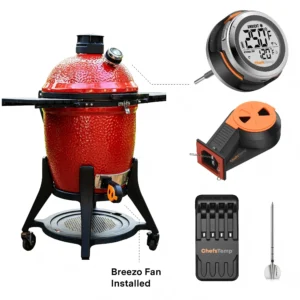
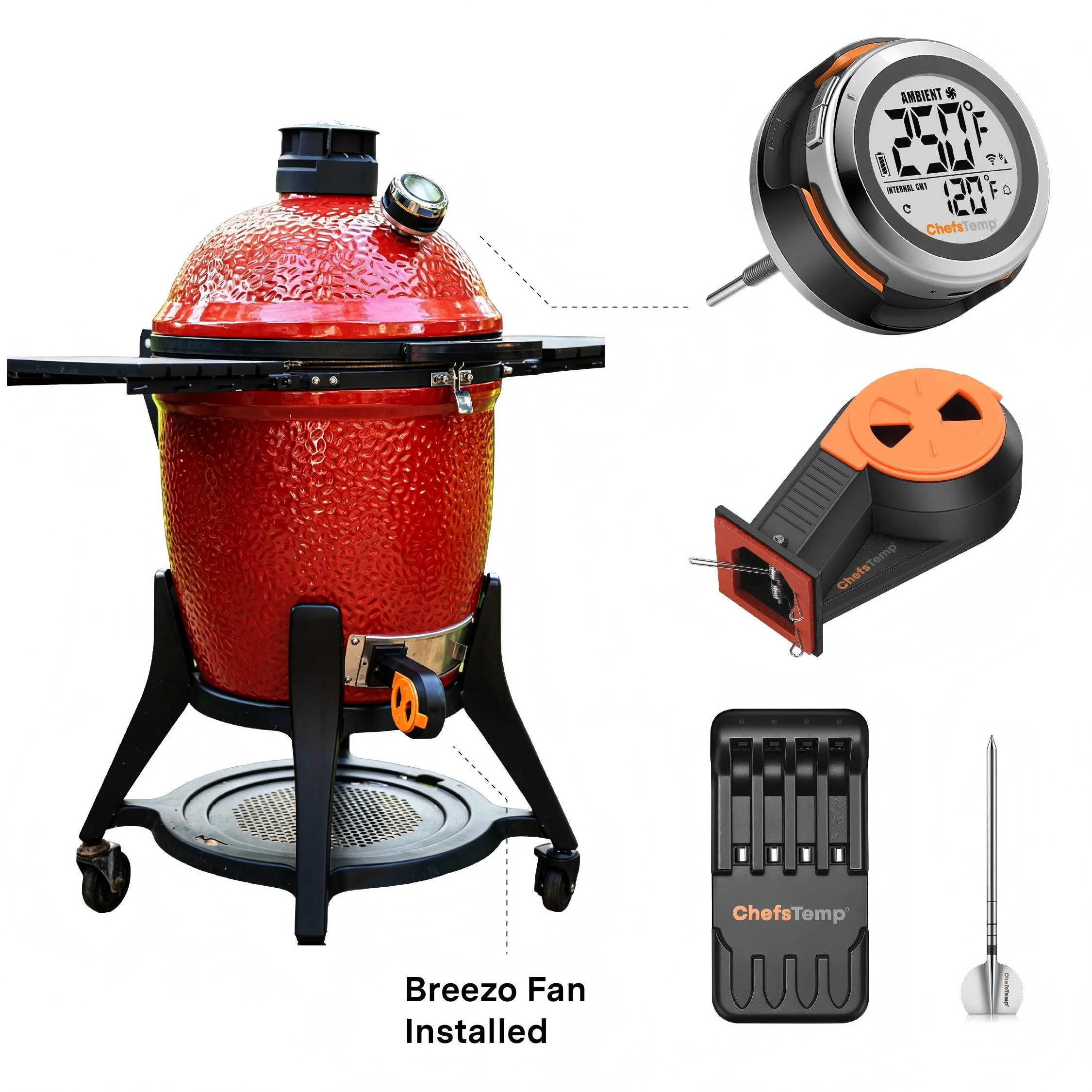
To ensure a successful firmware update for your Breezo V2 fan, please follow the steps outlined in this video: Firmware Update Guide. Please also make sure your app is updated to the latest version.
Here’s a step-by-step checklist that may help:
- Use the original charger to power the fan.
- Turn on and run the fan.
- Open the app and go to the firmware update section. If an update is available, proceed with the upgrade.
- After the update completes, fully close the app and reopen it.
- Return to the firmware page to confirm the update was successful.
If it still shows the old version, try logging out of your app account and logging back in before retrying the update.
If the issue persists:
- Try resetting the S1 unit.
- Disconnect and reconnect the S1 unit.
Important: If your Breezo was purchased before April 8, it is a V1 model, which does not support firmware updates. You can continue using it normally without updating.