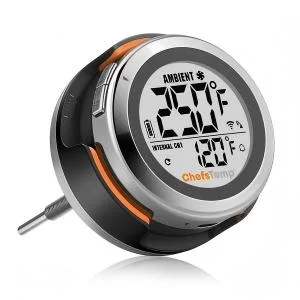
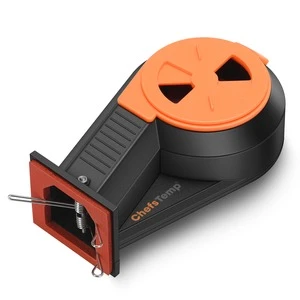
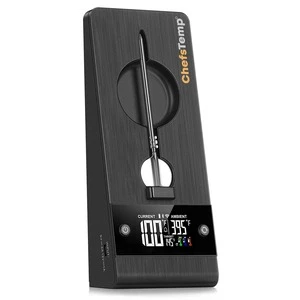
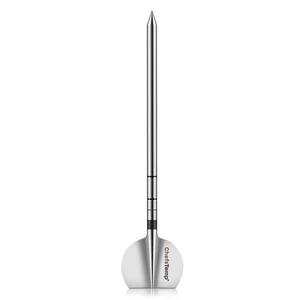
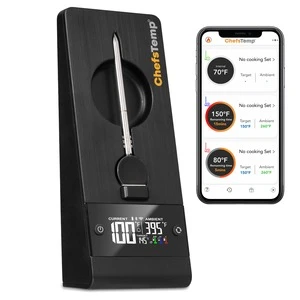
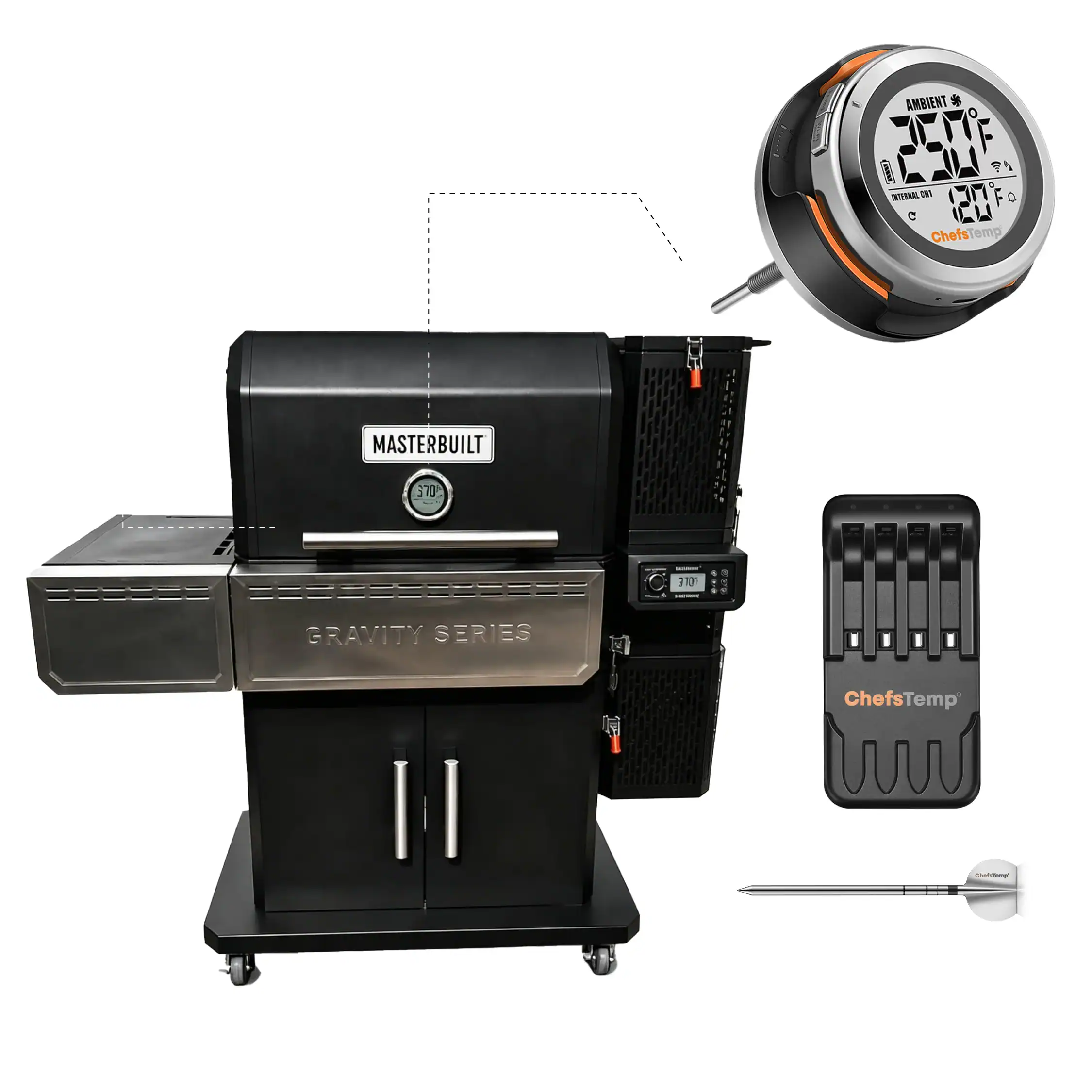
If you experience connection issues with your probes (can not connect the probes to ProTemp S1/ProTemp Plus Series, or the probe is disconnected during use), please try the following step-by-step guide:
- Delete all your connections in the app, including ProTemp S1, ProTemp Plus/ProTemp 2 Plus, and probes.
- Uninstall the ChefsTemp app and reinstall it; make sure you have the latest version.
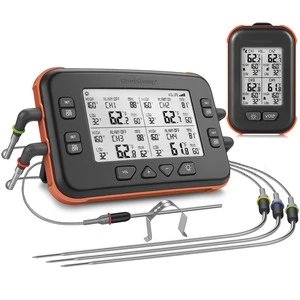
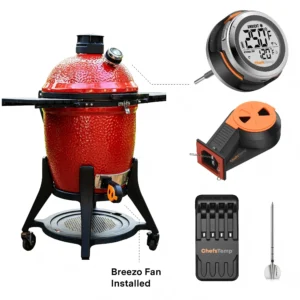
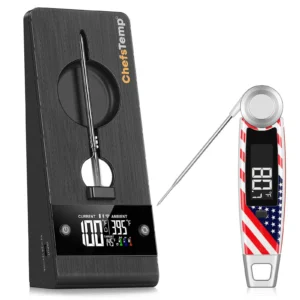
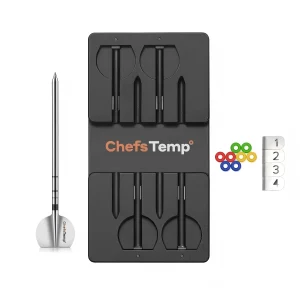
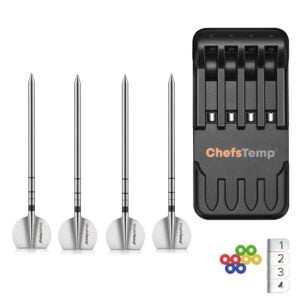
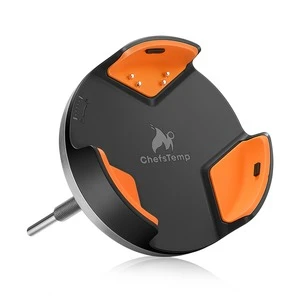
- Fully charge everything: Place all probes in the 4-in-1 Charger or ProTemp Plus/ProTemp 2 Plus Stand for at least 15 minutes.
- Pair probes one at a time: Take only one probe out of the Charger/Stand to pair. Wait for it to connect successfully, then put it back, and repeat with the next probe (Click on "…" in the upper right corner of the app homepage, click on "My Connections", click on "Add New Probe", and then click on "Probe" in "SEARCHING FOR NEARBY PROBES").
- Ensure that your ProTemp S1 and ProTemp Plus/ProTemp 2 Plus Stand are located close to the probe to ensure smooth transmission of probe signals.
This method avoids signal interference between probes and helps the app detect them correctly.
If your probe still cannot connect, you can perform the following confirmation steps:
- Click on the probe icon on the probe page to perform fault diagnosis. You can watch this video to perform the operation: New ChefsTemp App Update Guide | How to Diagnose Disconnection Issues
- After charging the probes, remove them from the Charger/Stand, download and open the LightBlue app, search for "Probe", and see if you can find them. Each charged and removed probe will display a "Probe" line.
- Please record a video of the full connection process, take screenshots of the app homepage and diagnostic information, include LightBlue screenshots, and send them to us. We will analyze them and provide a solution.
When the app shows a probe as disconnected, check the ProTemp 2 Plus Stand at the same time. Tell us whether the stand still displays that probe’s temperature, or whether both the stand and app have lost the reading.
Also note which probe is affected and whether it is out of the stand or in a charging slot. If possible, record the app and stand display together and send a new error log immediately after the failure. This helps our team distinguish a probe-to-stand connection issue from a stand-to-app connection issue, rather than assuming every app disconnection means the probe has failed.