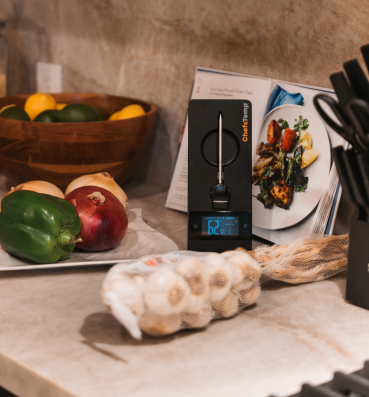
To ensure everything is set up correctly, please first refer to the video below for step-by-step connection guidance: How to Pair Your ProTemp 2 Plus.

If any issue persists, please watch this video on “How to Fix Bluetooth & Wi-Fi Pairing Issues on ProTemp Plus or ProTemp 2 Plus” and follow the checklist below to troubleshoot:

  1. Enable permissions:

-Make sure Bluetooth is turned on.

-Grant location and nearby device access permissions to the ChefsTemp app.

  1. Charge the devices: Low battery or no power will prevent Bluetooth detection.

-Use the original charger to fully charge the Probe and Stand.

-Clean the probe to remove any debris.

Adjust the metal plate in the Stand’s charging slot to ensure contact with the probe properly.

  1. Remove the probe from the Stand:

-The probe must be removed from the charging base to activate Bluetooth pairing.

-Bluetooth cannot be detected while the probe is charging on the Stand.

  1. Check for existing pairings:

-Ensure the probe is not already paired with another device. A probe can only be connected to one device at a time (including ProTemp S1 and ProTemp Plus Series).

-If needed, delete it from your phone’s paired device list and the app. If not sure, simply delete all existing connections in the app.

  1. Restart and reset: This helps resolve the Bluetooth issue and proceed with the next on-screen step–WiFi connection.

-Power off the Stand completely, and restart it.

-Try pairing again from the beginning.

-Otherwise, reset your device via the Reset Button on the backside.

  1. Advanced check (if still not working): Download the LightBlue app to test whether the “Probe” and “ProTemp Stand” are broadcasting Bluetooth signals.

Rest assured that your unit comes with a 1-year warranty. Please let us know the results after trying these steps. We’re here to help until everything is working smoothly.