


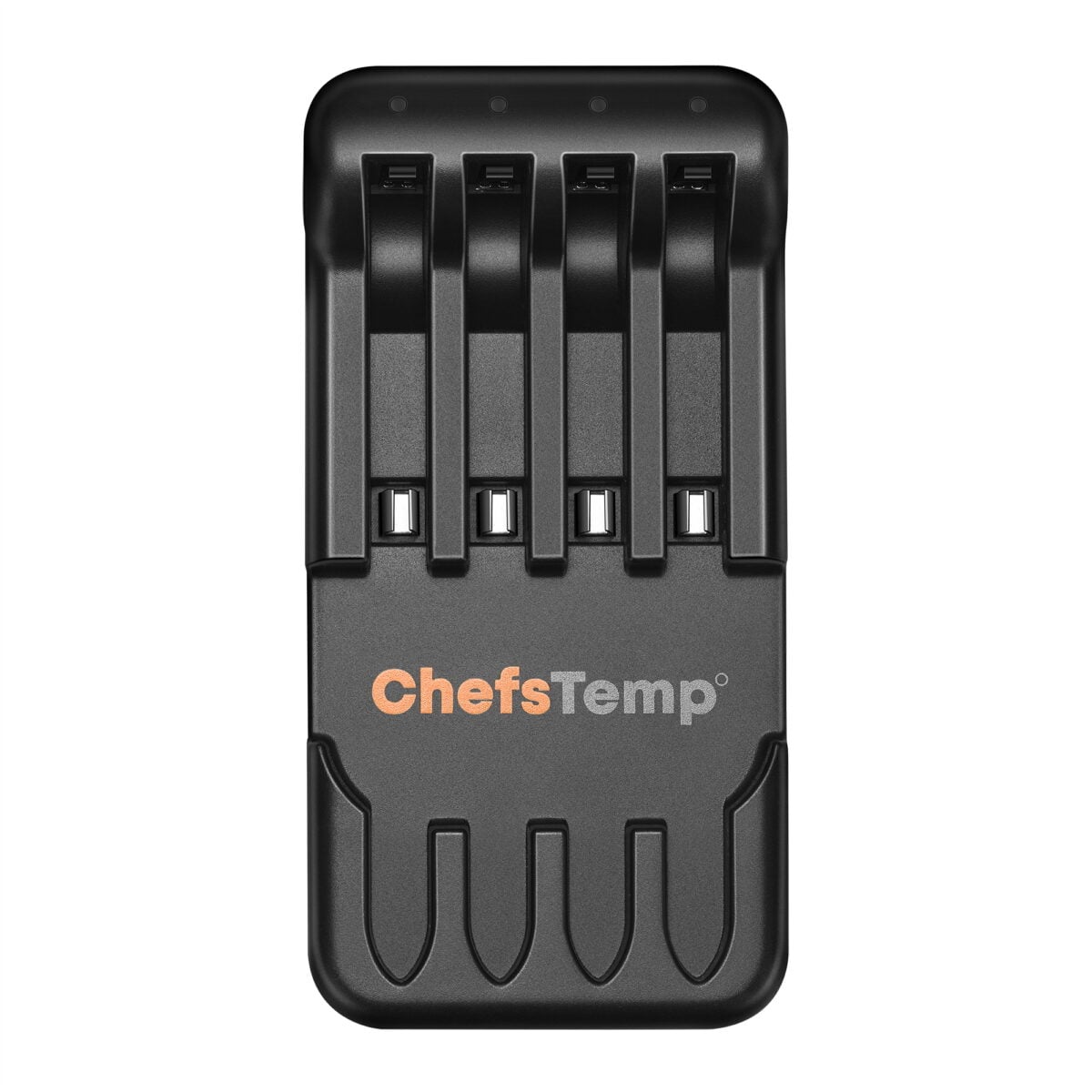
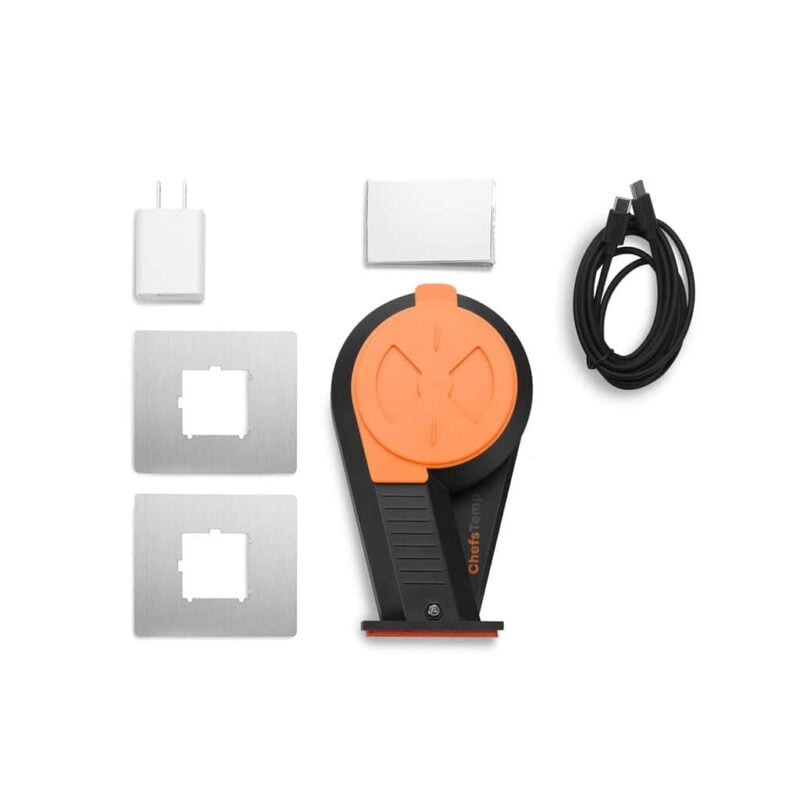
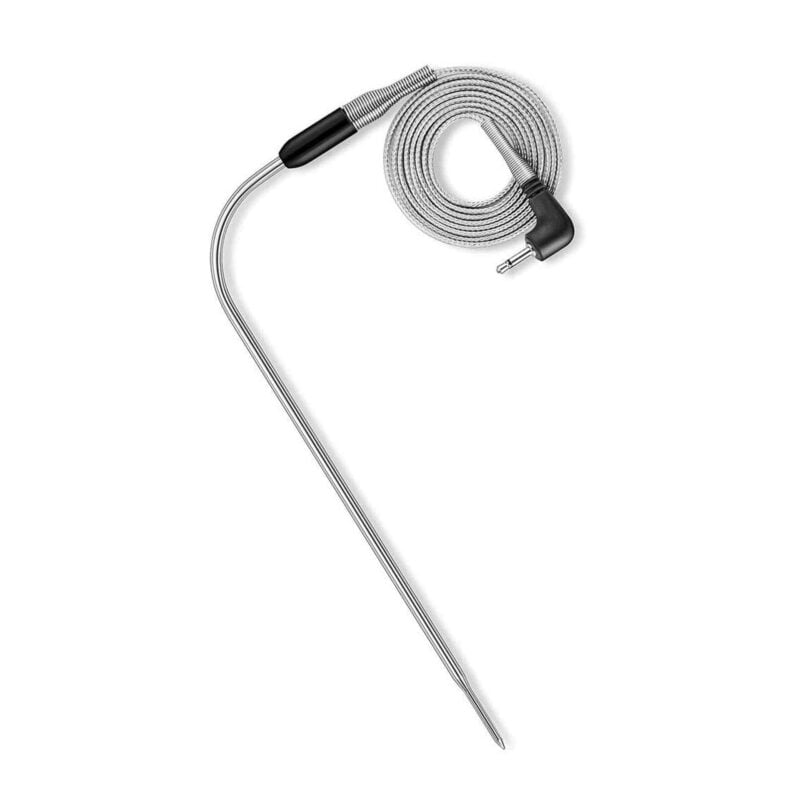
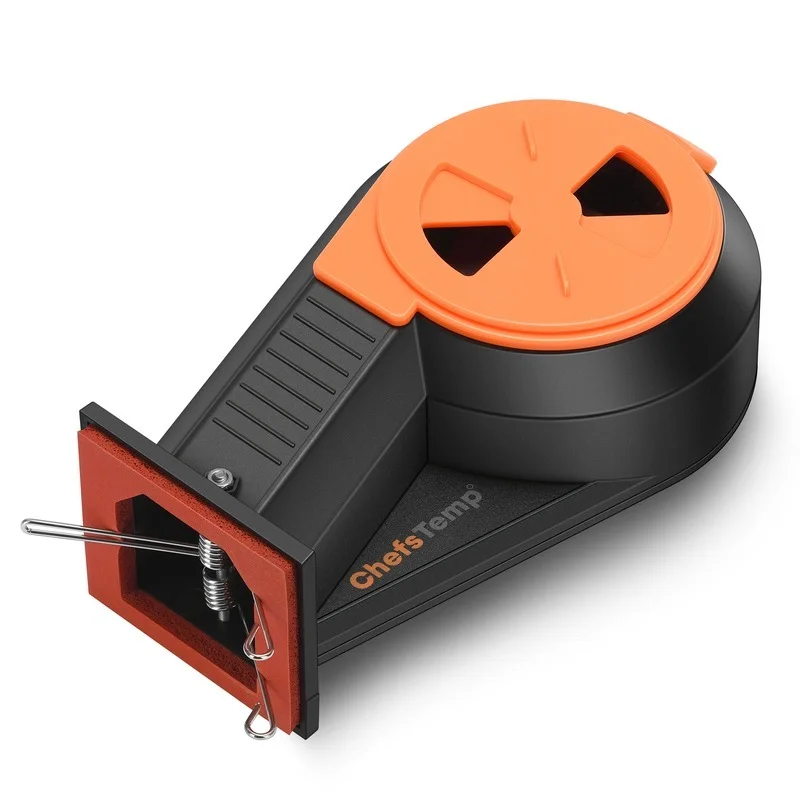
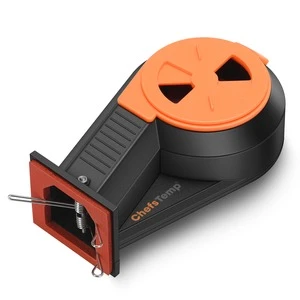
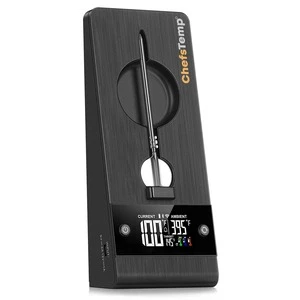
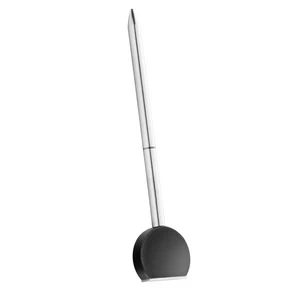
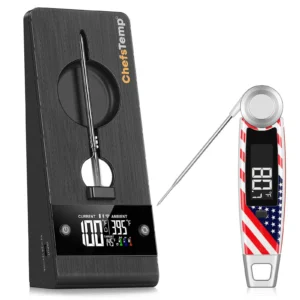
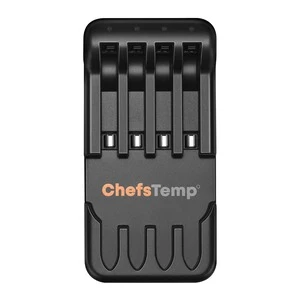
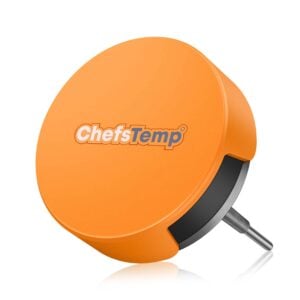
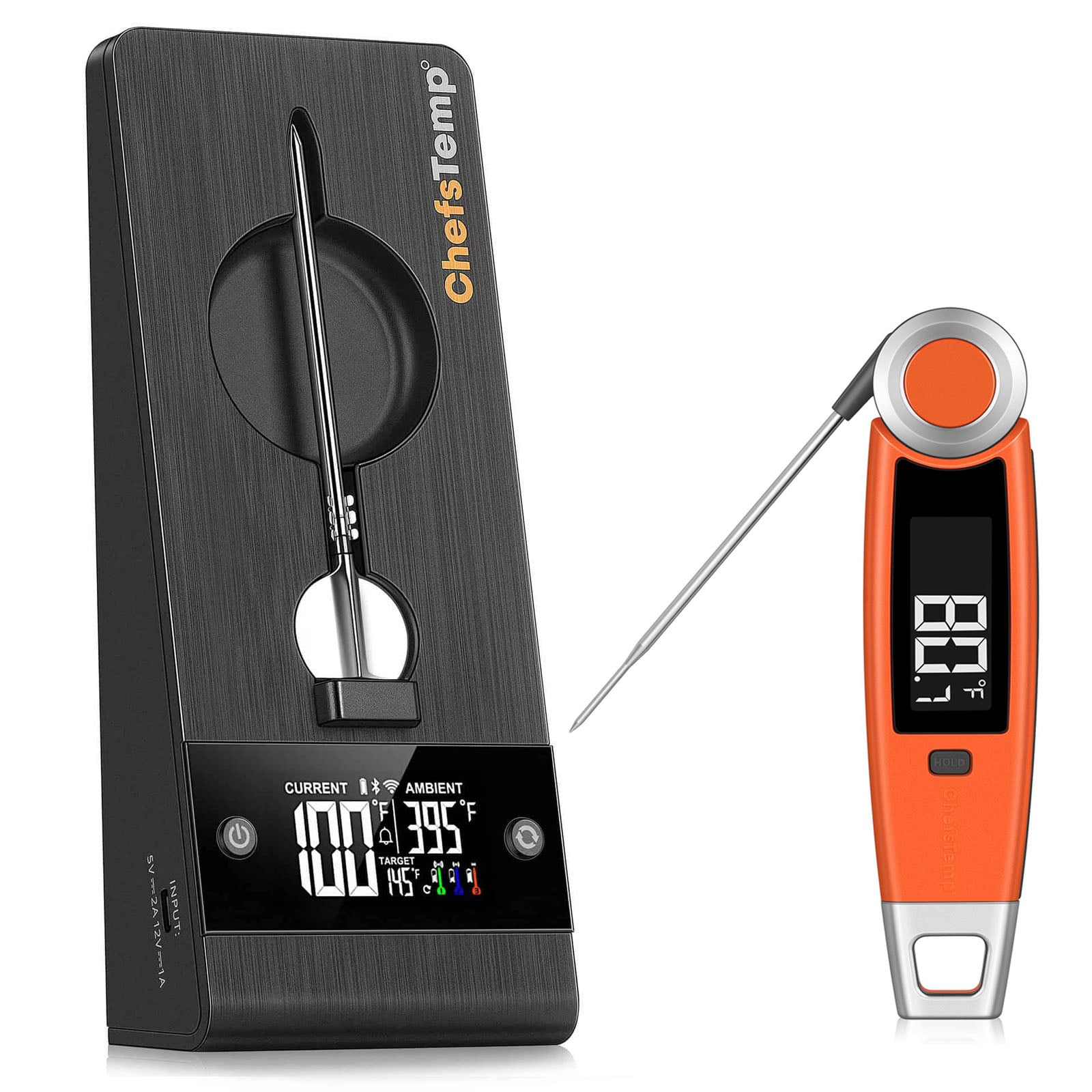
- This product only includes one ChefsTemp 4 in 1 Probe Charger and does not contain any probes!
- Can be used to charge our Original and New Generation wireless probes.
- Type-C charging cable connection (charging cable not included in the package)

Free US Delivery

30-Day Returns

1-Year Warranty

Red Dot & Awarded

Food & Wine
Recognized as a top choice for precision meat thermometers — perfect for turkey, BBQ, and everything in between.

AllRecipes
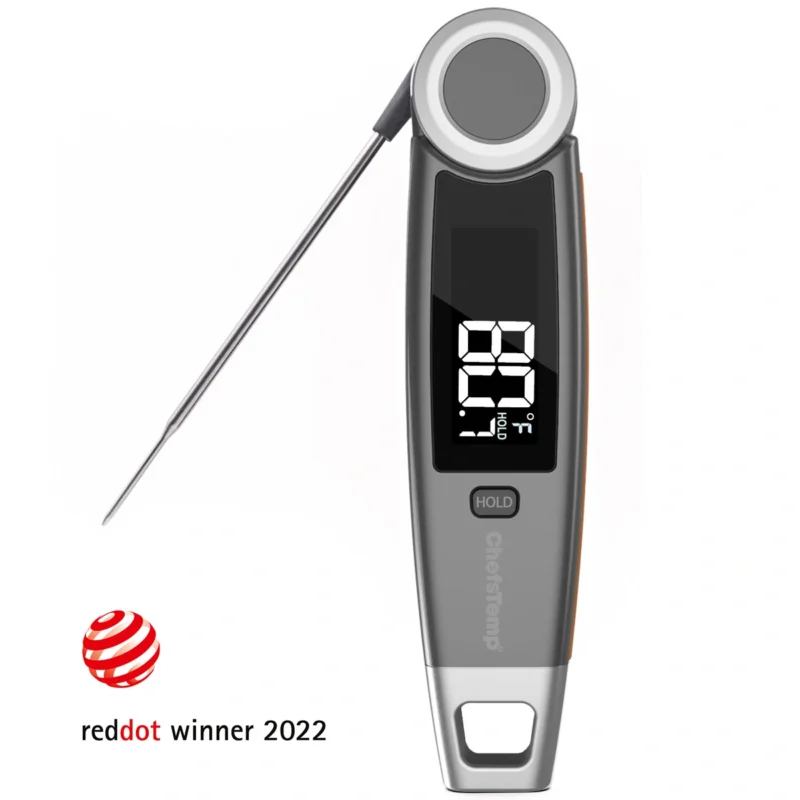
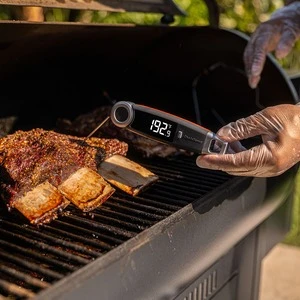
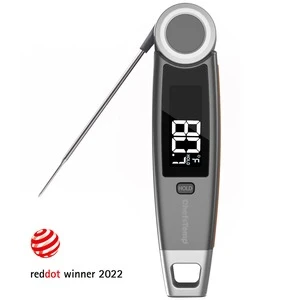
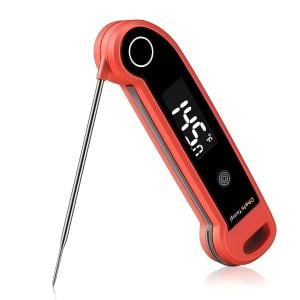
ChefsTemps's Finaltouch X10 delivers temperature results in under a second with a precision of 0.5°F, one of the fastest readings you'll find in a meat thermometer.












Discover More Products
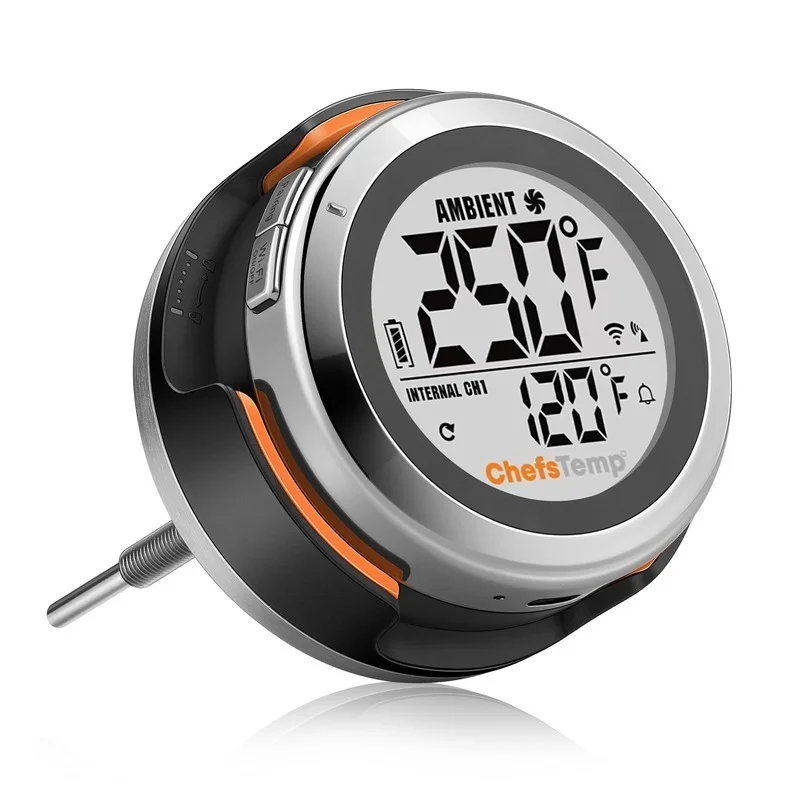
Original ProTemp Plus
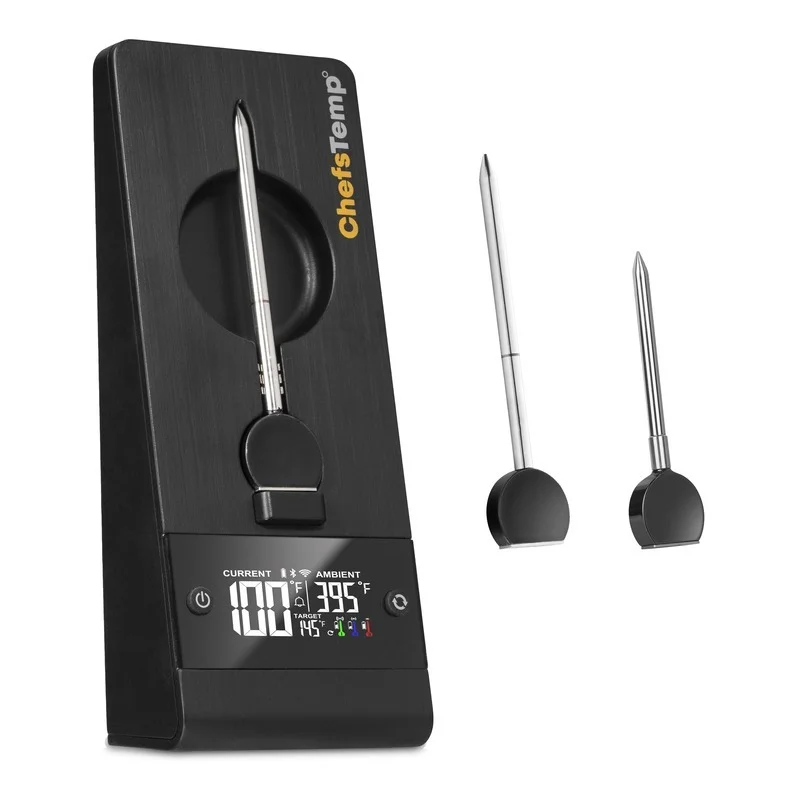
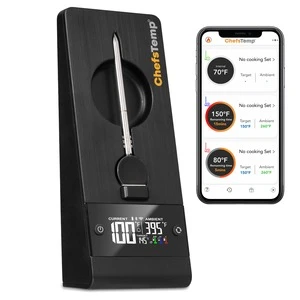
The Next Generation Wireless Smart Meat Thermometer
Price range: $119.99 through $209.97
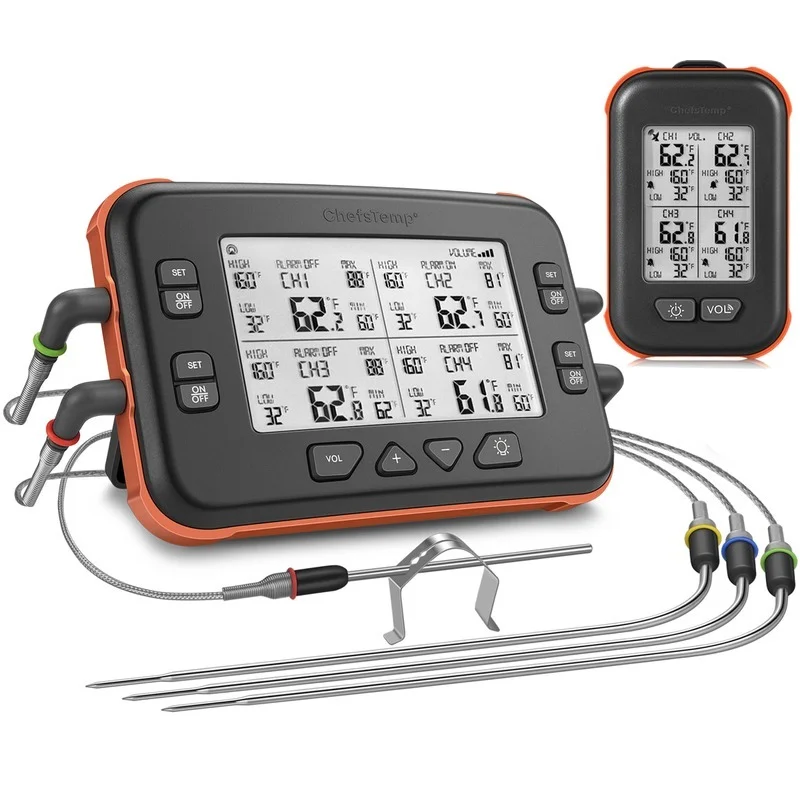

-13%
ChefsTemp FinalRest Professional BBQ Resting Blanket
Professional BBQ Resting Blanket Superior Heat & Juice Retention for Competition-Level BBQ. Insulated Meat Resting Bag Resting your meat is
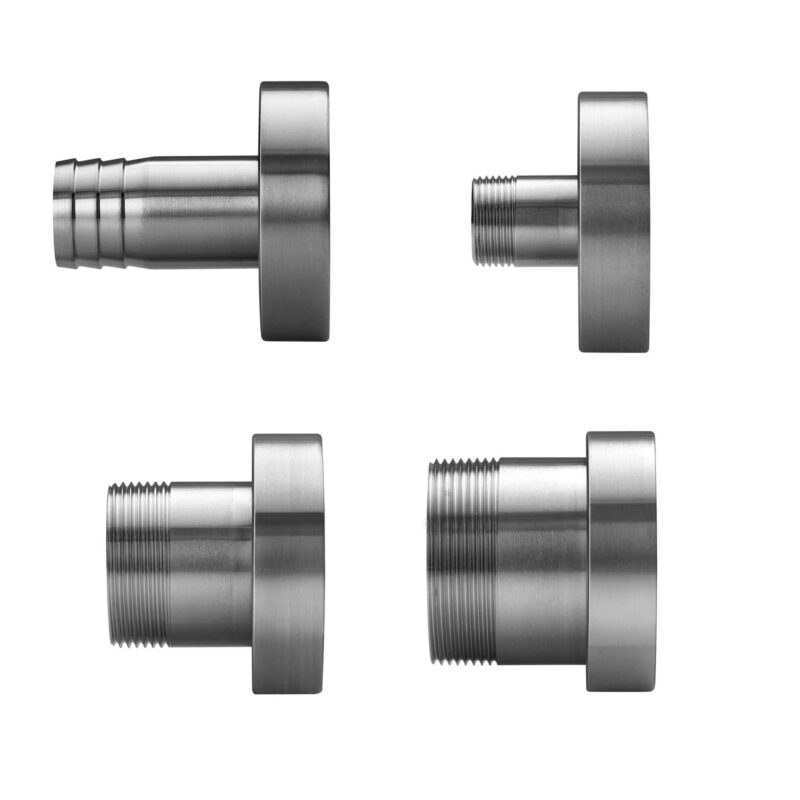
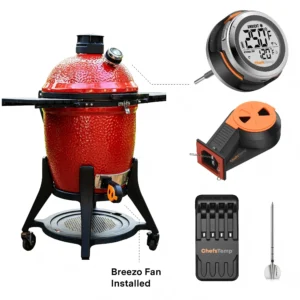
Breezo Fan Mounting Kit
Breezo is made to work with most grills and smokers. Some applications may require an optional mounting kit. 1.18″ Universal
Price range: $13.99 through $18.99

-17%
250th Anniversary USA 1776 T-Shirt – Patriotic Short Sleeve Tee
Celebrate America’s 250th Birthday in Style! Commemorate this historic milestone with our exclusive 250th Anniversary USA T-Shirt. Featuring a bold
-7%
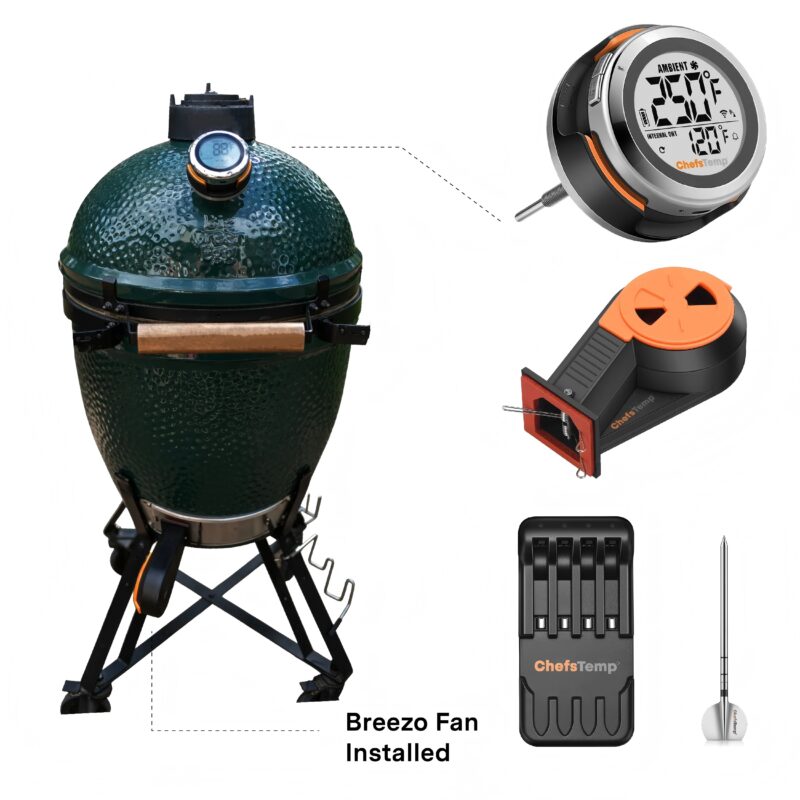
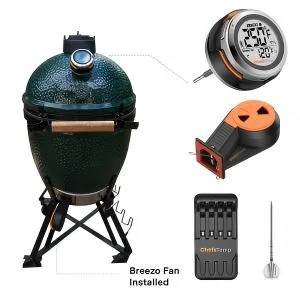
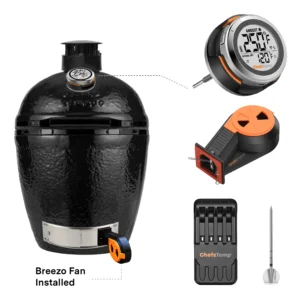
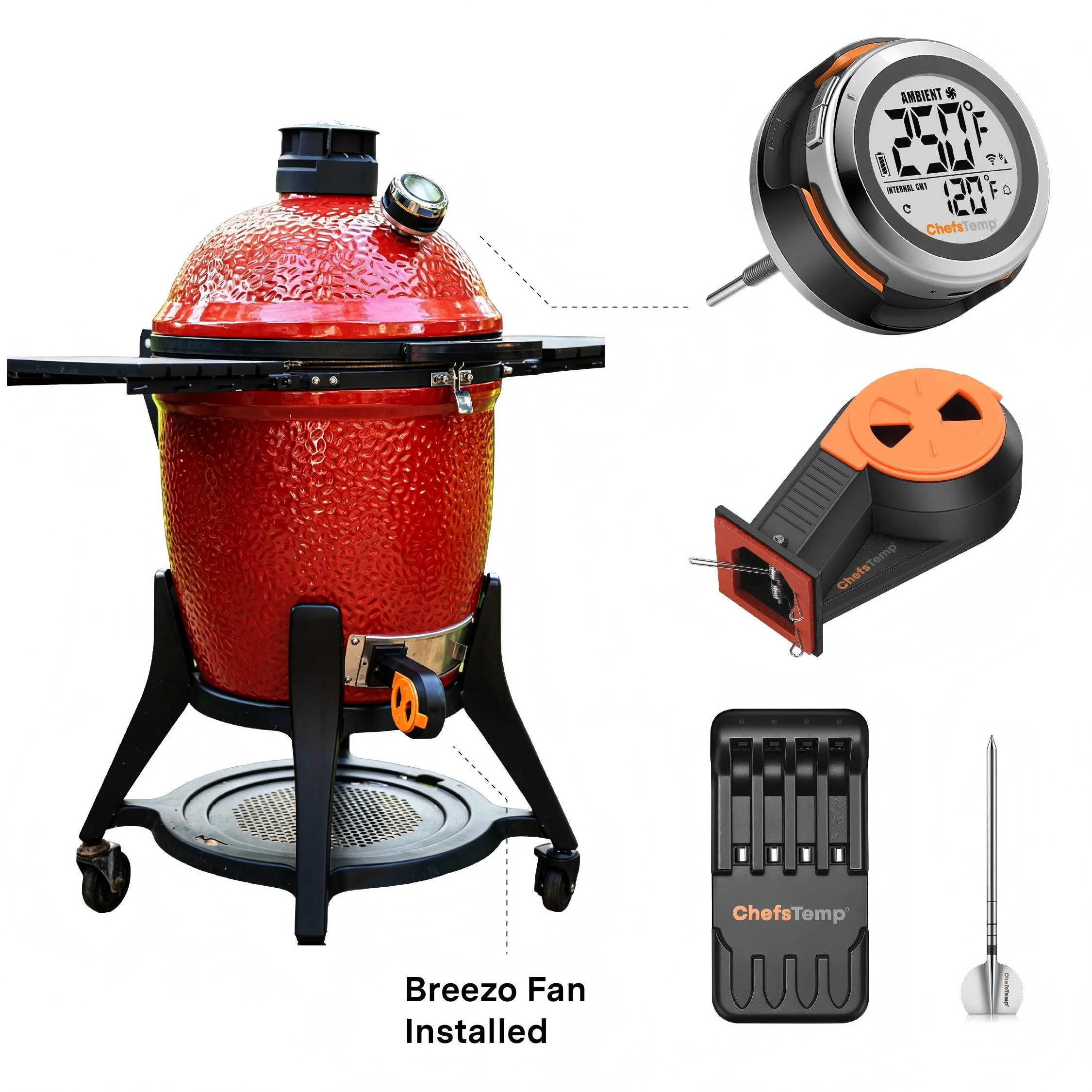
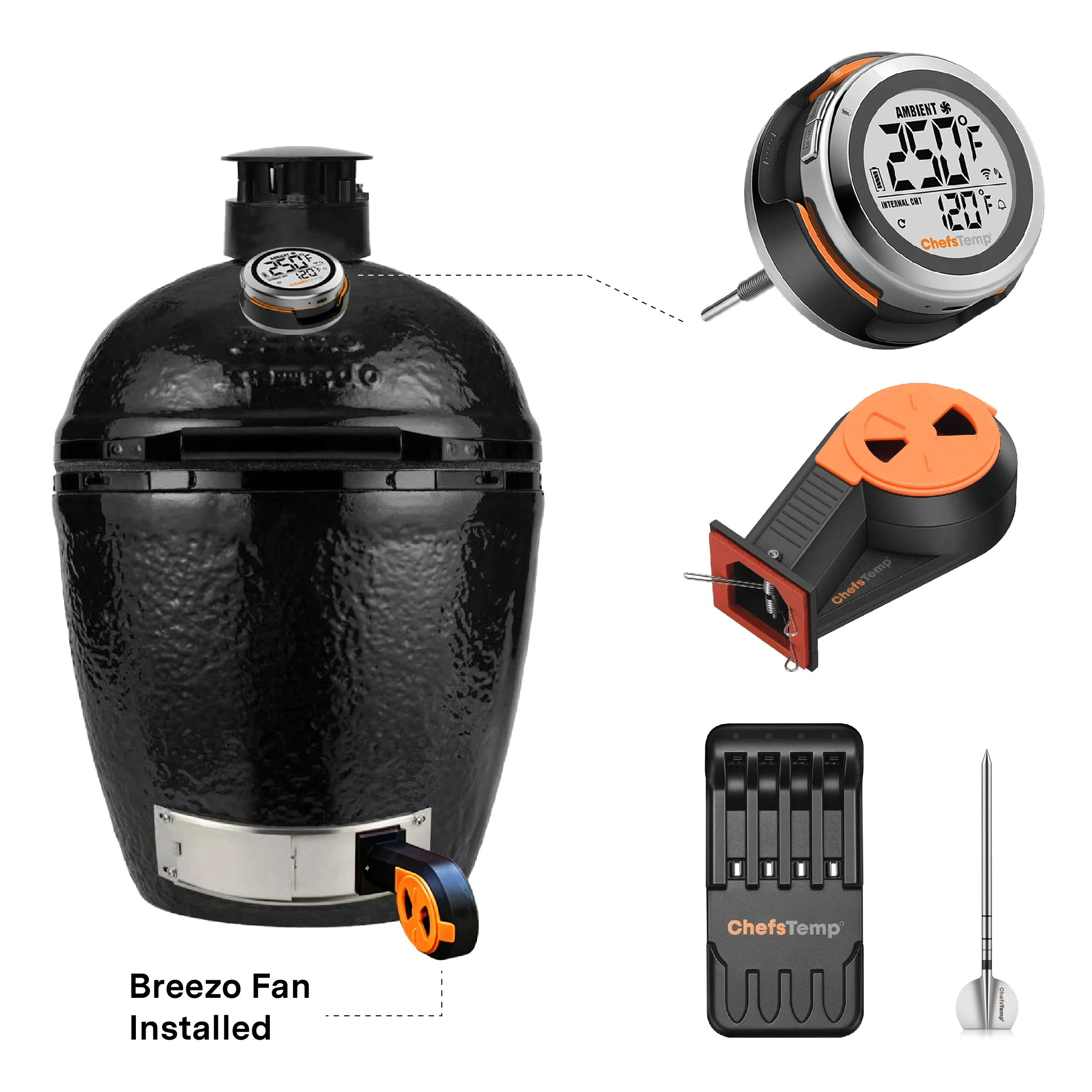
S1 Bundle for Big Green Egg & Primo Oval
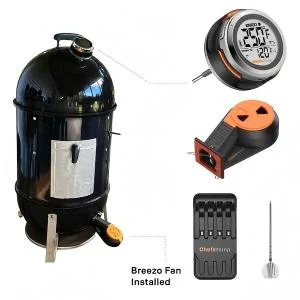
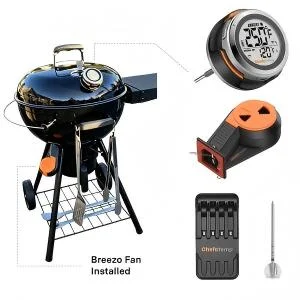
Wireless thermometer & temperature controller for ceramic grills.
$239.99 – $389.96
-7%
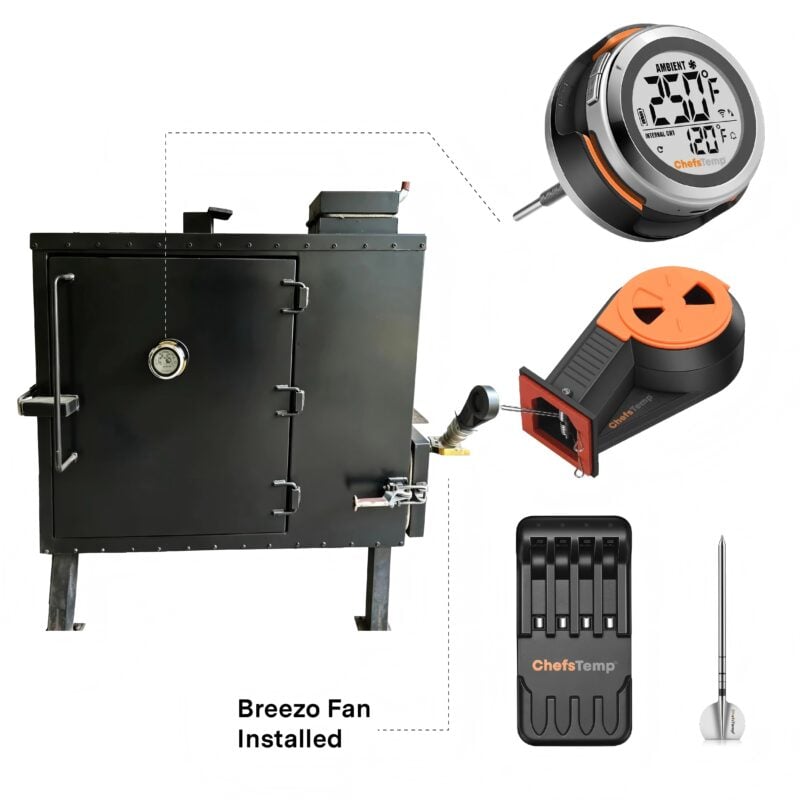
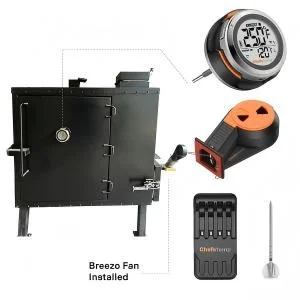
S1 Bundle for Old Country Smokers (with S1 5.5 inch version)
Wireless thermometer & temperature controller for gravity-fed smokers.
$239.99 – $389.96
Breezo Fan MiNi Metal Mounting Plate for Akorn
Size: 2.95 x 1.81 inches (7.5 x 4.6 cm) Suitable for installing the Breezo Fan on models with small intake
$12.99

Sold out
ChefsTemp Safe Cook Temp Magnet
Safe Cook Temp Magnet. Easy to understand information and images will allow you to cook meat perfectly and safely every
$4.99






















Reviews
Clear filtersThere are no reviews yet.