CHEFSTEMP HELP CENTER
All FAQs
Find answers, product video tutorials, and support for your next cook.
234 answers
Browse all FAQs →S1: Do I need to drill a hole to install the ProTemp S1?
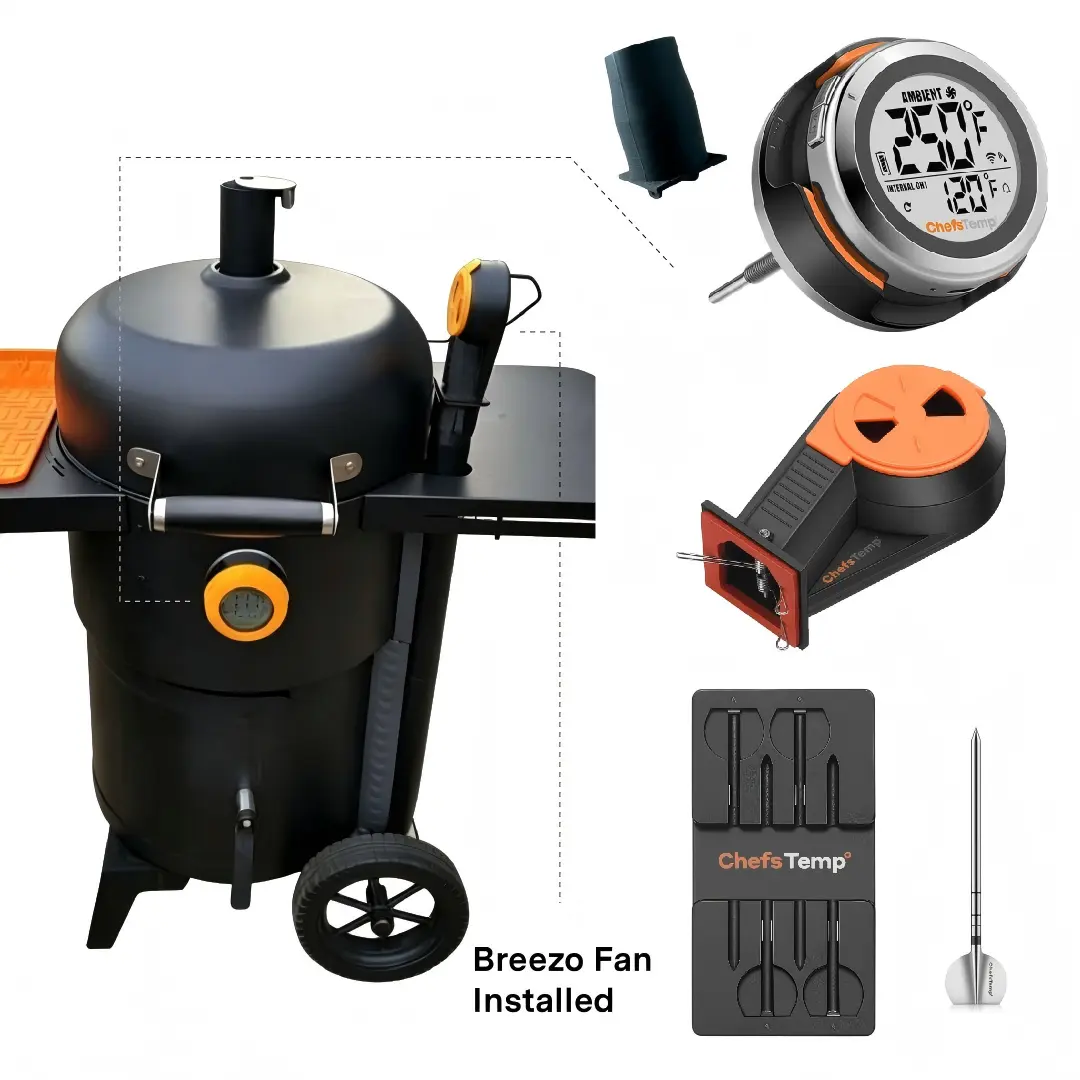
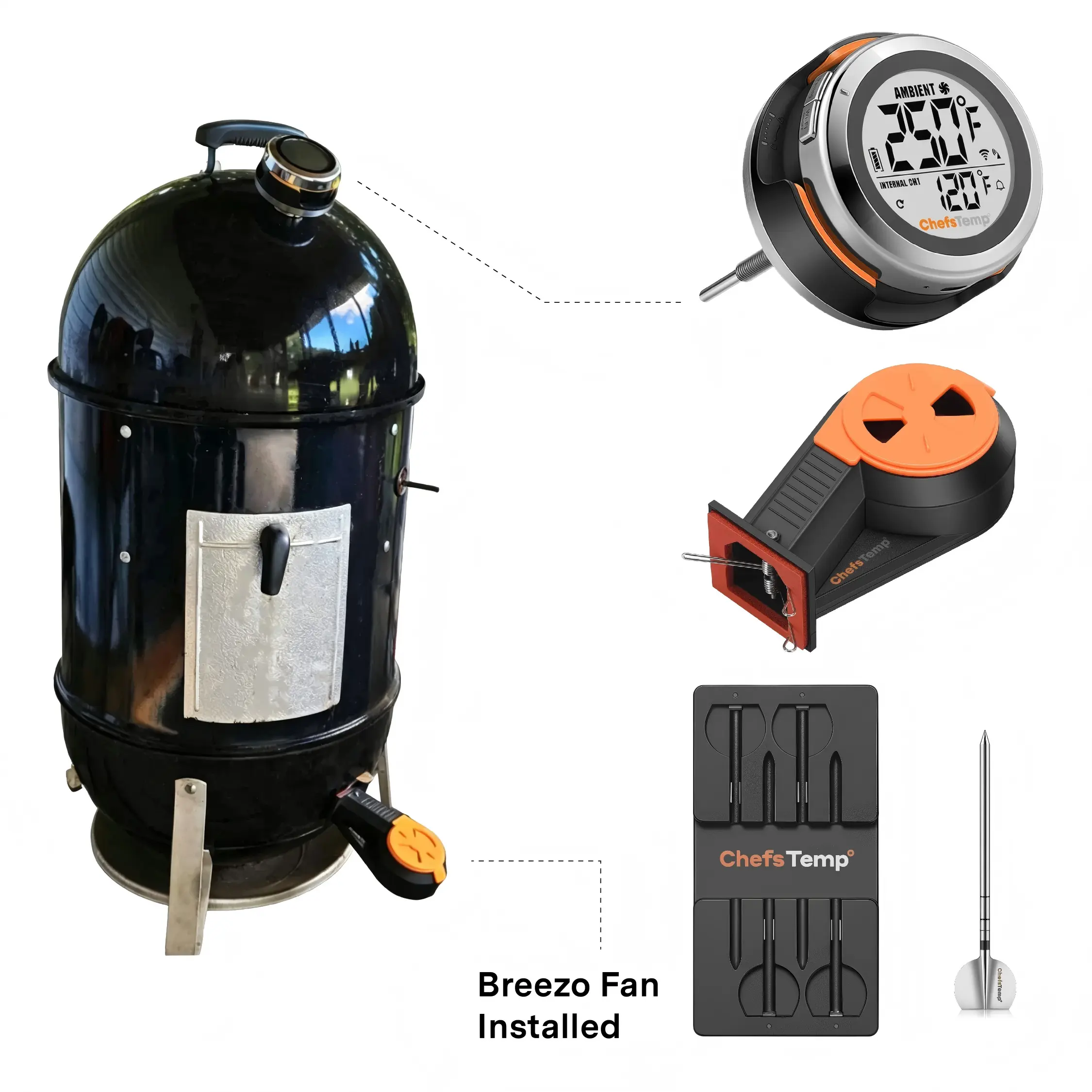
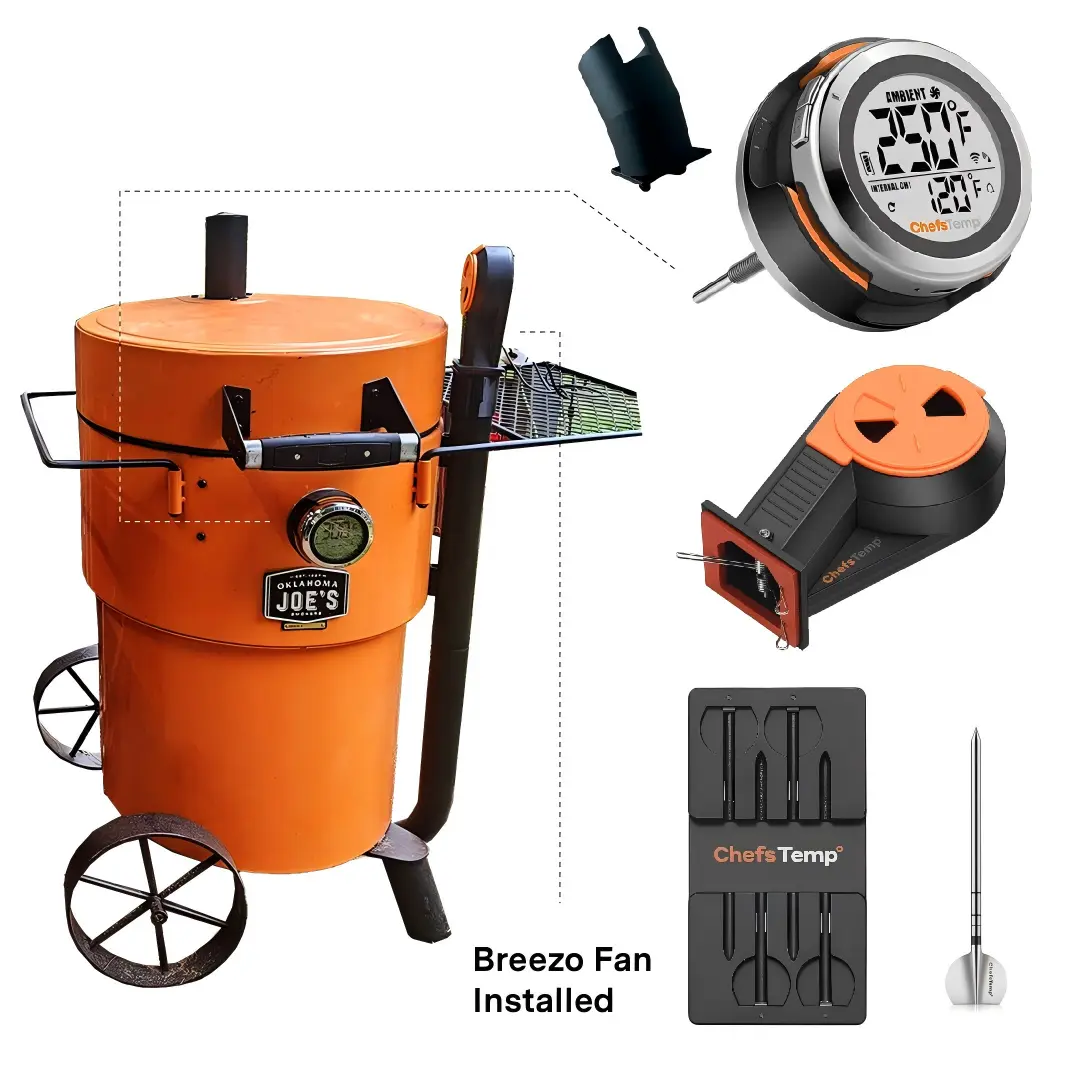
S1: Do I need to drill a hole to install the ProTemp S1?
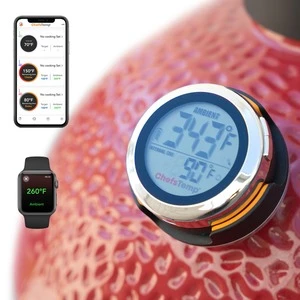
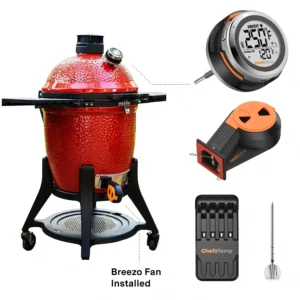
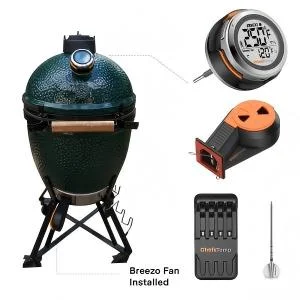
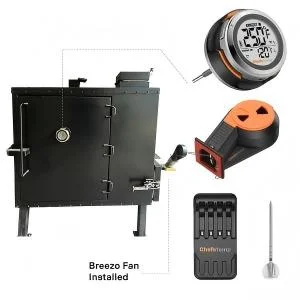
No need if your grill has an analog thermometer—just replace it. If there's no hole (like on some offset smokers), you can drill one. Just skip drilling on ceramic grills.
Breezo Fan: Is it waterproof?
Breezo Fan: Is it waterproof?
Breezo Fan is not waterproof. Please ensure it stays dry at all times. Water exposure may cause malfunction or permanent damage, so handle with care around liquids.
Plus Series: It's unable to charge other devices.
Plus Series: It's unable to charge other devices.
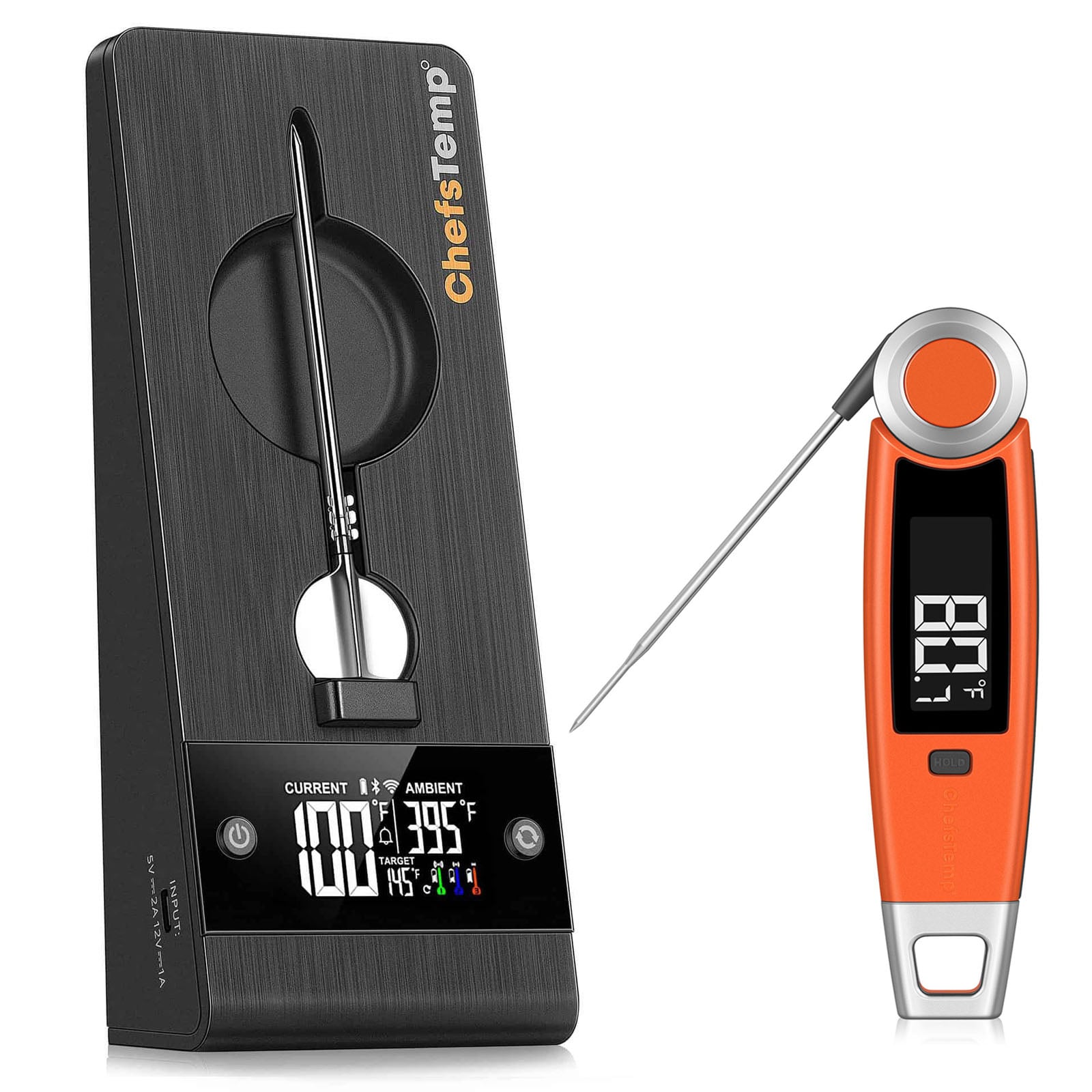
Please note that the port on the left is for charging the Stand, while the port on the right allows the Stand to charge other devices. The ProTemp Plus Series does not support charging Apple phones. And the charging port only supports Type-C cables.
Plus Series: It cannot connect to WiFi.
Plus Series: It cannot connect to WiFi.
Please watch our tutorial video to ensure you're following the correct Wi-Fi setup process: How to Pair Your ProTemp Plus Series with Bluetooth and Wi-Fi | Step-by-Step.
- App Permissions: Make sure the ChefsTemp app has all required permissions—especially location access—enabled on your device. For iOS, please enable “Allow connecting to your nearby devices” in your settings.
- Bluetooth and Wi-Fi Settings: Turn on Bluetooth on your device and ensure the connected Wi-Fi on your phone is on a 2.4GHz network. If your router is an automatic dual-band (or only has the 5GHz Wi‑Fi), simply separate the 2.4GHz and 5GHz bands (or create a guest 2.4GHz Wi‑Fi network) in the router app.
- Password and SSID: Use the orange magnifying glass to auto-detect the SSID, and double-check that the Wi-Fi password is entered correctly, as spell-check may alter it.
- Router Settings: Disable fast roaming (e.g., 802.11r) on your router, as it may prevent the thermometer from connecting.
- Reconnection: After making sure the above settings are correct, delete all your current connections on the app, exit and reopen the app, shut off the Stand to restart it, and connect the thermometer from the beginning.
If it connects to WiFi successfully, the Wi-Fi icon on your Stand screen is solid (not flashing). If it still fails, please take a video of the connecting process and send it to [email protected], and we will confirm and solve it for you.
Plus Series: I'm unable to charge the Stand.
Plus Series: I'm unable to charge the Stand.
Please note that the left port charges the Stand, while the right port charges other devices.
We recommend using any 5V/2A DC charging block to charge the Stand, and be careful not to let the charging port get wet. You can watch this video: Safely Charge Your ProTemp Plus Series.
When charging the Stand, the white battery icon on the Stand screen will have a charging animation. After being fully charged, the icon will flash. At that point, remove the charging cable; the fully charged battery icon should be solid.
If you have trouble charging your Stand, please record the charging process and send the video to [email protected], and we will review it and resolve the issue.
If the Stand works while plugged in but shuts down immediately after unplugging, test it again after a full charge and follow the reset instructions for your exact model. If the problem continues, send support a video showing the battery indication before unplugging and what happens afterward. State whether a Breezo fan was connected to the Stand output, because testing the Stand alone and testing it under fan load can give different results.
Plus Series: The meat temperature or ambient measurement on the Stand display is incorrect.
Plus Series: The meat temperature or ambient measurement on the Stand display is incorrect.
To ensure accurate ambient temperature readings, insert the probe past the safety notch. Make sure the ceramic handle is at least 1cm away from the meat or grill racks. Placing it too close can cause the meat to absorb heat from around the probe, leading to lower temperature readings. How to Use the ProTemp 2 Plus Probe Correctly for Accurate Readings
Various factors, like the coldness of the meat or moisture levels, can affect the ambient temperature readout on our wireless probe. Unlike wired probes, the wireless sensor needs time to adjust and provide readings, and different locations can show different temperatures because of this sensitivity.
For a wireless-probe comparison, identify whether each reading is internal food temperature or ambient grill temperature, confirm the same units, and show the position of each sensor. Send side-by-side readings, probe models or labels, and photos or a short video. If the probe also disconnects, include a fresh error log captured after the drop. A persistent difference should be reviewed rather than assumed to be a normal fixed offset or corrected with an arbitrary compensation value.
Please avoid letting the probe directly contact high-temperature objects, such as flames and furnaces. Exceeding the maximum reading range may cause damage to the probe, resulting in further inaccurate readings.
Plus Series: The ambient temperature on the Stand is not displayed or is stuck at 122°F.
Plus Series: The ambient temperature on the Stand is not displayed or is stuck at 122°F.
The device is designed to display the ambient temperature only when it exceeds 122°F (50°C). This is because the thermocouple sensor used in our probe requires a temperature difference between the internal meat temperature and the ambient temperature to operate. If the temperature difference is too close, the thermocouple sensor will not work. Therefore, the device only displays ambient temperatures above 50°C (122°F) due to this technical requirement.
Plus Series: It cannot connect to Bluetooth, or stuck on C-1.
Plus Series: It cannot connect to Bluetooth, or stuck on C-1.
If your ProTemp Plus Series is unable to connect to Bluetooth or is stuck on C-1 during pairing, please follow these steps to resolve the issue:
- Check App Permissions: Make sure the ChefsTemp app has all required permissions—especially location access—enabled on your device. For iOS, please enable “Allow connecting to your nearby devices” in your settings.
- Fully Charge the Probe: Low battery or no power will prevent probe's Bluetooth detection. Clean the probe to remove any debris and adjust the metal plate in the Stand's charging slot to ensure contact with the probe properly.
- Check Probe Pairings: A probe can only be connected to one device at a time (including ProTemp S1 and ProTemp Plus Series). Ensure the probe is not already paired with another thermometer.
- Delete and Reconnection: After making sure the above settings are correct, delete all your current connections on the app, exit and reopen the app, shut off the Stand to restart it, and reconnect by following our tutorial video: How to Fix Bluetooth & Wi-Fi Pairing Issues on ProTemp Plus or ProTemp 2 Plus.
- Test with LightBlue App: If it is still not working, please fully charge the Probe and Stand, remove the Probe from the charging slot, and download the LightBlue app to test whether the "Probe" and "ProTemp Stand" are broadcasting Bluetooth signals. Each charged probe should display as a separate entry.
If it still fails, please take a video of the connecting process and send it to [email protected], and we will confirm and solve it for you.
S1:It does not display probe temperature.
S1:It does not display probe temperature.
If your S1 is not displaying probe temperature data, please verify the following:
- The probe is securely connected to the S1: Add a Wireless Probe to ProTemp S1.
- The probe is fully charged.
- The probe channel displayed on the S1 matches the channel where the probe is connected.
The lower probe-temperature area on ProTemp S1 is for a paired wireless food probe. If you use S1 and Breezo without a wireless probe, a blank probe-temperature area does not by itself indicate a fault; S1 can still display the grill temperature measured by its Base.
If you do have wireless probes, compare the probe's reading in the app with the channel selected on S1. Report whether the reading is missing on S1 only, in the app only, or in both places.
You can also try disconnecting all connections in the app and reconnecting to see if the issue persists. If the problem continues, please record a short video demonstrating the issue and send it to [email protected], and we will assist you further.
S1: Isn't ProTemp S1 just for beginners?
S1: Isn't ProTemp S1 just for beginners?
Totally get it—there’s nothing like the confidence of a seasoned grill master . But the ProTemp S1 isn’t about replacing skill—it’s about giving you more freedom. With everything wireless, you can monitor your cook from inside or even while running errands. No more standing in the cold or doing midnight temp checks. Paired with the Breezo fan and a wireless probe, it keeps temps rock steady. Think of it less like “rookie stuff” and more like a smart upgrade to your already sharp instincts. After all, even pros deserve a break.
S1: It cannot turn on.
S1: It cannot turn on.
- Reset: You can reset your S1 by using a needle to press the Reset button next to the charging port. The reset will be complete when the screen briefly lights up. You can watch this video: S1 Reset.
- Check Charging Operations: We suggest using the original charging block and cable and ensuring the S1 is fully charged before each use. Do not charge the device while it is operating on a grill, as cooking temperatures exceed the safe charging range. Charging under these conditions may cause power or charging issues. How to Safely Charge Your ProTemp S1?
If the problem cannot be solved, please shoot a video of the power issue and send it to [email protected] for further assistance.
S1: It cannot connect to WiFi.
S1: It cannot connect to WiFi.
Please watch our tutorial video to ensure you're following the correct Wi-Fi setup process: How to Pair Your ProTemp S1 with Bluetooth and Wi-Fi | Step-by-Step.
- App Permissions: Make sure the ChefsTemp app has all required permissions—especially location access—enabled on your device. For iOS, please enable “Allow connecting to your nearby devices” in your settings.
- Bluetooth and Wi-Fi Settings: Turn on Bluetooth on your device and ensure the connected Wi-Fi on your phone is on a 2.4GHz network. If your router is an automatic dual-band (or only has the 5GHz Wi‑Fi), simply separate the 2.4GHz and 5GHz bands (or create a guest 2.4GHz Wi‑Fi network) in the router app.
- Password and SSID: Use the orange magnifying glass to auto-detect the SSID, and double-check that the Wi-Fi password is entered correctly, as spell-check may alter it.
- Router Settings: Disable fast roaming (e.g., 802.11r) on your router, as it may prevent the thermometer from connecting.
- Reconnection: After making sure the above settings are correct, delete all your current connections on the app, exit and reopen the app, shut off the Base to restart it, and connect the thermometer from the beginning.
If it connects to WiFi successfully, the Wi-Fi icon on your Base screen is solid (not flashing). If it still fails, please take a video of the connecting process and send it to [email protected], and we will confirm and solve it for you.
S1: It cannot connect Bluetooth, or stuck in C-1 when connected.
S1: It cannot connect Bluetooth, or stuck in C-1 when connected.
If your ProTemp S1 is unable to connect to Bluetooth or is stuck on C-1 during pairing, please follow these steps to resolve the issue:
- Check App Permissions: Make sure the ChefsTemp app has all required permissions—especially location access—enabled on your device. For iOS, please enable “Allow connecting to your nearby devices” in your settings.
- Delete and Reconnection: After making sure the above settings are correct, delete all your current connections on the app, exit and reopen the app, press the RESET button next to the charging port to restart, and reconnect by following our tutorial video: How to Pair Your ProTemp S1 with Bluetooth and Wi-Fi | Step-by-Step
- Test with LightBlue App: If the issue persists, download the LightBlue app and check for "ProTemp S1 Base" in the device list.
If it still fails, please take a video of the connecting process and send it to [email protected], and we will confirm and solve it for you.
S1: Its battery cannot be fully charged, or the battery duration is not long.
S1: Its battery cannot be fully charged, or the battery duration is not long.
When charging your S1, a charging animation will appear on the battery icon. A flashing, fully charged icon indicates the S1 is completely charged.
A fully charged S1 provides at least 40 hours of usage. For optimal charging, use the original charging cable with a power source not exceeding 20W.
If your S1 isn’t fully charging or has a short battery life, try the following:
1. Use a different power supply and charging cable, then recharge the device.
2. Ensure your S1 firmware is updated to the latest version. Watch the firmware update tutorial here: ProTemp S1 Firmware Update
If the problem cannot be solved, please take a video of the charging progress and send it to [email protected], and we will confirm and solve it for you.
S1: Its backlight cannot be turned off.
S1: Its backlight cannot be turned off.
You can reset your S1 by using a needle to press the Reset button next to the charging port. The reset will be complete when the screen briefly lights up. You can watch this video: ProTemp S1 Reset.
We suggest that you use the charging cable in the packaging for charging. Other charging cables may not be compatible, and please note that your charging head power should not exceed 20W. And please use a 5V/2A DC adapter for charging, and do not use an AC adapter. Otherwise, it may cause damage.
If the problem cannot be solved, please shoot a video of the issue and send it to [email protected] for confirmation.
Do infrared thermometers work on stainless steel?
Do infrared thermometers work on stainless steel?
Infrared thermometers are not recommended for use in measuring shiny or polished metal surfaces (stainless steel, aluminum, etc.).
Does the laser work through an oven glass door? Can I check readings without opening the oven door? (Finaltouch IR)
Does the laser work through an oven glass door? Can I check readings without opening the oven door? (Finaltouch IR)
This infrared thermometer cannot penetrate the glass to measure the internal temperature. It can only measure the surface temperature of the glass.
Why does my Finaltouch IR thermometer scan frozen foods as a high temperature?
Why does my Finaltouch IR thermometer scan frozen foods as a high temperature?
Your thermometer may not be working correctly. Please check the instruction manual to confirm you are using the product correctly. If you are, please contact us.
Are infrared thermometers accurate for grilling?
Are infrared thermometers accurate for grilling?
Our infrared thermometer can tell you the surface temperature of your food, or the surface temperature of your coals. To have a better idea of the doneness, use the probe.
Do infrared thermometers work for meat?
Do infrared thermometers work for meat?
With meat, the most important thing is the interior temperature, which you can’t get with an IR thermometer. IR thermometers are great for getting the temperatures of cooking surfaces such as a pan or grill, but they don’t let you probe into an item.
As an infrared thermometer, Finaltouch IR has a probe which can be used to measure meat temperature.
WE’RE HERE TO HELP
Still need help?
Contact our support team for help with your ChefsTemp products.