CHEFSTEMP HELP CENTER
All FAQs
Find answers, product video tutorials, and support for your next cook.
230 answers
Browse all FAQs →Order: Do I need to buy the temperature fan?
Order: Do I need to buy the temperature fan?
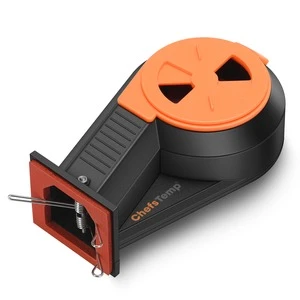
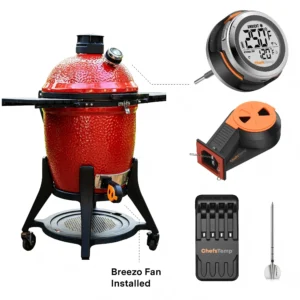
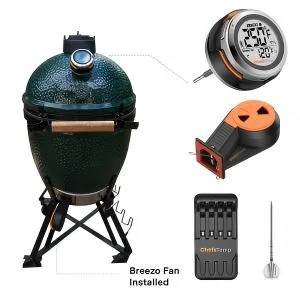
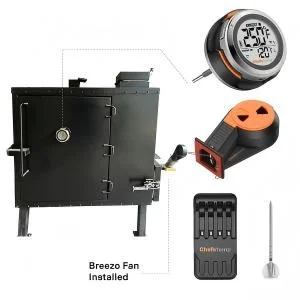
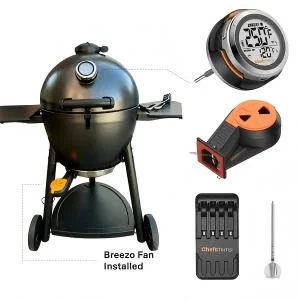
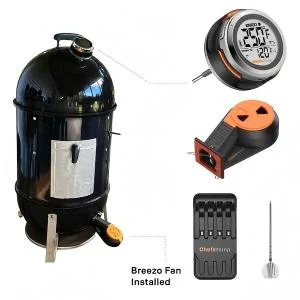
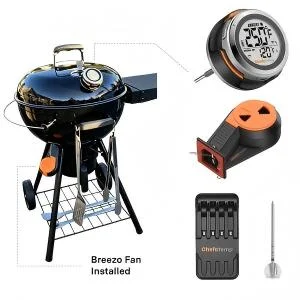
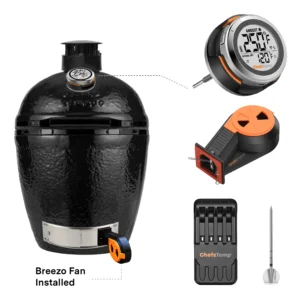
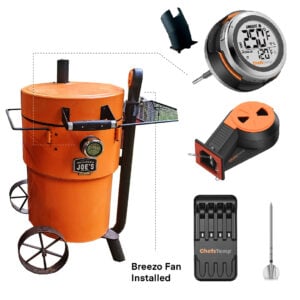
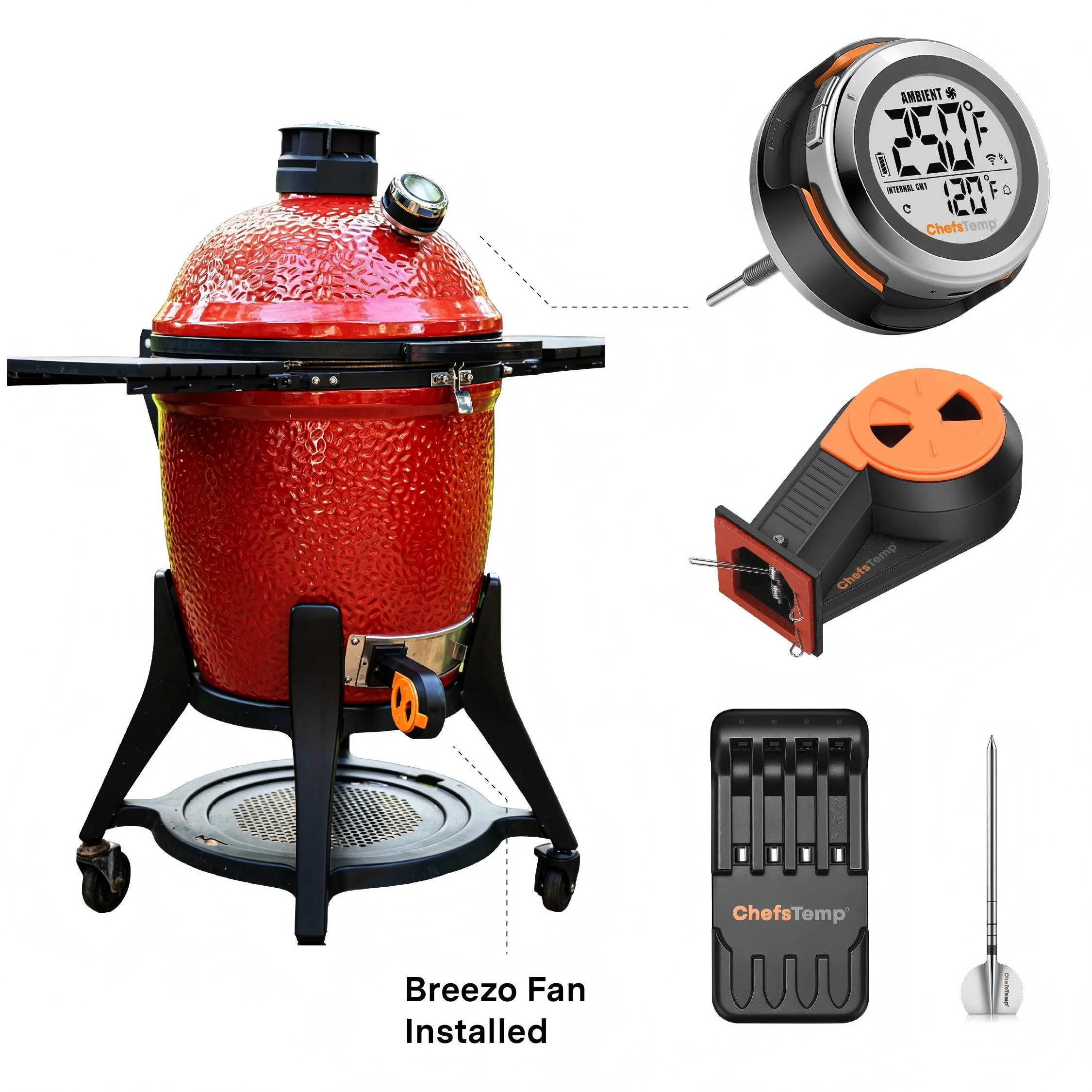
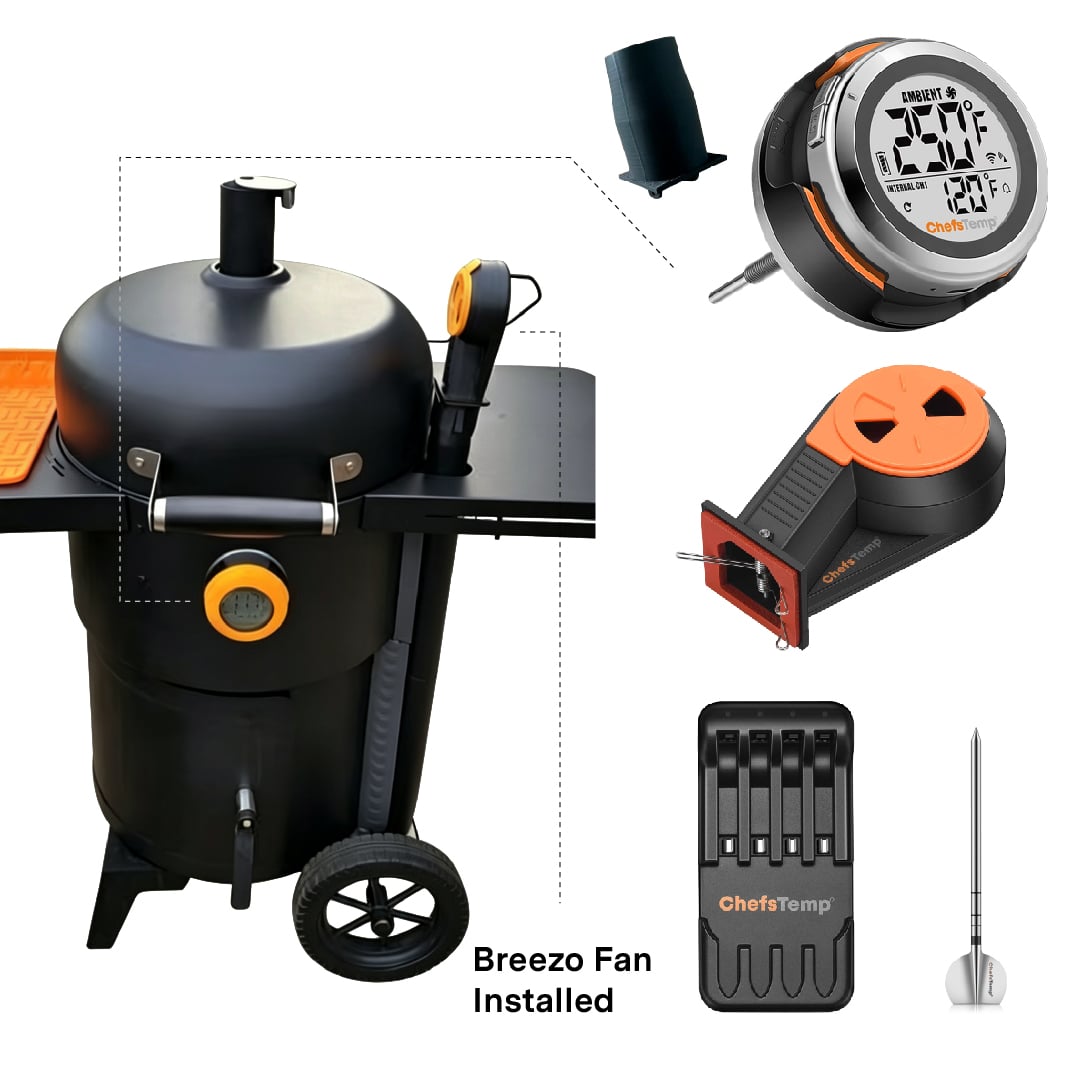
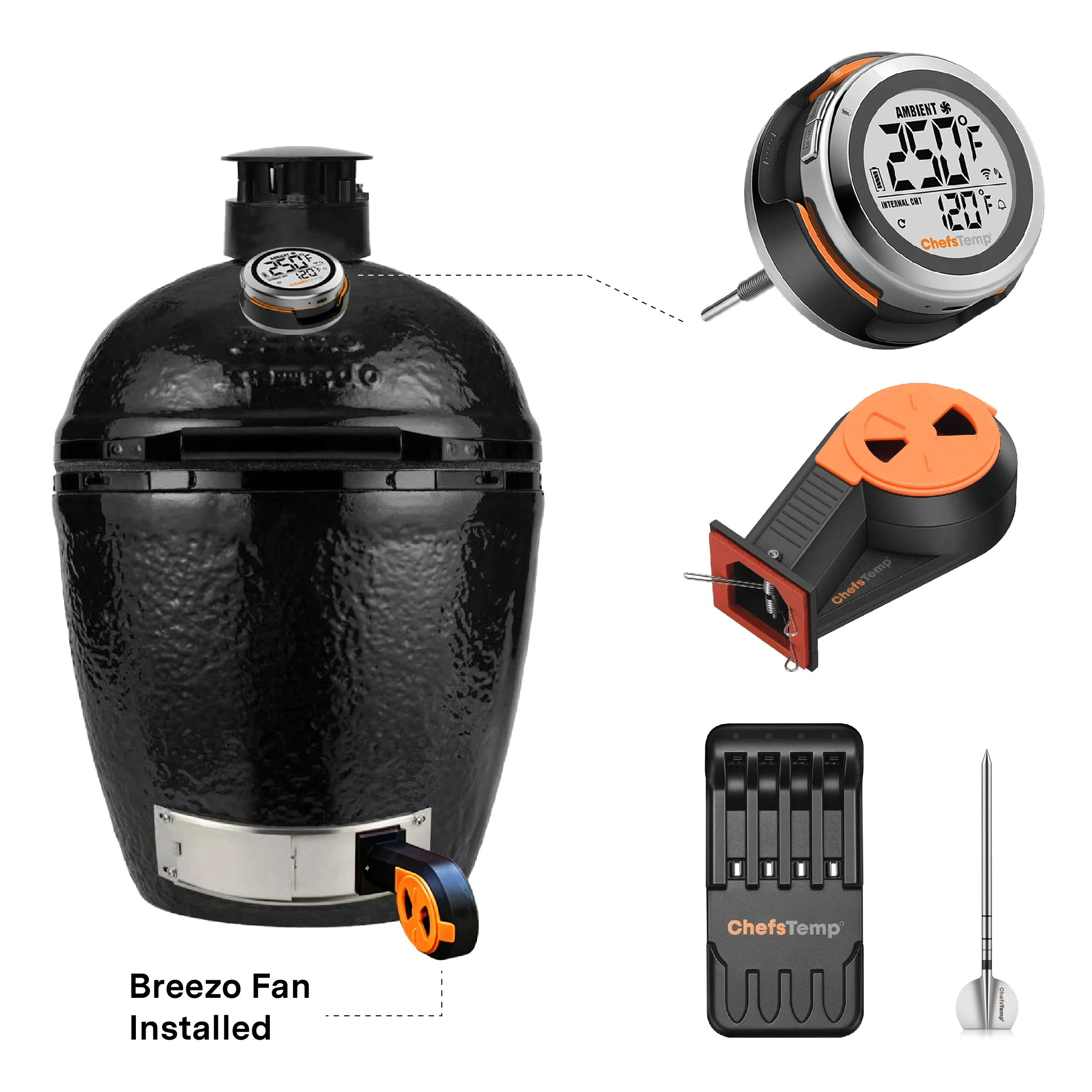
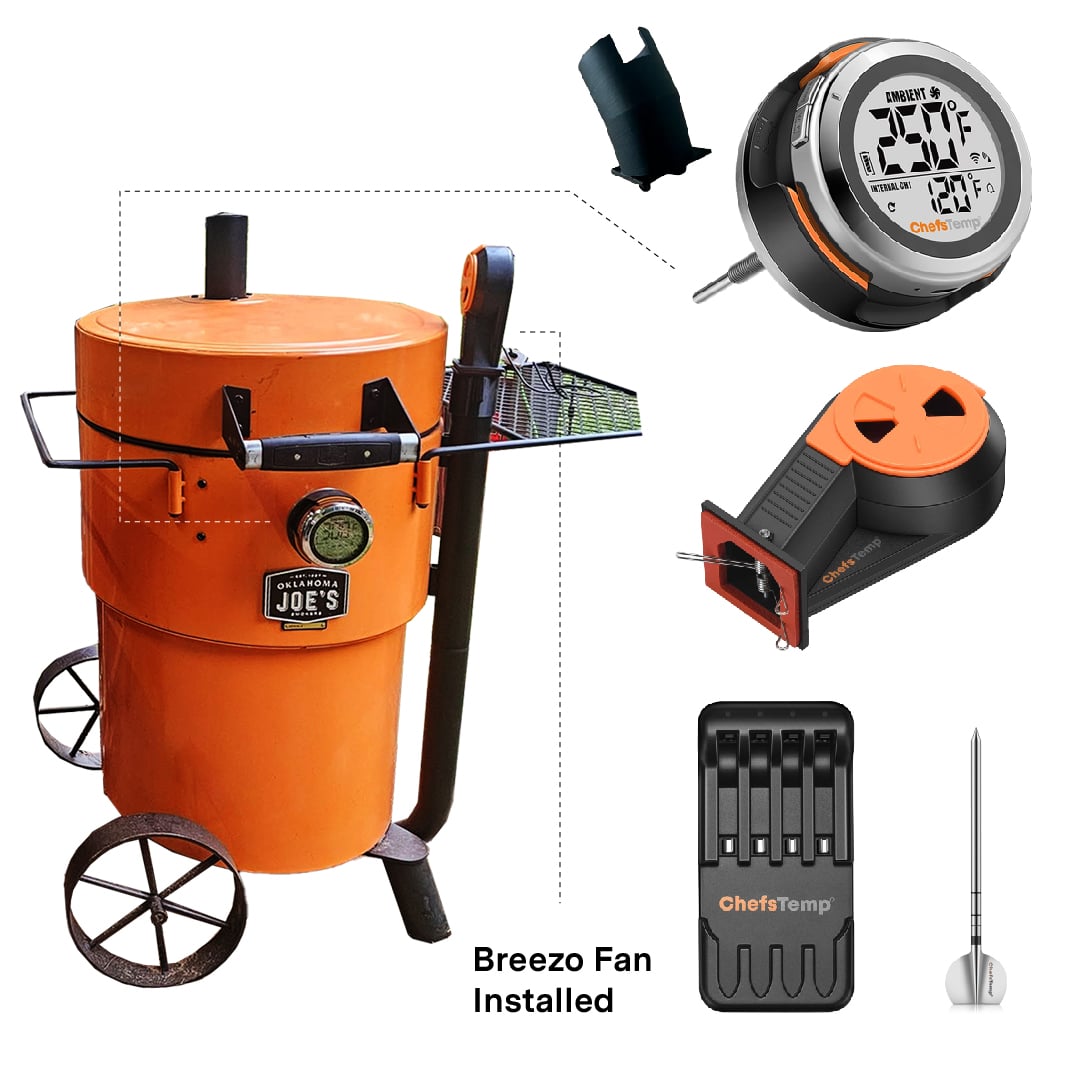
Yes. The Breezo Fan is not included in the package of ProTemp S1 or ProTemp 2 Plus, so you need to purchase it separately.
Order: Does the ProTemp S1 include the temperature fan or wireless probe?
Order: Does the ProTemp S1 include the temperature fan or wireless probe?
No. The ProTemp S1 does not include the Wireless Probe or Breezo Fan, so you need to buy them separately at your own discretion.
ChefsTemp Customer Support
ChefsTemp Customer Support
- If you have any questions or concerns, please feel free to call us at +1 (559) 563-8838, Monday to Friday, 8:00 AM–5:00 PM (PST/PDT).
- You can also reach our Customer Support Team at [email protected]—an agent will respond within 24 hours. Please note that replies may take slightly longer on weekends or holidays.
We're here to support you through every cook, every season, and every kitchen adventure. Join our Facebook community to connect with other users, share tips, and see how everyone is enjoying their ChefsTemp gear. https://www.facebook.com/groups/chefstempofficial
Breezo Fan: App keeps showing it is disconnected, or my fan is suddenly unresponsive during a cook.
Breezo Fan: App keeps showing it is disconnected, or my fan is suddenly unresponsive during a cook.
1. Please follow these steps below to check first:
- Confirm that your Breezo and S1 are connected correctly. You can watch this video: How to Wirelessly Connect the Breezo Fan to ProTemp S1?
- Make sure you have used the original power adapter and cable (if using a power bank, please connect it with a C-to-C charging cable, and do not use fast charging or any charging plug exceeding 20W).
- Make sure your S1 displays temperature numbers properly.
- Check if your S1 and Breezo firmware versions have been updated to the latest version. The app is also the latest version. How to Update Firmware on ProTemp S1 & Breezo Fan | Step-by-Step Guide.
2. Turn off the fan switch on the App, then connect the Breezo to the charging cable to power it on, press the button on the Breezo to turn on the fan, and then press it twice to turn off the fan. If the Breezo can be controlled by pressing the button, this indicates that the Breezo can be powered on.
3. Turn on the fan switch on the App to check if the Breezo can be turned on.
Manually Pair: If the Breezo still cannot be controlled through the App, this indicates that the Breezo may not be connected to the S1, and you need to manually pair them:
- Connect the Breezo to the charging cable to power it on, and press and hold the button on the Breezo for 4 seconds until the Breezo rotates slightly. It indicates that the Breezo has been reset and paired with S1.
- Press the button on Breezo twice to stop the Breezo, and then use the fan switch on the App to control the Breezo.
If the above steps still cannot solve the problem, please let us know the details and take a video of connecting and opening Breezo, and we will analyze and solve it for you.
Breezo Fan: My fan does not stop after reaching the target temperature.
Breezo Fan: My fan does not stop after reaching the target temperature.
Please confirm that the firmware of your S1 and Breezo Fan has been upgraded to the latest version. Ensure that the app is also the latest version. After completing the firmware update, it is recommended to delete all devices and reconnect to check for any issues. How to Update Firmware on ProTemp S1 & Breezo Fan | Step-by-Step Guide
❤️For best results, we recommend keeping the top vent nearly closed and allowing the Breezo fan to add the necessary air to maintain your desired temperature. Opening the top vent too much can lead to overshooting your target temperature, especially at lower temperatures used for smoking. For higher-temperature grilling, such as searing, you may open the vent slightly more to accommodate the increased airflow needs. These settings work well across various grill sizes.
Please see our video instructions on:
1. How to Master Temperature Control on Big Green Egg or Kamado Joe with ProTemp S1 & Breezo
2. Adjusting Exhaust Vent & Damper for Perfect Grill Temps | ProTemp S1 & Breezo
Breezo Fan: My fan is unable to perform firmware updates, or fails to upgrade the firmware.
Breezo Fan: My fan is unable to perform firmware updates, or fails to upgrade the firmware.
To ensure a successful firmware update for your Breezo V2 fan, please follow the steps outlined in this video: Firmware Update Guide. Please also make sure your app is updated to the latest version.
Here's a step-by-step checklist that may help:
- Use the original charger to power the fan.
- Turn on and run the fan.
- Open the app and go to the firmware update section. If an update is available, proceed with the upgrade.
- After the update completes, fully close the app and reopen it.
- Return to the firmware page to confirm the update was successful.
If it still shows the old version, log out of your app account, log back in, then retry the update. Can you also confirm whether you can control the fan via the mobile app? If yes, please try the firmware update again after confirming connectivity.
If the issue persists:
- Try resetting the S1 unit.
- Disconnect and reconnect the S1 unit.
Important: If you purchased your Breezo before April 8 (2025), it is a V1 model and doesn't support firmware updates. You can continue using it normally without updating.
Different Breezo V2 production batches can use different firmware version numbers. Comparing your version number with another owner's number alone does not establish whether an update is required. Check the update offered for your exact fan generation in the ChefsTemp app. If the version discrepancy or update message is still unclear, send support a screenshot of the version and message, your fan model, and purchase details.
Let me know how it goes, or if you'd like help walking through any steps—I'm here for you!
ChefsTemp app: Didn't receive the verification code.
ChefsTemp app: Didn't receive the verification code.
Just a quick note: the "60 seconds" refers to how long it takes to receive the code, but each code remains valid for 10 minutes. If you click "Send Code" multiple times within a short period, it may cause older and newer codes to mix up, making it harder to enter the correct one.
We recommend waiting for the code and using it promptly without requesting another too quickly. Please also check your spam or junk folder, as sometimes the email containing the code can be incorrectly flagged. If you still encounter the problem, please provide us with the email address you registered with the ChefsTemp app.
Breezo Fan: My fan does not respond when pressing the Power Button, or cannot be turned on.
Breezo Fan: My fan does not respond when pressing the Power Button, or cannot be turned on.
If the fan button does not respond, please confirm you are using the included power adapter and cable. For power banks, please use Type-C to Type-C, and avoid fast-charging adapters or those exceeding 20W. If it still fails, please shoot a short video of the issue and reach our support team, [email protected].
Probe: It cannot be charged on Plus Series Stand.
Probe: It cannot be charged on Plus Series Stand.
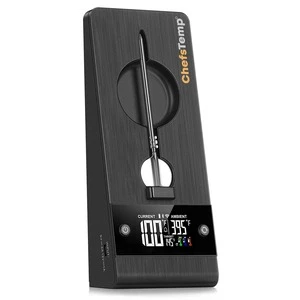
When you charge your probe on the ProTemp Plus Stand, the colored battery icon on the screen animates. Once fully charged, the icon will show as full and flash, indicating the probe is ready for at least 30 hours of use. If you are not sure whether the probe is fully charged or can't be charged, go to My Connections>>My Paired Probes and tap it to check the battery.
A green probe-channel icon on the stand does not, by itself, confirm the probe is fully charged. Check the probe’s battery level in the ChefsTemp app under My Connections → My Paired Probes, then select the probe. Tell support whether you use the Original ProTemp Plus or the ProTemp 2 Plus, because their displays and charging indicators can differ.
If the app shows a low battery shortly after charging, record the battery level when you remove it and again when it drops. Include the elapsed time and whether another probe charges normally on the same stand.
If the probe isn’t charging properly, please try the following:
- Clean the remaining grease on the probe before charging.
- Adjust the metal plate in the Stand’s charging slot to ensure proper contact with the probe: Fix Your Plus Charging Stand: Solve Loose Contact Issues Fast!
- Restart the stand, then place the probe in another slot to charge it. (Both the front and back slots can be used to charge the probe.)
If the issue persists, please try these steps:
- Download the LightBlue app and check if "Probe" appears in the device list. Each charged probe should display as a separate entry.
- Record a short video showing the probe charging and send it to [email protected]. We'll review it promptly and resolve the issue.
Probe: It cannot be charged on the 4-in-1 Charger.
Probe: It cannot be charged on the 4-in-1 Charger.
To verify if your probe is charging correctly on the 4-in-1 Charger, please check the following:
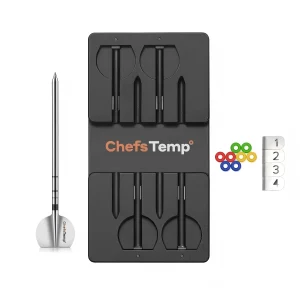
- Charging Indicator: A blue light will appear at the corresponding charger slot when the probe is charging. The light will turn off once the probe is fully charged, indicating it's ready for at least 30 hours of use.
- Probe Orientation: Ensure the probe is inserted correctly, with its tail making full contact with the metal plate in the charger's slot. Place the probe in another slot to charge it.
If you are not sure if the probe has been fully charged or if it is unable to be charged, please go to My Connections>>My Paired Probes>>Tap it to check its battery. If the issue persists, please try these steps:
- Download the LightBlue app and check if "Probe" appears in the device list. Each charged probe should display as a separate entry.
- Record a short video showing the probe charging and send it to [email protected]. We'll review it promptly and resolve the issue.
Probe: It cannot added to ProTemp Plus Series, or ProTemp S1.
Probe: It cannot added to ProTemp Plus Series, or ProTemp S1.
Please note that the 4‑in‑1 Probe Charger is designed solely for charging multiple wireless probes at the same time—up to four. The wireless probes cannot connect directly to the app; they must be paired with our smart thermometers, such as the ProTemp S1 or the ProTemp Plus Series. You can watch the probe tutorial here: How to Add a Wireless Probe to ProTemp S1 & Charge It with the 4-in-1 Charger.
If your probe cannot be added via the app, please check the following steps:
- Ensure your thermometer is turned on, and place it close to the probe so it can receive and transmit the signal properly.
- Before adding a probe, also ensure your thermometer is connected to Wi‑Fi through the app. The Wi‑Fi icon on the display should be solid (not flashing).
- Confirm that your probe is fully charged. When connecting, remove it from the ProTemp Plus Stand or 4‑in‑1 Charger, as Bluetooth cannot be detected while the probe is charging in the slot.
- Please note that each probe can only be connected to one thermometer at a time (either ProTemp S1 or ProTemp 2 Plus).
If you are unsure about the probe's pairing status, please delete all connections in the app, exit and restart your app, reconnect your thermometer, and then re‑add the probe.
Probe: It is not working, just received.
Probe: It is not working, just received.
Please remove the fully-charged probe from the Charger or Plus Stand, and insert it into the slot again to activate it.
Probe: Its temperature data is inaccurate, or displays LLL.
Probe: Its temperature data is inaccurate, or displays LLL.
To ensure optimal performance, please kindly check the following:
- When inserting the probe, make sure the tip goes past the safety line, but avoid placing the meat too close to the tail end.
- The tail end of the probe should not come into contact with the grill or any other surfaces.
- We recommend disconnecting all connections in the app and then reconnecting the probe to check.
If the problem continues, please send us relevant screenshots, photos, or videos showing the issue. This will help us analyze the situation more accurately and provide a solution as quickly as possible.
S1: The ambient temperature data displays LLL or "- - -".
S1: The ambient temperature data displays LLL or "- - -".
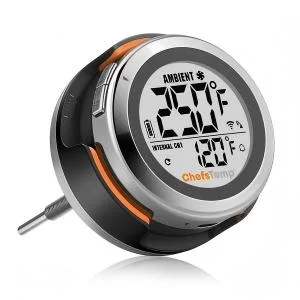
The grill-temperature sensor is in the S1 Base Unit. Before checking for connection issues, make sure the Main Unit is securely mounted on the Base and that the contact points align properly. Check whether the S1 displays a temperature reading, not just its battery level or the app’s connection status.
If LLL or a missing reading persists after reseating and resetting the unit, send a video showing the Main Unit being attached to the Base, the resulting display, and your app error logs to [email protected]. The LLL guidance for the Quad XPro applies to a different product and should not be used to diagnose the S1.
If your S1 briefly shows a temperature and then changes to HHH or LLL even at ordinary room temperature, check the Main Unit-to-Base connection and perform the reset described above. A displayed code alone does not establish the cause of the problem.
If the code returns or the unit still cannot display a temperature, send a video showing the attachment, reset, and resulting display to [email protected]. Our team may need to assess the Base and Main Unit separately. Do not assume that the same error-code explanation applies across S1, wireless probes, and Quad XPro.
Note:
● You can watch our tutorial video to install it: ProTemp S1 Installation.
● You can also reset S1 by pressing the RESET button next to the charging port to see if that fixes the issue. If it still fails, please record the installation progress and send it to [email protected], and we'll review it and provide a solution.
S1: I fails to update firmware.
S1: I fails to update firmware.
Please follow the steps below to ensure a successful upgrade: How to Update Firmware on ProTemp S1 | Step-by-Step Guide
- Make sure your S1 device is properly connected to the mobile app.
- You can click on "..." in the upper right corner of the main page, click on "My Connections", then click on your S1 device, and then click on "Firmware Update" to check the firmware version. When a new firmware version is available, you can update the firmware here.
- Once the update is complete, the S1 will automatically restart. Return to the firmware page to confirm the update was successful.
If the update does not appear to have completed, please log out of your app account entirely and log back in to refresh the connection. Then try the update process again.
Breezo Fan: Will the fan fit on the original ProTemp Plus?
Breezo Fan: Will the fan fit on the original ProTemp Plus?
No, the Breezo Fan is only compatiable with ProTemp S1 and ProTemp 2 Plus Series, not compatiable with 1st generation – original ProTemp Plus.
S1: Will ProTemp S1 fit on the Weber Summit Kamado or will I have to drill holes in it?
S1: Will ProTemp S1 fit on the Weber Summit Kamado or will I have to drill holes in it?
Thanks for your interest. The ProTemp S1 fits the Weber Summit Kamado. Remove the analog gauge and replace it with the Universal version. Don’t drill holes in a ceramic grill. If our answer hasn’t resolved your issue, please join our Facebook community group and post your questions there—we’re confident they’ll be addressed quickly: https://www.facebook.com/groups/chefstempofficial!
S1: Dome thermometers temp is usually 40-50 degrees different than grate temp. How does ProTemp S1 solve this?
S1: Dome thermometers temp is usually 40-50 degrees different than grate temp. How does ProTemp S1 solve this?
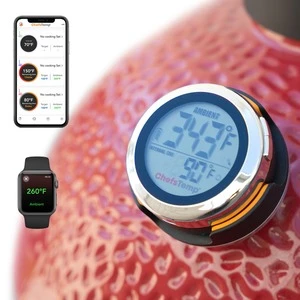
Good question! The ProTemp S1 does more than just read dome temp. We use platinum sensors for 10x accuracy over analog, a long stem to get closer to grate level, and a temp compensation function in the app. Our tests show just a 3-5°F difference from a wired grate-level probe in Kamado grill before app compensation.
Breezo Fan: Is it battery or ac operated?
Breezo Fan: Is it battery or ac operated?
The Breezo Fan does not have a built-in battery to charge. You need to power it using a power bank or connect it to a power source by using the included power adaptor and cables.
S1: What is the difference between 5.5" Special Edition and Universal Version?
S1: What is the difference between 5.5" Special Edition and Universal Version?
The S1 5.5" Special Edition features a longer probe (5.5 inches / 140mm) compared to the Universal Version, while maintaining the same base stem diameter of 7.8 mm (0.3 inches). This extended length is ideal for grills or smokers with deeper internal spaces—such as the Old Country Gravity Fed smoker—where the thermometer needs to reach closer to the food for more accurate readings.
WE’RE HERE TO HELP
Still need help?
Contact our support team for help with your ChefsTemp products.