CHEFSTEMP HELP CENTER
All FAQs
Find answers, product video tutorials, and support for your next cook.
230 answers
Browse all FAQs →S1 Bundle: Does the ChefsTemp ProTemp S1 work with Char-Griller AKORN kamado grills?
S1 Bundle: Does the ChefsTemp ProTemp S1 work with Char-Griller AKORN kamado grills?
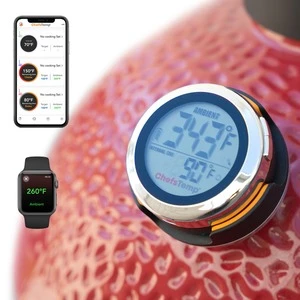
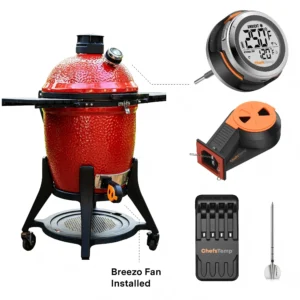
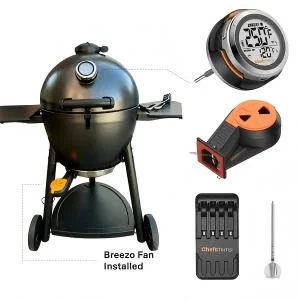
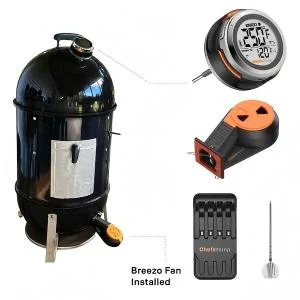
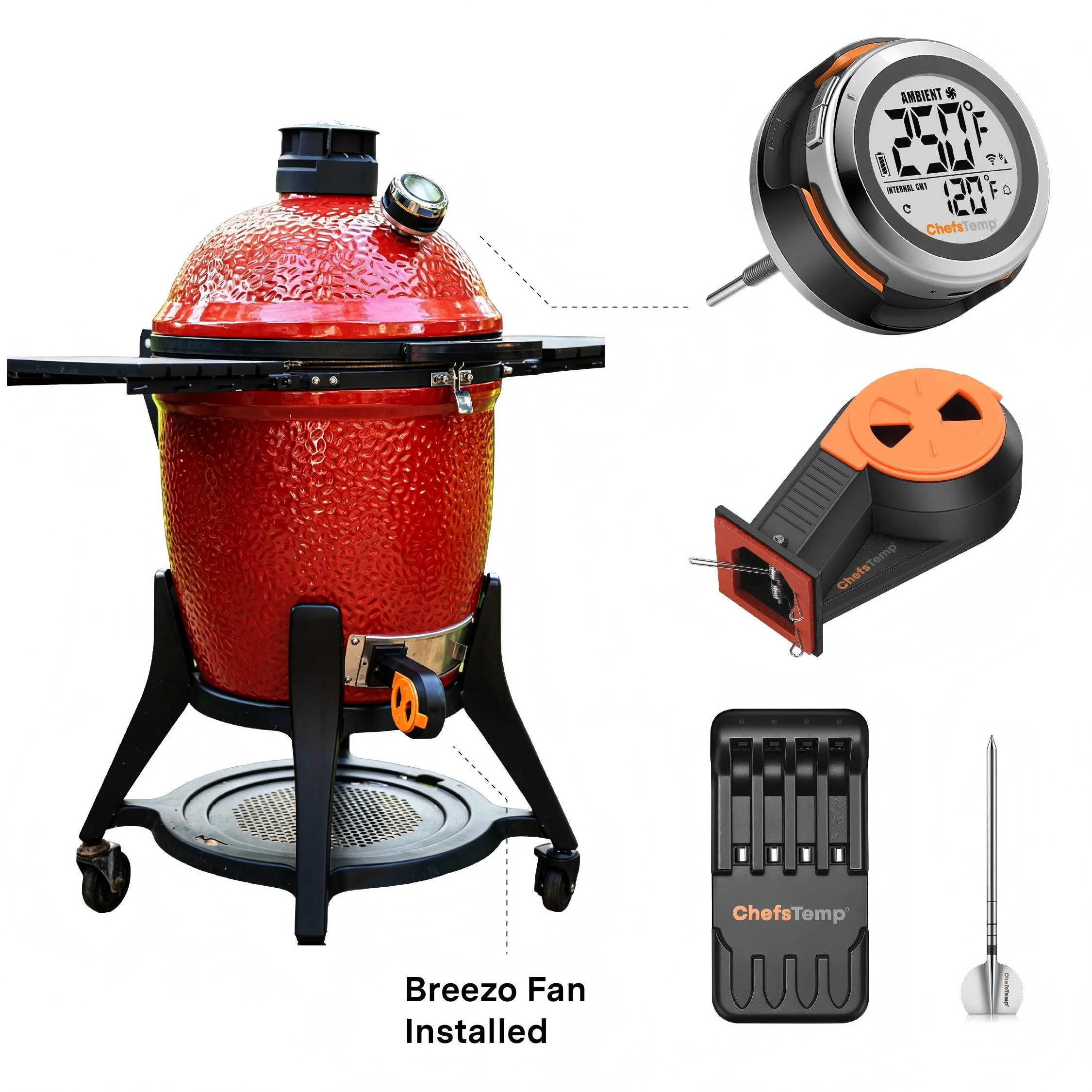
Yes. ChefsTemp offers a ProTemp S1 Bundle for Char-Griller AKORN and AKORN Jr. kamado grills. The bundle combines S1 pit-temperature monitoring with a Breezo V2 fan for automatic airflow control on the supported setup. Choose the installation and mounting accessories for your exact AKORN model. Check compatibility with other Char-Griller grills separately, rather than assuming it based on the AKORN recommendation.
S1 Bundle: Is the ChefsTemp ProTemp S1 compatible with Primo ceramic grills?
S1 Bundle: Is the ChefsTemp ProTemp S1 compatible with Primo ceramic grills?
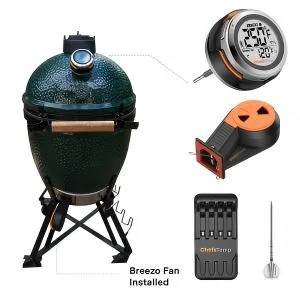
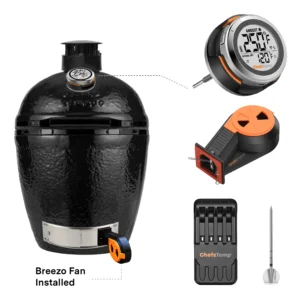
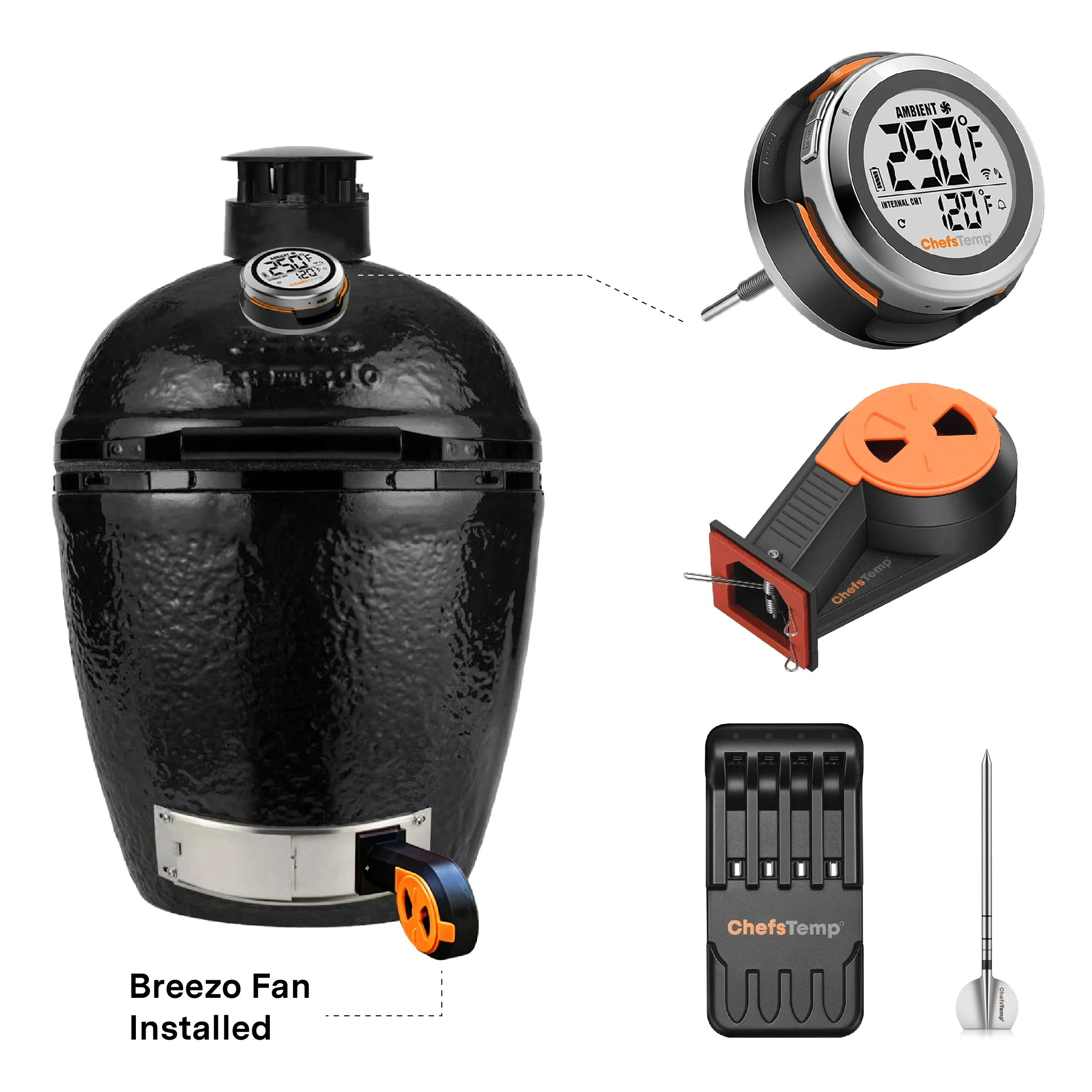
Yes. ChefsTemp offers a ProTemp S1 Bundle for Primo ceramic grills, including the Oval JR 200, Oval Large 300, Oval XL 400, and Primo Round. ProTemp S1 monitors pit temperature, while the Breezo V2 fan provides airflow-based temperature control with the appropriate mounting setup. Primo thermometer-port dimensions can vary by model and production year, so measure the opening before choosing the BGE or Universal stem. Do not drill the ceramic body.
4-in-1 Charger: Can I connect it with the wireless probes?
4-in-1 Charger: Can I connect it with the wireless probes?
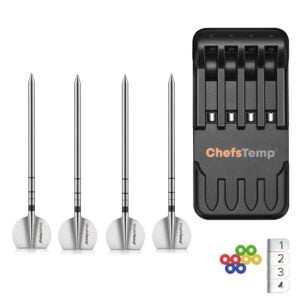
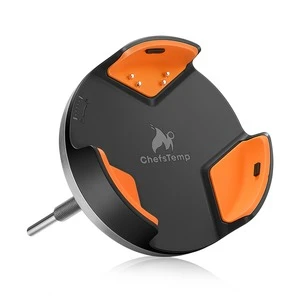
The 4-in-1 Charger can charge multiple wireless probes simultaneously, but it can't pair them.
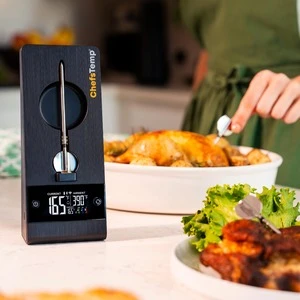
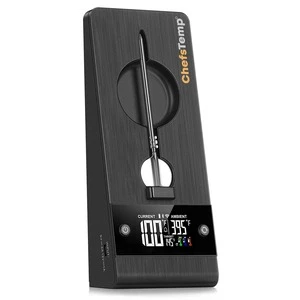
The 4-in-1 Charger is not a replacement for the ProTemp 2 Plus Stand. It charges compatible probes but does not provide the stand’s display or receive and relay probe temperature data.
If you need a replacement ProTemp 2 Plus Stand, contact [email protected] with the exact model and your purchase details so we can check the appropriate replacement options. Do not order a 4-in-1 Charger expecting it to replace the complete stand. Please confirm availability and compatibility for your device.
Order: My package has been sent to another state. Is it normal?
Order: My package has been sent to another state. Is it normal?
We're sorry for any concern caused by the delay in your package delivery. According to our records, USPS may have rerouted your package to another state, but it's still on track to be delivered to your address. Please allow a few more days for it to arrive. We’re actively monitoring its progress and will continue to ensure it reaches you as smoothly as possible.
If you notice any unusual updates or issues with your shipment, please don’t hesitate to contact us at [email protected]—we’ll be happy to investigate and assist.
A shipment passing through another state can be part of normal carrier routing. However, you should check tracking statuses such as “returned to sender,” “undeliverable,” or “lost” with our support team rather than treating them as routine routing updates.
Contact [email protected] with your order number, tracking number, latest tracking status, and full delivery address, including any apartment or unit number. We will review the carrier information and advise on the next steps. If we arrange a replacement shipment, we will provide the new tracking information.
S1&Breezo: What are the outdoor operating temperature limits for the S1 thermometer and control fan?
S1&Breezo: What are the outdoor operating temperature limits for the S1 thermometer and control fan?
For optimal performance and longevity, we recommend placing both the S1 thermometer and the Breezo control fan in environments where the temperature stays within safe operating limits.
- Minimum temperature: Avoid prolonged exposure below 50°F (10°C), as this may significantly reduce battery life and affect overall functionality.
- Maximum temperature: The fan is heat-resistant up to 302°F (150°C), while the S1 thermometer is rated for up to 140°F (60°C).
Given that winter temperatures can dip below the recommended minimum, and high-heat cooking zones may exceed safe limits, we advise using the product in a protected or temperature-controlled setting to ensure reliable operation. Proper placement and shielding will help extend the life of your device and maintain accurate performance.
S1: Is it waterproof?
S1: Is it waterproof?
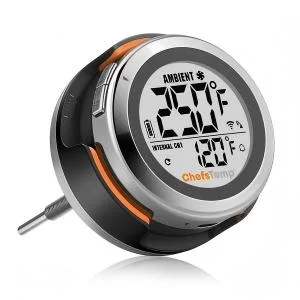
The Base Unit of ProTemp S1 is fully waterproof. However, the Main Unit has an IP54 rating, which provides limited protection against dust and splashing water. Please avoid exposing the unit to water. For enhanced protection, we recommend installing the optional ProTemp S1 Waterproof Silicone Protective Cover (sold separately).
NEW: Fix App "Disconnected" Notification & Missing Temperature for ProTemp S1 or ProTemp 2 Plus!
NEW: Fix App "Disconnected" Notification & Missing Temperature for ProTemp S1 or ProTemp 2 Plus!
In this step-by-step tutorial, we walk you step-by-step through:
- Checking the Bluetooth connection between the probe and base
- Diagnosing Wi-Fi signal issues from the base to your phone/router
- Simple fixes like charging, repositioning, and avoiding interference
- When and how to contact support (with tips to get faster help)
NEW: How to Set Up a 2.4GHz Wi-Fi On Your Router for ProTemp S1 or ProTemp 2 Plus!
NEW: How to Set Up a 2.4GHz Wi-Fi On Your Router for ProTemp S1 or ProTemp 2 Plus!
In this step-by-step tutorial, we'll show you two easy ways to access or create a dedicated 2.4GHz network:
- Explain why your device might only show 5GHz, and finish with a complete pairing guide for your ProTemp S1 or ProTemp 2 Plus.
- Separating your router's 2.4GHz and 5GHz bands by turning off Smart Connect or Band Steering.
- Setting up a guest network specifically for IoT devices like your ChefsTemp thermometer.
S1: Why does the ProTemp S1 battery only last about 40 hours?
S1: Why does the ProTemp S1 battery only last about 40 hours?
The S1 has a large 6000mAh built-in rechargeable battery designed for constant Wi-Fi use. Unlike Bluetooth-only devices, Wi-Fi consumes much more power, resulting in ~40 hours of real-world runtime. This larger battery provides better portability without needing constant charging.
Plus Series: The Stand button does not respond, or it cannot be turned on.
Plus Series: The Stand button does not respond, or it cannot be turned on.
1. Inspect the Buttons: Check whether any buttons are stuck or unresponsive. Gently press both sides to compare the tactile feedback—if one side feels different or doesn’t respond properly, the button may be damaged.
2. Power and Restart: If the buttons appear to be functioning normally, connect the stand to a charger and allow it to charge briefly. Then, try restarting the device.
3. Left Button Functionality: Please note that the left button supports different functions based on press duration: Press and hold for 2–3 seconds to turn the device on; Press and hold for 4–5 seconds to turn it off.
Breezo Fan: Is there a temp range to use Breezo Fan?
Breezo Fan: Is there a temp range to use Breezo Fan?
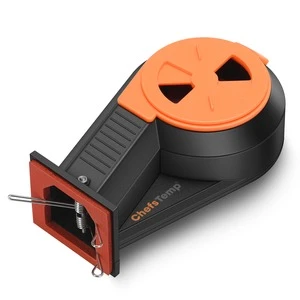
Please note that the fan itself is designed to withstand temperatures of up to 302°F (150°C). For safe and reliable operation, we recommend keeping the fan within this range during use. Alternatively, you may use a compatible Breezo mounting kit to position the fan at a safe distance from the grill.
Probe: Can I use the probe in my oven?
Probe: Can I use the probe in my oven?
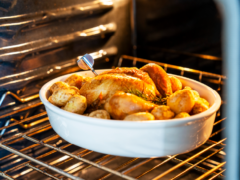
Yes, the probe is safe for use in a conventional oven. However, do not use it in a microwave, pressure cooker, or steam oven.
ChefsTemp app: Are my website order and app accounts linked?
ChefsTemp app: Are my website order and app accounts linked?
No—accounts for our official website (ChefsTemp.com) and the ChefsTemp app are not automatically connected. To access both platforms, you’ll need to register separately. You may use the same email address for both accounts.
Order: Can I use more than one discount code?
Order: Can I use more than one discount code?
Please select the code that best suits your order, as only one discount code may be applied per purchase.
4-in-1 Charger: Is there a power adaptor or cable inluded its package?
4-in-1 Charger: Is there a power adaptor or cable inluded its package?
Simply connect it to a 5V2A power adapter and a Type-C charging cable (adapter and cable are not included) for effortless charging.
- When the Charger is successfully connected, the red indicator light next to the Type-C socket will light up.
- When the probe is charging, the blue indicator light above the probe will light up. Generally, a probe without power will be fully charged after 10-15 minutes. When the probe is fully charged, the blue indicator light will turn off.
- If there is a short circuit in the charging case, charging will immediately stop, and all four blue indicator lights will flash. Please reconnect the charging cable and reinsert the probe to resume charging.
ProTemp Plus Series: Is it waterproof?
ProTemp Plus Series: Is it waterproof?
The ProTemp Plus Series is built for reliable outdoor performance, featuring a durable stand with IP55 water resistance and a fully waterproof probe rated IP68. It performs well even in rainy conditions—ideal for extended BBQ sessions, rain or shine. However, for the best results and long-term durability, we recommend avoiding direct exposure to heavy rain during outdoor use. A covered cooking area or light shielding can help protect the device while maintaining accurate readings.
S1: Do I need to drill a hole to install the ProTemp S1?
S1: Do I need to drill a hole to install the ProTemp S1?
No need if your grill has an analog thermometer—just replace it. If there's no hole (like on some offset smokers), you can drill one. Just skip drilling on ceramic grills.
Breezo Fan: Is it waterproof?
Breezo Fan: Is it waterproof?
Breezo Fan is not waterproof. Please ensure it stays dry at all times. Water exposure may cause malfunction or permanent damage, so handle with care around liquids.
Plus Series: It's unable to charge other devices.
Plus Series: It's unable to charge other devices.
Please note that the port on the left is for charging the Stand, while the port on the right allows the Stand to charge other devices. The ProTemp Plus Series does not support charging Apple phones. And the charging port only supports Type-C cables.
Plus Series: It cannot connect to WiFi.
Plus Series: It cannot connect to WiFi.
Please watch our tutorial video to ensure you're following the correct Wi-Fi setup process: How to Pair Your ProTemp Plus Series with Bluetooth and Wi-Fi | Step-by-Step.
- App Permissions: Make sure the ChefsTemp app has all required permissions—especially location access—enabled on your device. For iOS, please enable “Allow connecting to your nearby devices” in your settings.
- Bluetooth and Wi-Fi Settings: Turn on Bluetooth on your device and ensure the connected Wi-Fi on your phone is on a 2.4GHz network. If your router is an automatic dual-band (or only has the 5GHz Wi‑Fi), simply separate the 2.4GHz and 5GHz bands (or create a guest 2.4GHz Wi‑Fi network) in the router app.
- Password and SSID: Use the orange magnifying glass to auto-detect the SSID, and double-check that the Wi-Fi password is entered correctly, as spell-check may alter it.
- Router Settings: Disable fast roaming (e.g., 802.11r) on your router, as it may prevent the thermometer from connecting.
- Reconnection: After making sure the above settings are correct, delete all your current connections on the app, exit and reopen the app, shut off the Stand to restart it, and connect the thermometer from the beginning.
If it connects to WiFi successfully, the Wi-Fi icon on your Stand screen is solid (not flashing). If it still fails, please take a video of the connecting process and send it to [email protected], and we will confirm and solve it for you.
WE’RE HERE TO HELP
Still need help?
Contact our support team for help with your ChefsTemp products.