CHEFSTEMP HELP CENTER
All FAQs
Find answers, product video tutorials, and support for your next cook.
234 answers
Browse all FAQs →Does the Breezo Fan have a built-in battery, or does it need to be connected to a power source?
Does the Breezo Fan have a built-in battery, or does it need to be connected to a power source?
No, the Breezo Fan does not have a built-in battery. You need to power it using a power bank or connect it to a power source.
We recommend that you use the 5V 2A DC Adapter and Type-C charging cable included in the package to power Breezo Fan.
Why should I choose the ProTemp 2 Plus over other wireless thermometers?
Why should I choose the ProTemp 2 Plus over other wireless thermometers?
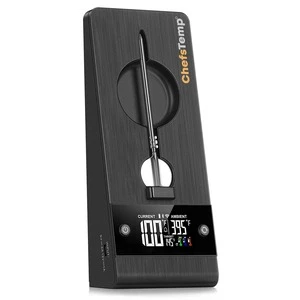
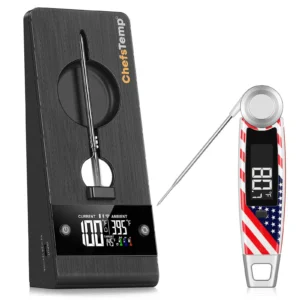
Unlike Bluetooth-only models with limited range or thicker probes that damage food, the ProTemp 2 Plus stands out with its thinnest-in-class probe, unlimited Wi-Fi range, multi-sensor accuracy, and smart integrations like fan control. It provides unmatched convenience by sending real-time alerts to your phone or watch, so you can multitask confidently. Ultimately, it empowers you to cook like a pro, minimizing errors, enhancing flavors, and making every meal a success—saving money on spoiled food and boosting your culinary skills.
Why do I need the Breezo Fan for my S1? I have a pellet grill or gas grill. Do I need the Breezo Fan?
Why do I need the Breezo Fan for my S1? I have a pellet grill or gas grill. Do I need the Breezo Fan?
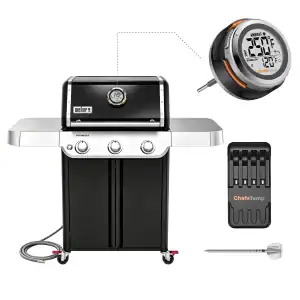
The Breezo Fan is specifically designed for charcoal grills. If you are using a pellet or gas grill, you likely don’t need it. The temperature-controlling fan works by automatically managing air intake, saving you the time and effort of frequent adjustments. Additionally, it helps maintain a steadier ambient temperature and keeps it closer to your target temperature for more consistent cooking results.
Is it waterproof? Can I wash them in a dishwasher?
Is it waterproof? Can I wash them in a dishwasher?
The Base Unit of ProTemp S1 is fully waterproof. However, the Main Unit has an IP54 rating, which provides limited protection against dust and splashing water. Please avoid exposing the unit to water. For enhanced protection, we recommend installing the optional ProTemp S1 Waterproof Silicone Protective Cover (sold separately).
Although the probe is waterproof, it cannot be washed in a dishwasher, as this can cause damage to the internal sensors of the probe (as mentioned in the manual).
Can the Breezo Fan be installed on my cooking device?
Can the Breezo Fan be installed on my cooking device?
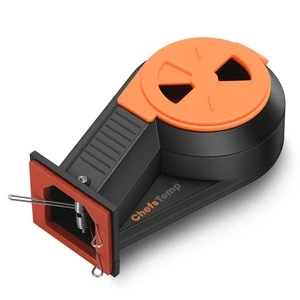
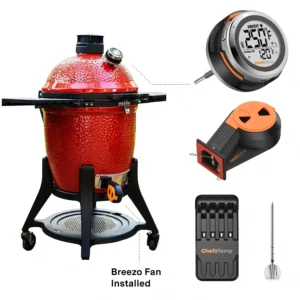
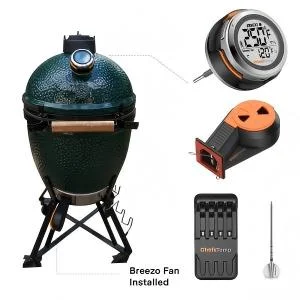
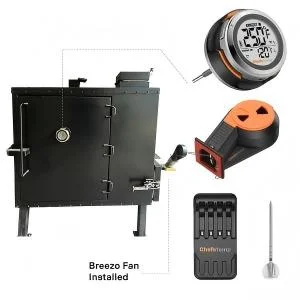
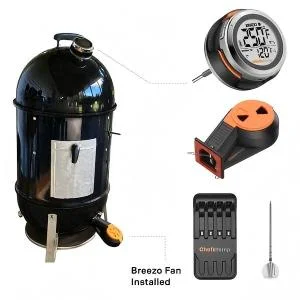
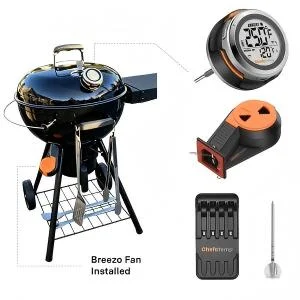
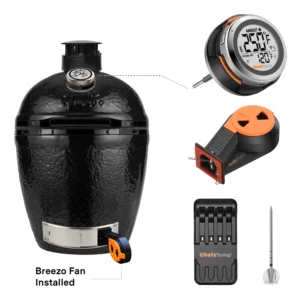
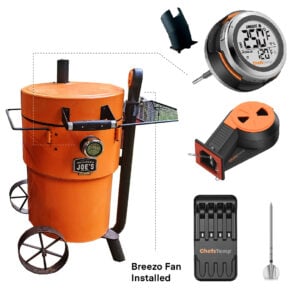
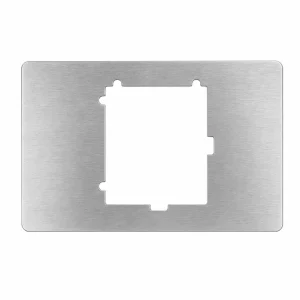
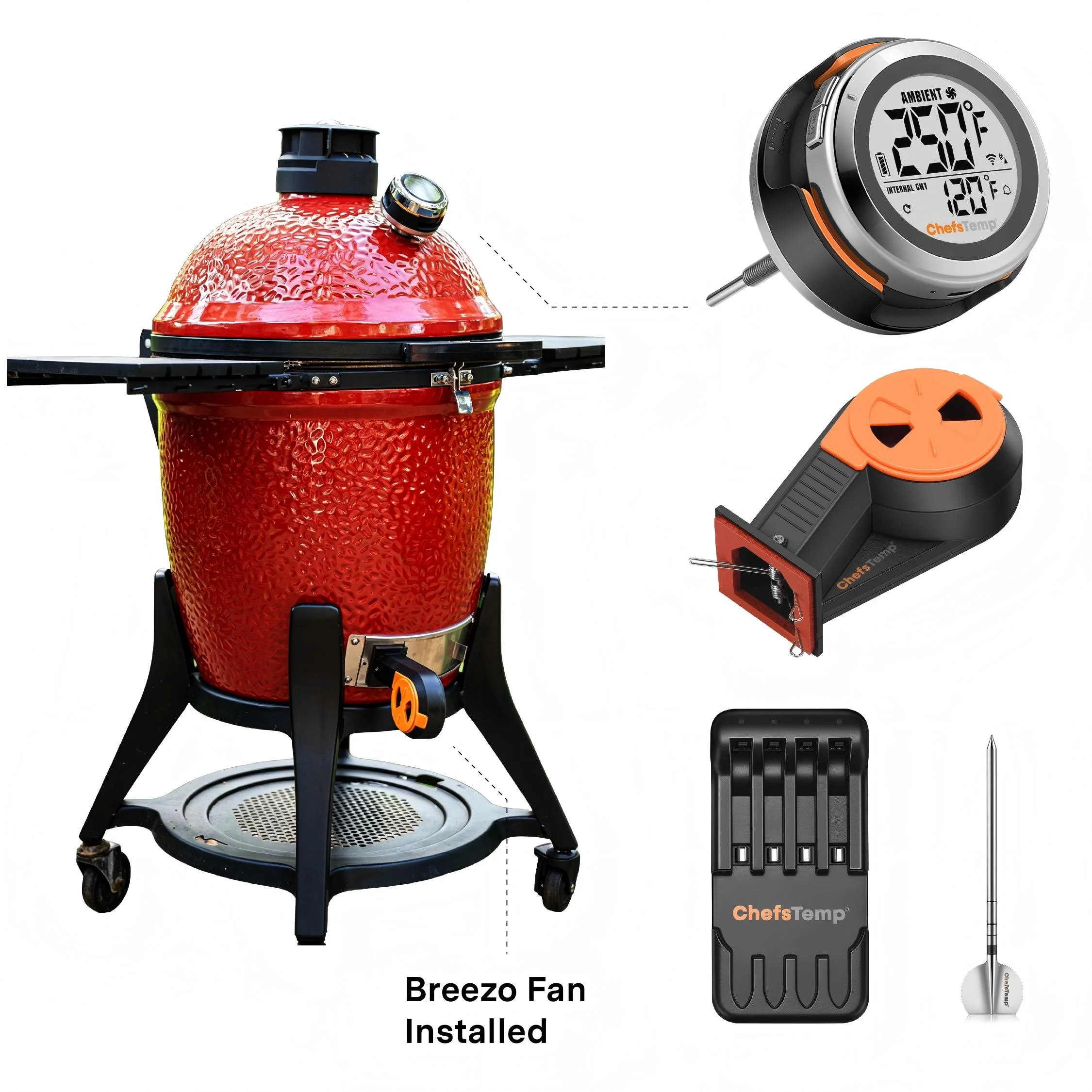
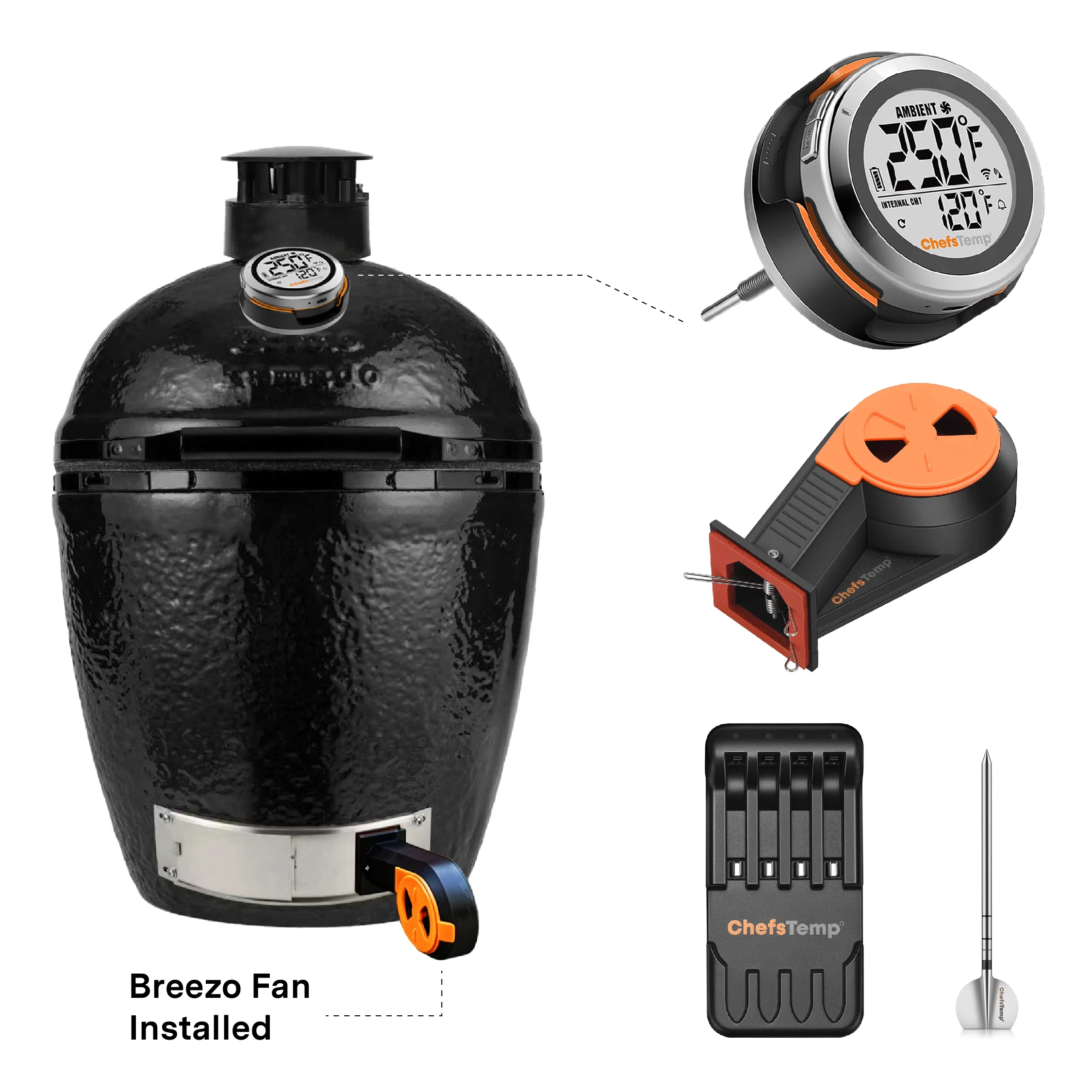
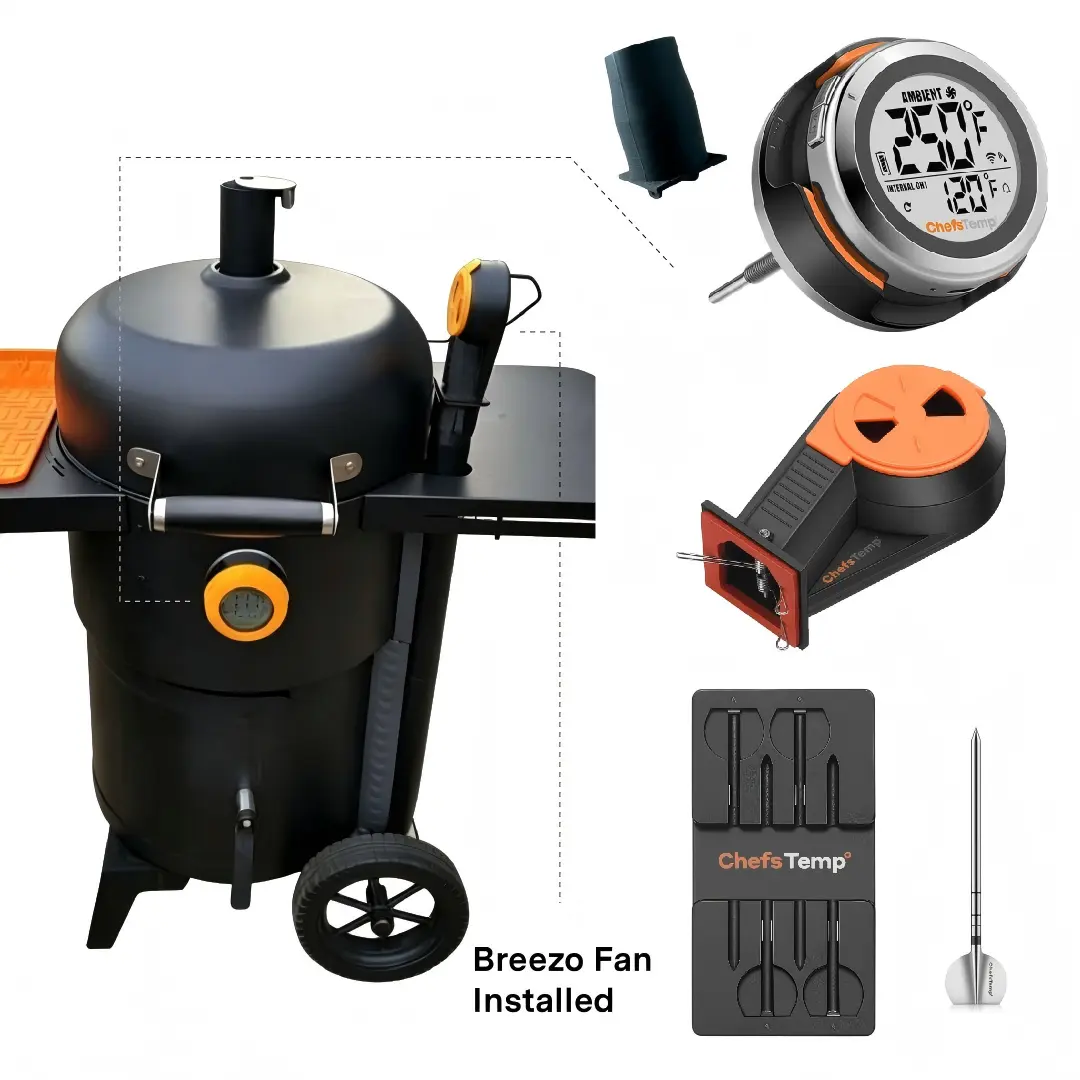
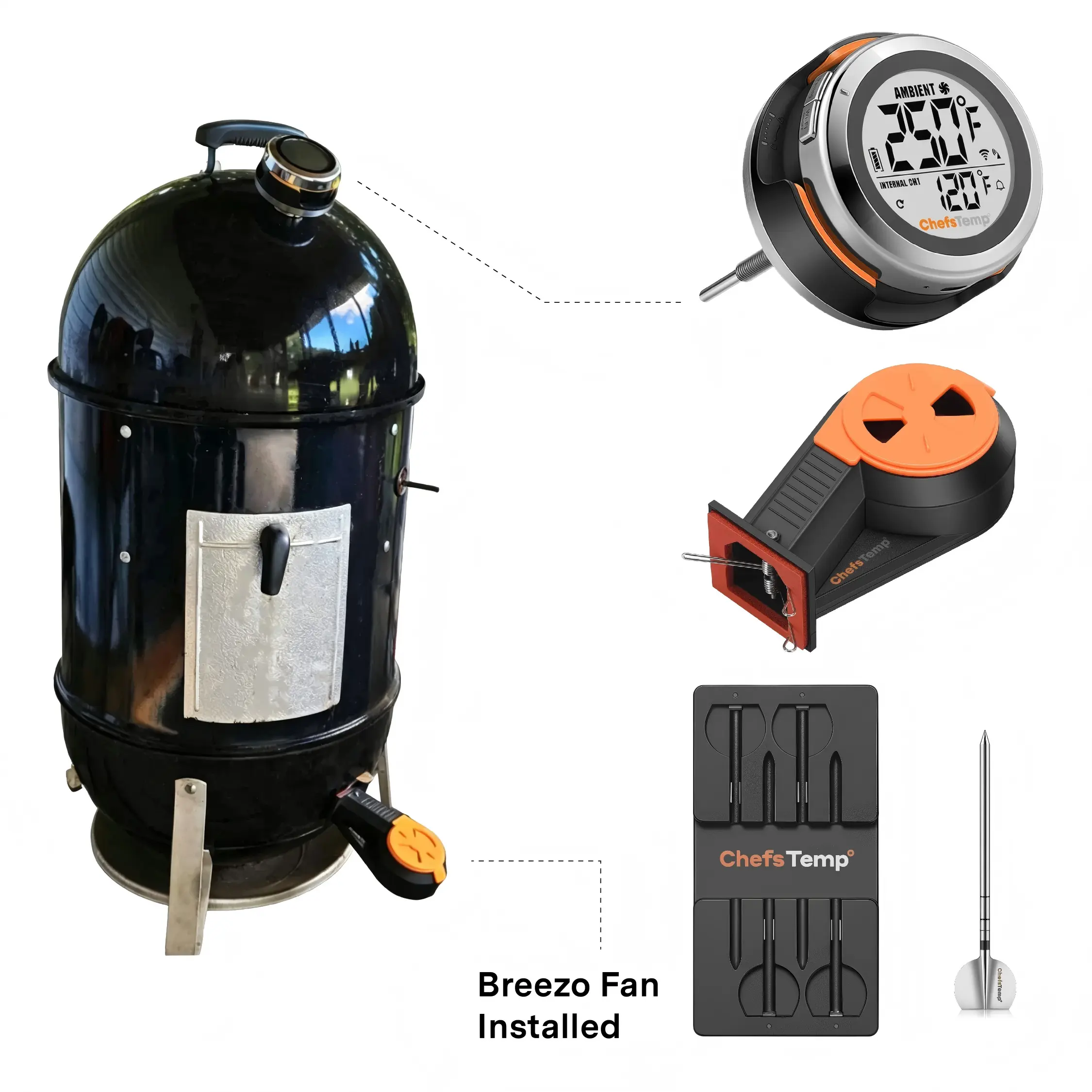
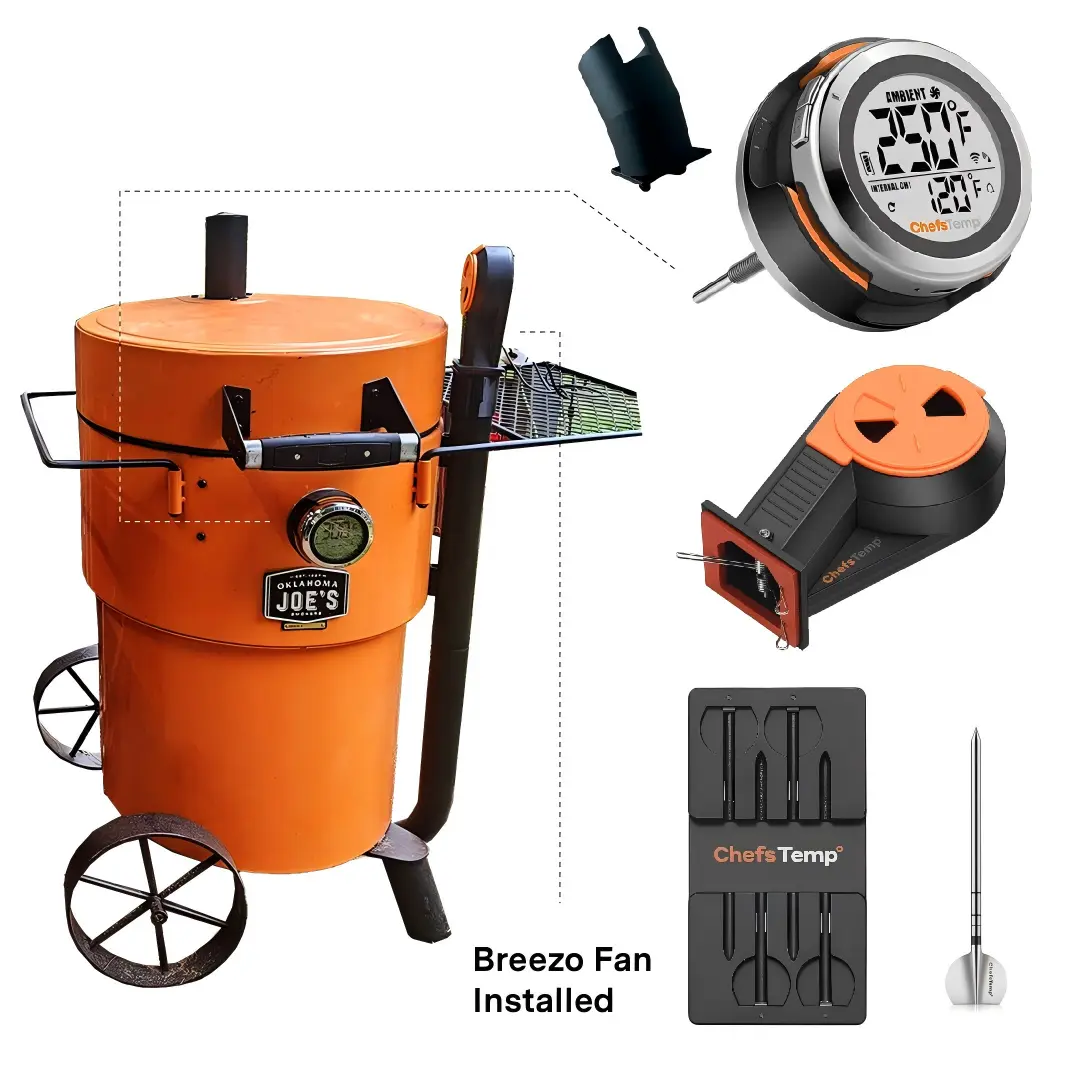
The Breezo Fan should replace your smoker’s vent system. Locate the vent on your smoker and, if it has an existing opening or hole, position the Breezo Fan to block it, sealing any gaps with high-temperature tape. You can also check the product description above for common models and recommended mounting methods.
The Breezo Fan is designed for precise temperature control in charcoal grills, smokers, and cookers, automating airflow to maintain your desired cooking temperature. It is not necessary for pellet or gas grills, as it is specifically tailored for charcoal-based systems. The Breezo Fan is highly versatile and compatible with most charcoal grills and smokers. Below is a list of common models and installation methods:
1. Models with Included Mounting Plates (No Additional Mounting Kit Required): For these models, the Breezo Fan can be installed directly using the two Kamado-style mounting plates included in the package. Simply replace the existing vent system by positioning the Breezo Fan over the vent and sealing any gaps with the provided high-temperature flue tape. Including:
Kamado Joe Classic II, Kamado Big Joe III
Primo XL 400 Grill, Primo Oval Large, Primo Smoker
Pit Barrel Cooker
Pit Boss Kamado, Pit Boss Ceramic Kamado
Cypress Ceramic Kamado Bayou Classic Grill
Big Green Egg
Vision Grills Series Classic
Broil King Keg 2000
2. Models with Direct Fit (No Adapters Needed): For these models, the Breezo Fan can be inserted directly into the existing vent opening, and any additional vent holes should be sealed with high-temperature flue tape (included). Including:
Weber Summit Kamado
Weber Smokey Mountain
Backwoods Chubby 3400
3. Smokers with Round Vent Holes: For these models, simply insert the Breezo Fan into one of the round vent holes and cover any remaining holes with the included high-temperature flue tape. Including:
Komodo Kamado
Char-Griller Offset Smoker
Broil King Keg 5000
Char-Griller Akorn Cooker
4. Other Solutions:
- For grills or smokers without a suitable vent opening, you can drill a 1.25-inch hole to attach the Breezo Fan directly, then seal any gaps with high-temperature flue tape.
- For large offset smokers, consider cutting a stainless steel plate to fit your smoker’s opening, then drill a 1.25-inch hole to attach the Breezo Fan.
- For Weber Kettle grills, a 1.25-inch hole must be drilled for installation. You can refer to our instructional video for guidance: https://www.youtube.com/watch?v=s_JR379c4-c&t.
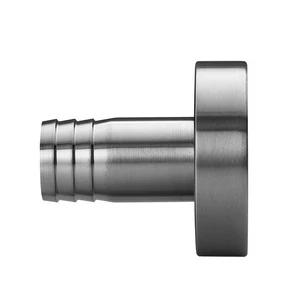
5. Mounting Kit Requirements: In most cases, the included Kamado-style mounting plates and high-temperature flue tape are sufficient for installation. If your device is listed above under direct-fit or Kamado mounting plate-compatible models, no additional mounting kit is necessary. However, for specific setups, an optional Breezo Fan Mounting Kit may be required.
- 1.18″ Universal Mounting Kit: Fits factory-installed ports measuring 1.18″ (30 mm) dia.
- 3/4″ Threaded Breezo Fan Mounting Kit: Designed to screw into a 3/4″ ball valve
- 1.5″ Threaded Breezo Fan Mounting Kit: Designed to screw into a 1.5″ ball valve (Suitable for OCGF Smoker)
- 2″ Threaded Breezo Fan Mounting Kit: Designed to screw into a 2″ ball valve
If the listed answers haven’t addressed your concerns, please join our Facebook community group and post your questions there—we’re confident they’ll be addressed quickly!
Can I buy one ProTemp S1 and an additional base unit to use the main display unit with both?
Can I buy one ProTemp S1 and an additional base unit to use the main display unit with both?
Yes, this is one of our best features! You can use one main display unit to mount with different base units. If you have a large grill and want to mount the base units in different locations, this feature helps you save money.
Breezo: Why does the app show my Breezo Fan as disconnected, or why won’t the fan run?
Breezo: Why does the app show my Breezo Fan as disconnected, or why won’t the fan run?
An app connection indicator alone doesn't confirm the Breezo Fan is physically running. For cable-powered Breezo models, check power, manual operation, and app control separately.
1. Check power and connections. Use the supplied adapter and cable. If using a power bank, follow the recommended Type-C-to-Type-C cable setup. Confirm that your ProTemp S1 displays temperature readings normally.
2. Check the software. Update the ChefsTemp app and S1 firmware. Update the fan firmware if your Breezo model supports updates.
3. Test manual operation. Turn off fan control in the app. With Breezo connected to power, press its button once to start the fan, then twice to stop it.
If the fan control is missing from the app, open the page for the ProTemp S1 that you intend to use with Breezo and check that the app is up to date. Missing controls and a visible control that does not operate the fan are different symptoms.
If the control still doesn't appear, send support a screenshot of the full device page, your phone model, app version, and the S1 and Breezo models. Explain whether the fan responds to its physical button. This helps support review the interface and device setup before treating the issue as a failed fan motor.
4. Test app control. If manual operation works, try starting the fan through the app. If it does not respond, repeat the pairing procedure: with Breezo powered and S1 on, hold the fan button for approximately four seconds until the fan briefly turns. Press it twice to stop, then test app control again.
If manual operation fails despite correct power, or app control still fails after pairing, send your order number and a short video showing power connection, button operation, and the app status to [email protected].
Note:
● Confirm that your Breezo and S1 are connected correctly. You can watch this video: How to Wirelessly Connect the Breezo Fan to ProTemp S1?
● Check that your S1 and Breezo firmware are up to date. You can watch this video: How to Update Firmware on ProTemp S1 & Breezo Fan | Step-by-Step Guide.
Probe: What should I do if my wireless probe won’t charge on the ChefsTemp 4-in-1 Charger?
Probe: What should I do if my wireless probe won’t charge on the ChefsTemp 4-in-1 Charger?
Check charger power, probe contact, battery level, and wireless communication separately. An illuminated charging indicator alone doesn't confirm the probe’s battery and wireless functions are working correctly.
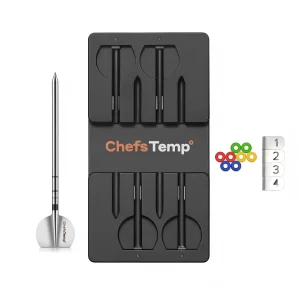
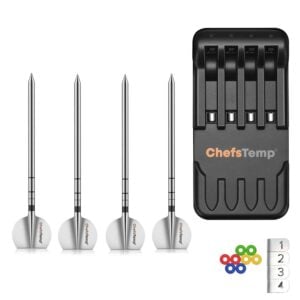
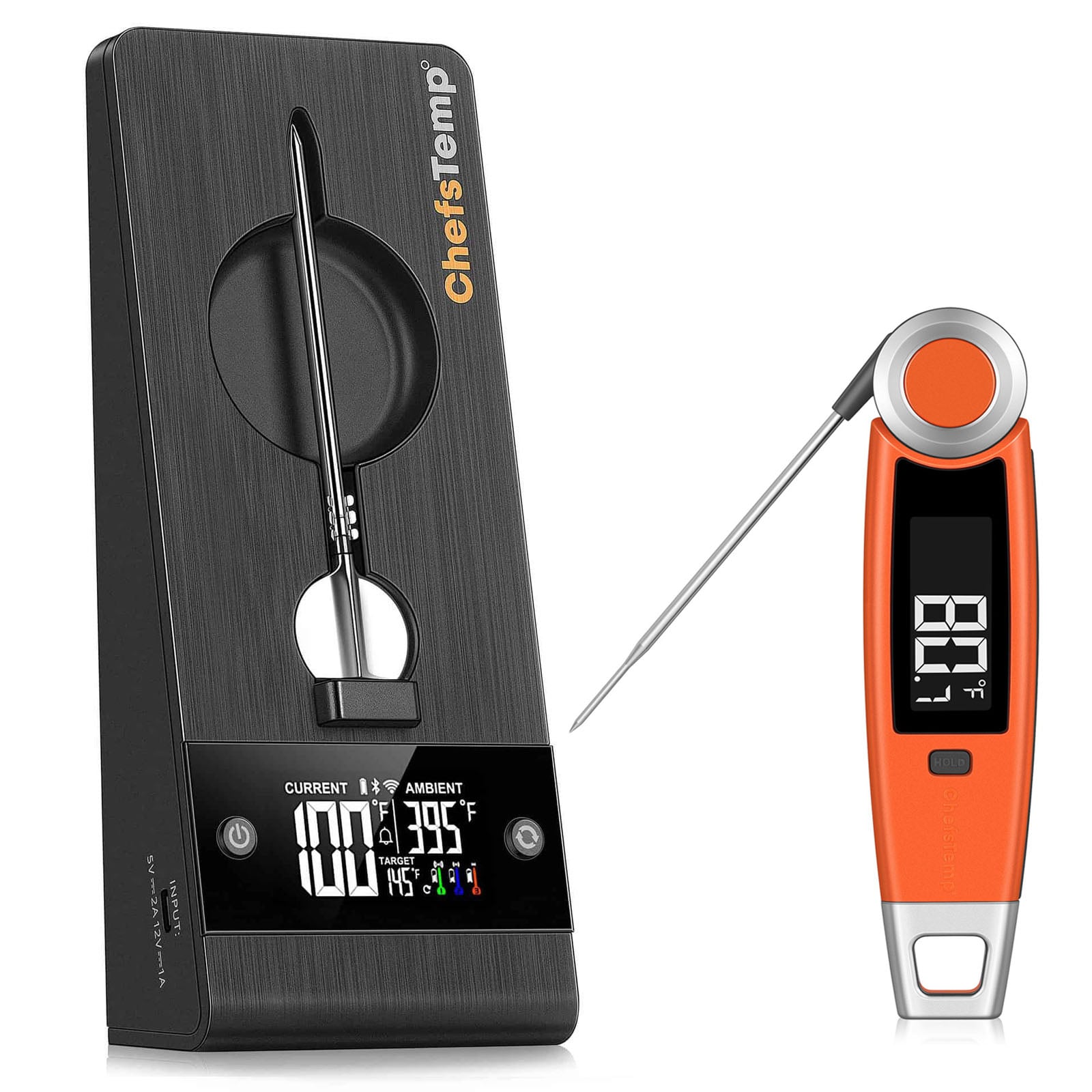
1. Check charger power. Use the recommended 5V 2A adapter and Type-C cable. The red indicator near the charging port shows that the charger is receiving power.
2. Check probe contact. Clean any grease or residue from the probe’s metal tail, dry it, and place it correctly so the tail contacts the charging plate. Try another charging slot.
3. Check the blue indicator. It normally illuminates during charging and turns off when charging finishes. If it never lights, do not assume the probe is fully charged; check power and contact first.
4. Check battery level. In the app, go to My Connections → My Paired Probes and select the probe.
5. Check wireless detection. After charging, remove the probe from the charger. If it still cannot connect, use the LightBlue app to check whether a “Probe” entry appears.
If the problem persists, email [email protected] with your order number, battery screenshot, and a charging video showing the red and blue indicators. Perform additional contact or reverse-orientation tests only under Customer Support’s guidance.
If you have two compatible probes, compare both in the same powered charging slot, then test the affected probe in another slot. Record whether the working probe charges in every slot and whether the affected probe fails in every slot. This comparison helps distinguish a single-probe problem from a charger or contact problem; it is not a complete hardware diagnosis.
If a blue light turns off within seconds, check the probe’s actual battery level rather than assuming charging is complete. Send a short video if charging repeatedly stops after you clean and reseat it. If several indicators flash during a support-guided test, stop repeating the test and share the video with support. Ask support to confirm the charger revision compatible with your probe model before swapping chargers.
My fan does not respond when pressing the Power Button.
My fan does not respond when pressing the Power Button.
If the fan button does not respond, please confirm you are using the included power adapter and cable. For power banks, please use Type-C to Type-C cable, and avoid fast-charging adapters or those exceeding 20W.
If it still fails, please shoot a short video of the issue and reach our support team: [email protected]
Can I use the ProTemp 2 Plus for different types of cooking, and is it durable for outdoor use?
Can I use the ProTemp 2 Plus for different types of cooking, and is it durable for outdoor use?
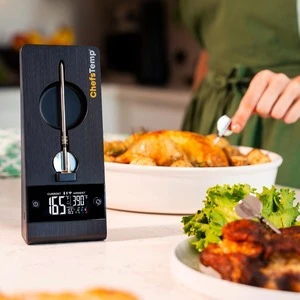
Absolutely—it's designed for grilling, smoking, roasting, baking, deep frying, and even sous vide. The probe is made from corrosion-resistant 316-grade stainless steel and is IP68 waterproof, while the stand is IP55 water-resistant. The probe withstands extreme heats up to 1000°F, making it tougher than many competitors for rainy BBQs or messy kitchens. Customers buy it to elevate their cooking game across methods, enjoying consistent perfection that turns ordinary meals into gourmet experiences, all while its rugged build ensures long-term value without frequent replacements.
Is the ProTemp 2 Plus compatible with my devices and cooking setup?
Is the ProTemp 2 Plus compatible with my devices and cooking setup?
Yes, it works with iOS 11+ and Android 9.0+ devices via the free ChefsTemp app, supporting up to three probes per stand and three stands per app for monitoring up to nine items at once. It integrates with 2.4GHz Wi-Fi for cloud storage and unlimited range (not 5GHz), and pairs with the ChefsTemp Breezo V2 Fan for automated temperature control in charcoal grills. This versatility makes it a game-changer for home chefs, allowing simultaneous tracking of multiple dishes—like a steak and veggies on the grill—resulting in efficient, stress-free meals that save you time in the kitchen.
Does the ProTemp S1 include the temperature fan or wireless probe?
Does the ProTemp S1 include the temperature fan or wireless probe?
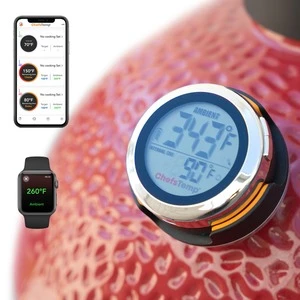
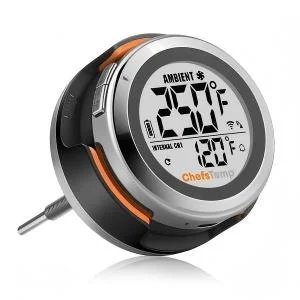
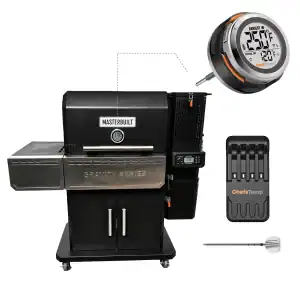
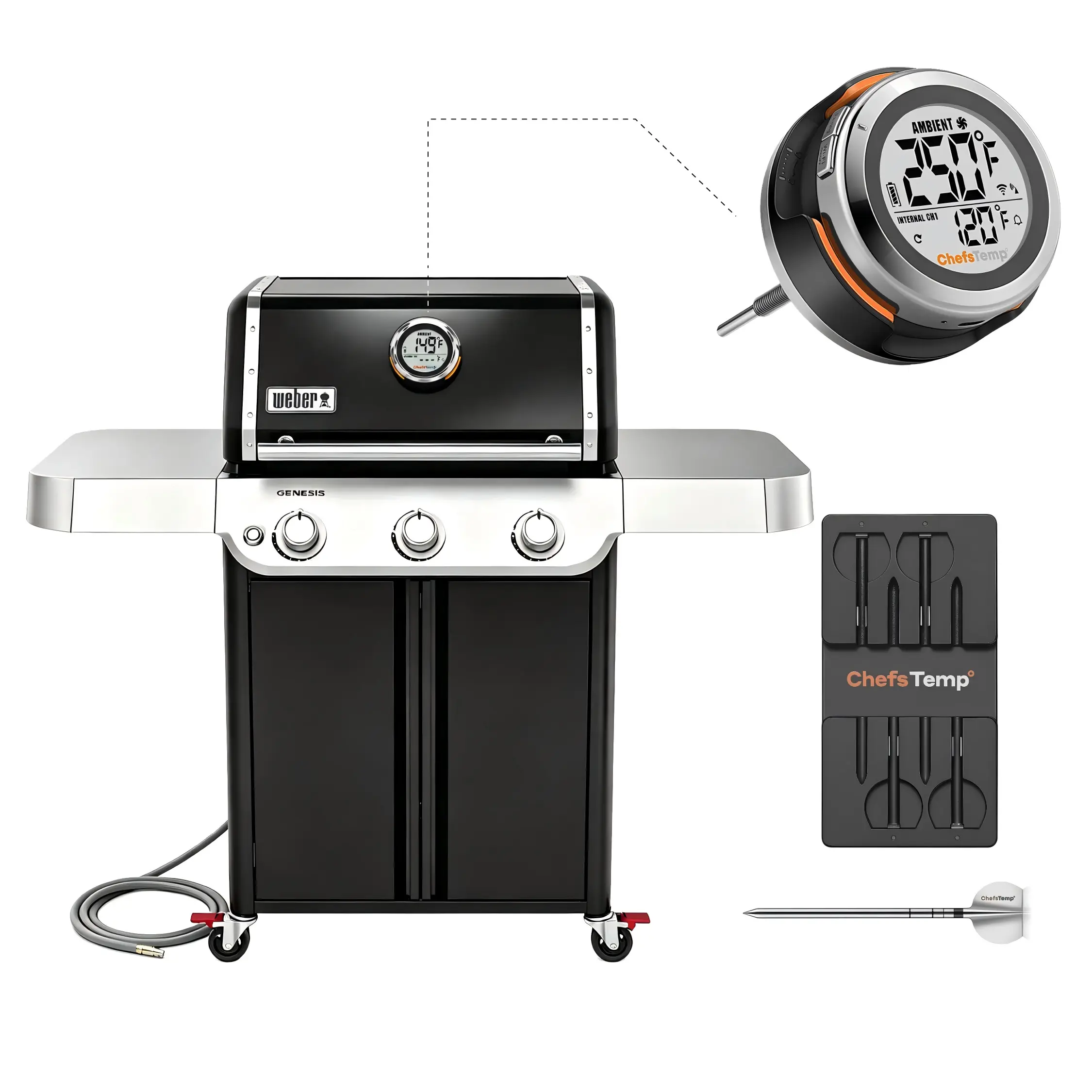
No, the ProTemp S1, priced at $99.99 USD, does not include the wireless probe or Breezo Fan. The ProTemp S1 is a smart, accurate, digital grill thermometer hub that works with an app to remotely monitor your grill’s temperature and set high and low-temperature alerts.
What is the battery life, and how does it support long cooking sessions?
What is the battery life, and how does it support long cooking sessions?
The probe lasts 30 hours on a single charge and recharges fully in just 10-15 minutes, while the stand's 10,000mAh rechargeable battery provides up to 80 hours of use when fully charged. This extended life is perfect for all-day smokes or roasts, where traditional wired thermometers might fail due to short batteries or cords. It offers dependable performance for outdoor adventures and long cooking sessions, providing uninterrupted monitoring that results in better-tasting food—no constant recharging required.
I have a ProTemp Plus/ProTemp 2 Plus. Can I monitor it together with the ProTemp S1?
I have a ProTemp Plus/ProTemp 2 Plus. Can I monitor it together with the ProTemp S1?
Yes, you can monitor both ChefsTemp devices simultaneously. Simply find the “Add Device” option in the app and follow the steps to pair. Once successfully added, you can easily switch between different devices with a simple swipe on the screen.
How accurate is the ProTemp 2 Plus compared to traditional thermometers?
How accurate is the ProTemp 2 Plus compared to traditional thermometers?
It offers exceptional accuracy of ±0.9°F (±0.5°C), far superior to many basic dial or instant-read thermometers that can vary by several degrees. The internal probe measures from 32°F to 220°F, while the ambient sensor handles up to 1000°F, making it ideal for high-heat scenarios like direct grilling. Its patented design ensures the ambient sensor isn't affected by cold proteins, avoiding common inaccuracies in competitors. This precision means you'll never overcook or undercook again, delivering juicy, safe results that impress family and friends—ultimately making you a more confident cook and reducing costly mistakes with expensive cuts of meat.
Bluetooth won’t connect/Bluetooth connection is stuck on C-1.
Bluetooth won’t connect/Bluetooth connection is stuck on C-1.
If your S1 is unable to connect to Bluetooth or is stuck on C-1 during pairing, please follow these steps to resolve the issue:
- 1. Check App Permissions: Make sure the ChefsTemp app has all required permissions—especially location access—enabled on your device.
- 2. Clear Existing Connections: Ensure all previous connections are removed from the ChefsTemp app. Then, reconnect by following our tutorial video: How to Pair Your ProTemp S1 with Bluetooth and Wi-Fi | Step-by-Step
- 3. Reset the S1: Press the RESET button next to the charging port.
- 4. Test with LightBlue App: If the issue persists, download the LightBlue app and check for “ProTemp S1 Base” in the device list.
If there are still issues, please contact our customer service via phone or email for support.
Can not connect the ProTemp S1 to Wi-Fi.
Can not connect the ProTemp S1 to Wi-Fi.
Please watch our tutorial video to ensure you’re following the correct Wi-Fi setup process: How to Pair Your ProTemp S1 with Bluetooth and Wi-Fi | Step-by-Step.
If you are still stuck on the Wi-Fi connection step, please check the following tips:
- 1. Confirm the Wi-Fi icon on your S1 screen is solid (not flashing). A missing icon indicates Wi-Fi is off, while a flashing icon suggests an unstable connection.
- 2. Check App Permissions: Make sure the ChefsTemp app has all required permissions—especially location access—enabled on your device.
- 3. Check Wi-Fi Settings: Ensure your Wi-Fi is on a 2.4GHz network. If 5GHz Wi-Fi only, simply create a guest 2.4GHz Wi-Fi network in the router app, making it easier for smart devices to join.
- 4. Password and SSID: Use the orange magnifying glass to auto-detect the SSID, and double-check that the Wi-Fi password is entered correctly, as spell-check may alter it.
- 5. Router Settings: Disable fast roaming (e.g., 802.11r) on your router, as it may prevent the S1 from connecting.
I cannot connect the ProTemp 2 Plus to Bluetooth/stuck on C-1.
I cannot connect the ProTemp 2 Plus to Bluetooth/stuck on C-1.
To ensure everything is set up correctly, please watch this video on How to Fix Bluetooth & Wi-Fi Pairing Issues on ProTemp Plus or ProTemp 2 Plus and follow the checklist below to troubleshoot:
1. Check App Permissions: Make sure the ChefsTemp app has all required permissions—especially location access—enabled on your device.
2. Charge the devices: Low battery or no power will prevent Bluetooth detection. Use the original charger to fully charge the Probe and Stand. Clean the probe to remove any debris. Adjust the metal plate in the Stand’s charging slot to ensure contact with the probe properly.
3. Remove the probe from the Stand: The probe must be removed from the charging base to activate Bluetooth pairing. Bluetooth cannot be detected while the probe is charging on the Stand.
4. Check for existing pairings: Ensure the probe is not already paired with another device. A probe can only be connected to one device at a time (including ProTemp S1 and ProTemp Plus Series).If you own both ProTemp S1 and ProTemp 2 Plus, check which receiving device each probe is paired with before starting setup. Have a charged, compatible probe available for the 2 Plus setup, and remove that probe's pairing from S1 before adding it to 2 Plus.
Removing a probe from a charging slot and removing its pairing in the app are different actions. Take the probe out of the charging slot for wireless detection; use the app to change its assigned receiving device. If you move all probes to S1 and 2 Plus setup then stalls, tell support that no probe remains assigned to 2 Plus.
5. Restart and reset: Power off the Stand completely, and restart it. Try pairing again from the beginning. Otherwise, reset your Stand via the Reset Button on the backside.
If needed, simply delete all existing connections in the app, reconnect your device, and add your extra probes. If it is still not working, please download the LightBlue app to test whether the “Probe” and “ProTemp Stand” are broadcasting Bluetooth signals.
I cannot connect the ProTemp 2 Plus to my Wi-Fi.
I cannot connect the ProTemp 2 Plus to my Wi-Fi.
Please watch our tutorial video for pairing operations: How to Pair Your ProTemp 2 Plus:
If you still can not pair it, please refer to the following steps:
Ensure you have entered the correct SSID. You can enter it automatically by clicking the orange “magnifying glass” icon on the Wi-Fi settings page. Double-check that you’ve entered the right password for your Wi-Fi. Avoid using spell checking, which can result in incorrect password input.
Use 2.4GHz network, the device must be connected to a 2.4GHz network, not a 5GHz one. Ensure your phone is also using the same 2.4GHz network during setup.
Grant location permission to the app for better connectivity. For Apple devices, please enable “Allow connecting to your nearby devices” in your settings. This is a recent update in iOS.
After making sure the above settings are correct, delete all your current connections, shut off the Stand to restart it, and pair it from the beginning.
S1: What should I do if my ProTemp S1 won’t charge or loses battery power unusually quickly?
S1: What should I do if my ProTemp S1 won’t charge or loses battery power unusually quickly?
First, remove the S1 Main Unit from its Base and let it cool before charging. Do not charge it while mounted on cooking equipment or resting on a hot surface.
Follow these steps:
1. Check charging. Use the supplied adapter and cable. A charging animation should appear on the battery icon. If it does not, try another compatible power supply and cable.
2. Confirm a full charge. Allow charging to complete rather than judging the battery level immediately after connecting the cable.
3. Update and reset. Update the S1 firmware, then reset the Main Unit using the RESET button next to the charging port.
If the battery drains while the S1 is stored, confirm that the Main Unit is fully powered off. Record its battery level after charging and again when you next switch it on, along with the elapsed time. Also note whether the problem occurs during cooking, storage, or both.
Investigate a substantial loss of charge while fully powered off rather than assuming it's normal. If the issue continues after these checks, email [email protected] with your order number, charging video, firmware version, and battery records. Our support team will assess whether you need further troubleshooting or service.
If a USB-C plug will not seat securely in the ProTemp S1, power off the unit and disconnect the cable. Inspect the port and connector for visible debris, damage, or deformation, then try another compatible cable. Do not force the plug. If the fit remains loose or incomplete, send support clear photos of the empty port and connected cable, and explain whether charging works while stationary and whether the unit stays on after unplugging.
WE’RE HERE TO HELP
Still need help?
Contact our support team for help with your ChefsTemp products.