FAQs
If you have any questions about your preferred items that aren't covered here or your order, you can start a chat using the message icon in the lower‑left corner for faster assistance. You're also welcome to contact our Customer Support Team at [email protected].
How do I know if my meat thermometer is oven-safe?
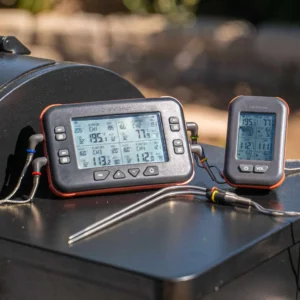
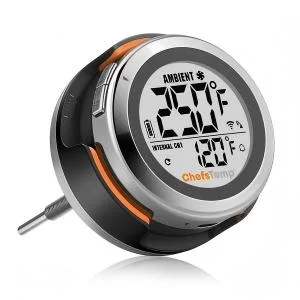
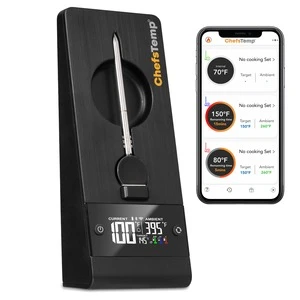
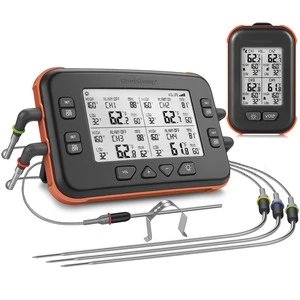
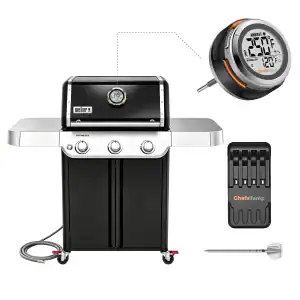
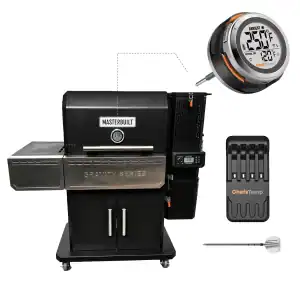
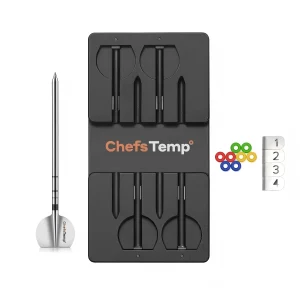
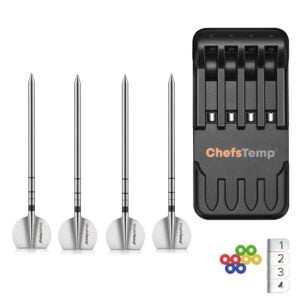
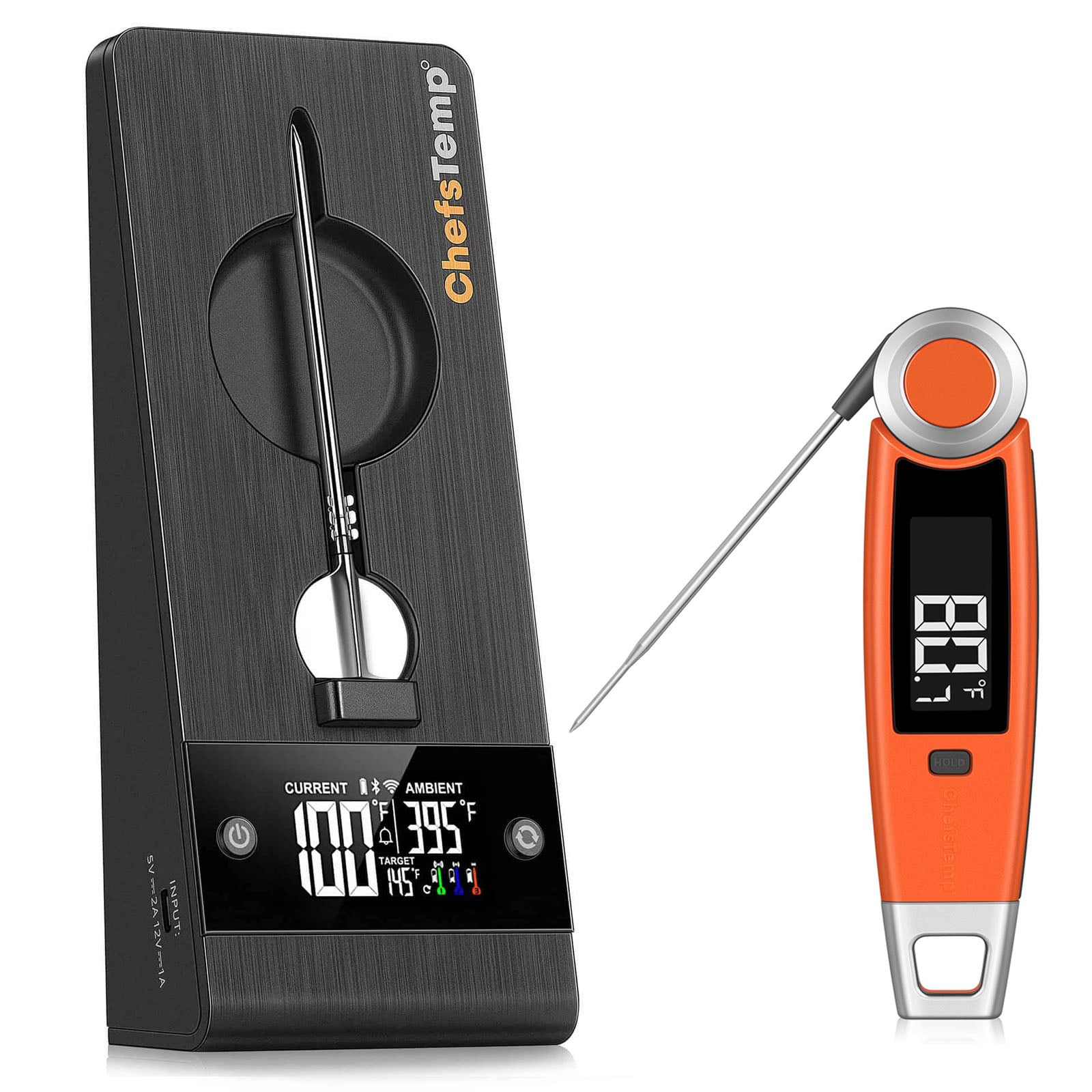
Cooking thermometers are sold by type. Instant read, oven, candy making, etc…, when you are shopping for thermometer, make sure you read the documentation for the thermometer before you buy it. The ChefsTemp Quad Xpro is one of the best oven thermometers you can get because it has 4 oven thermometer probes on stainless steel leads that are designed to be inserted into the meat, connected to the base unit outside your oven, it will stick to the side of the oven with magnets away from the heat, it also has a stand, and has a remote that you can carry with you and get temperature readings up to 500 feet away. This makes it the most versatile oven-safe thermometer on the market because it will give you accurate temperature readings and you can constantly monitor the cooking process.
How do you calibrate a meat thermometer without ice?
The only way to calibrate a thermometer without ice is to use the hot water method. This method involves setting your thermometer to the temperature of boiling water, 212⁰F or 100⁰C. It is not the safest way to do it but it will work. You need to fill a pot with water and place it on a stove burner and bring the water to a boil, then insert the probe of the thermometer into the boiling water and set the temperature. This way to calibrate a thermometer is not the safest way to do it because you have to place your hands over the boiling water while you calibrate the thermometer. The ice method is the recommended way to calibrate a thermometer.
Where do you put the meat thermometer in a roast beef?
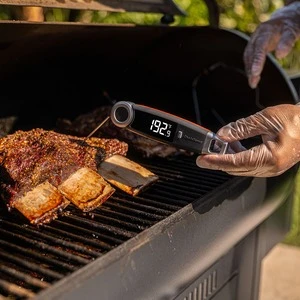
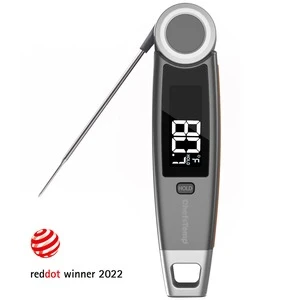
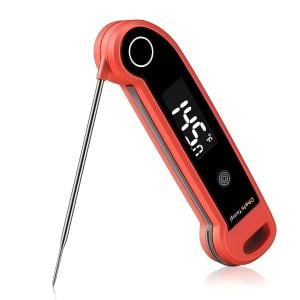
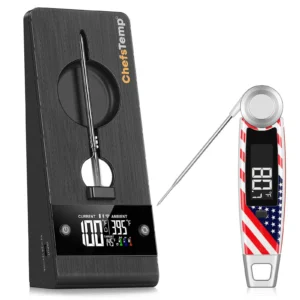
Taking the temperature of a beef roast is done by inserting a meat probe into the center most thickest part of the roast. Depending on what you are preparing from the roast determines the final cook temperature, the pull temperature, and how long you rest it before slicing it. If it is being served as a pot roast, you are going to cook it until it is done, 160⁰F or 71⁰C, of it is for sandwiches like sliced roast beef, you will cook the roast to 135⁰F or 51.6⁰C. It is important to understand that roast beef is one of the meats, as with steaks, where you can cook the meat safely to any temperature you like. It isn’t like poultry or pork where specific temperatures has to be reached to make it safe to eat. Always refer to a meat cooking temperature chart and use either a ChefsTemp Final Touch X10 Instant Read thermometer or a ChefsTemp Quad XPro oven probe thermometer with long distance remote.
Why do I need ProTemp S1 if I’m already a pitmaster and skilled at temperature and fire management?
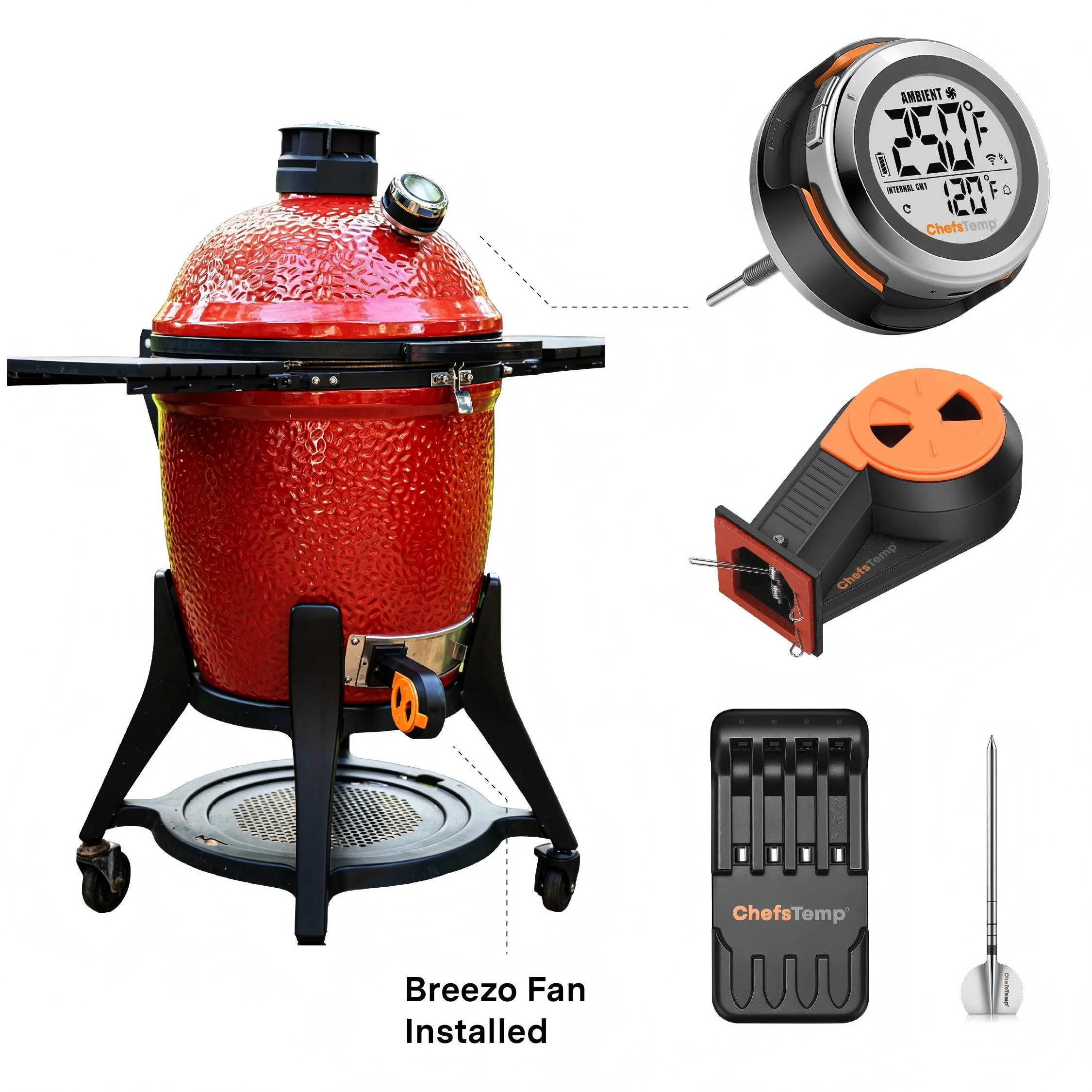
ProTemp S1 saves time and effort, letting you focus on other tasks. Even experts can go from good to great with consistent, hassle-free temperature control. This gadget boosts your game with precise temperature monitoring, ensuring consistent results for large cooks.
It alerts you to subtle heat changes, freeing you to focus on sides or guests, while also logging data to refine your technique—all while adding a fun tech edge to your craft.
Does the ProTemp S1 fit my XXX model grill or smoker?
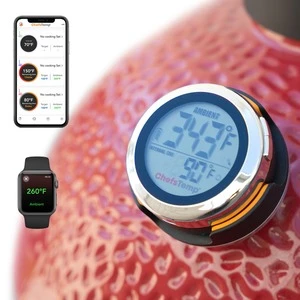
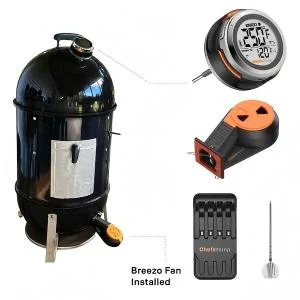
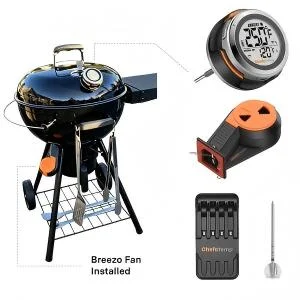
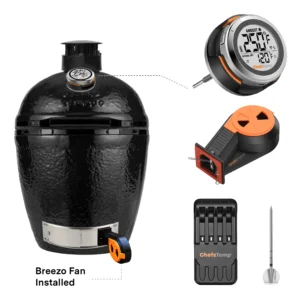
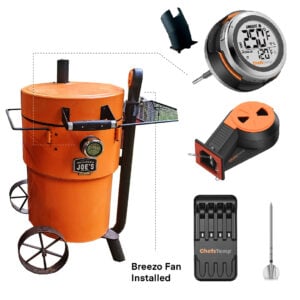
The ProTemp S1 is designed to fit almost all grills and smokers on the market. Simply remove your existing gauge thermometer and replace it with the S1, or drill a new hole if needed(do not drill ceramic).
There are 4 different variants of the ProTemp S1.
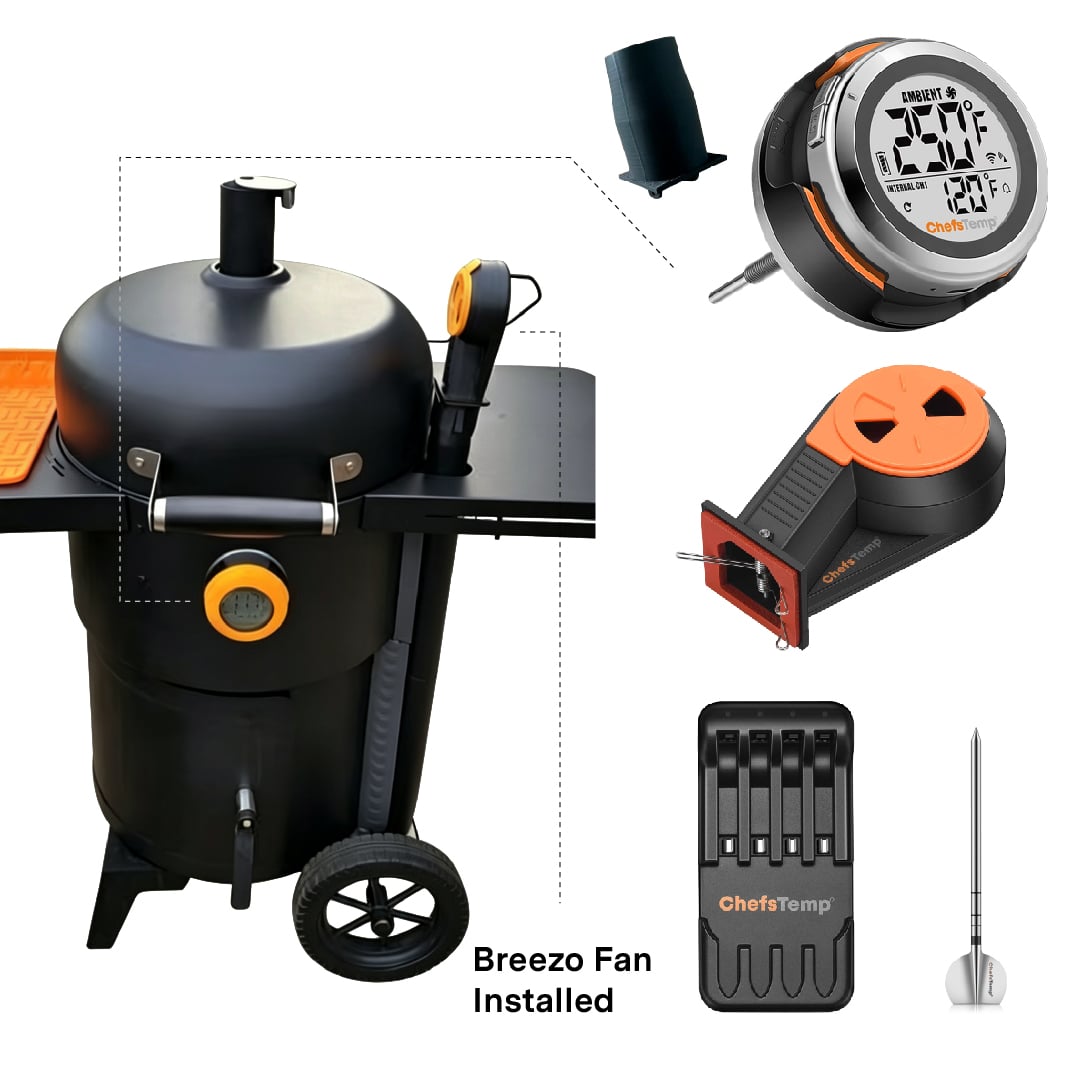
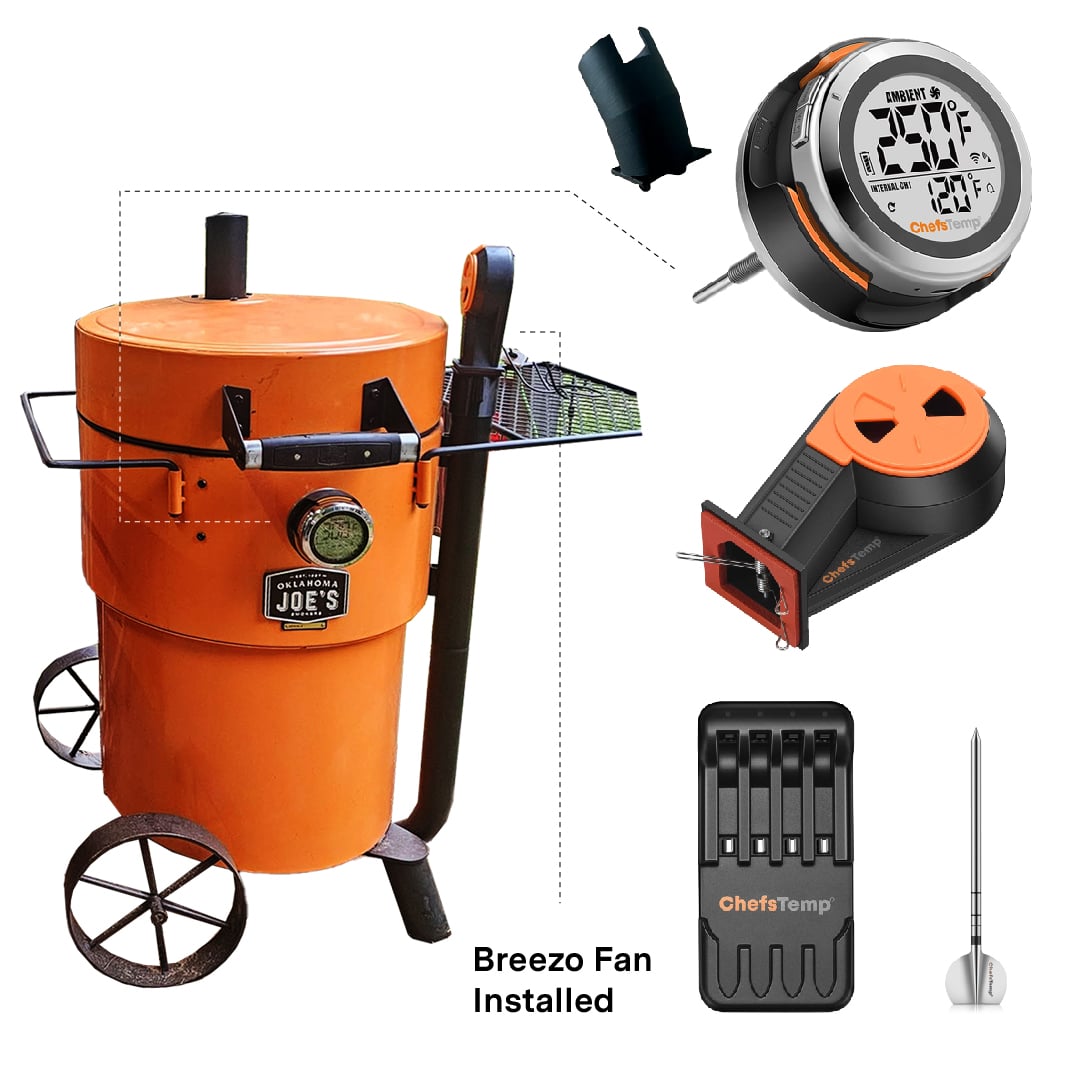
Universal Version: This model has a base stem diameter of 7.8 mm (0.3 inches) and is compatible with most grills and smokers, including Weber, Kamado Joe (except Big Green Egg), drum, offset, and kettle grills. It’s ideal if your grill’s gauge hole is approximately 0.3 inches or larger.
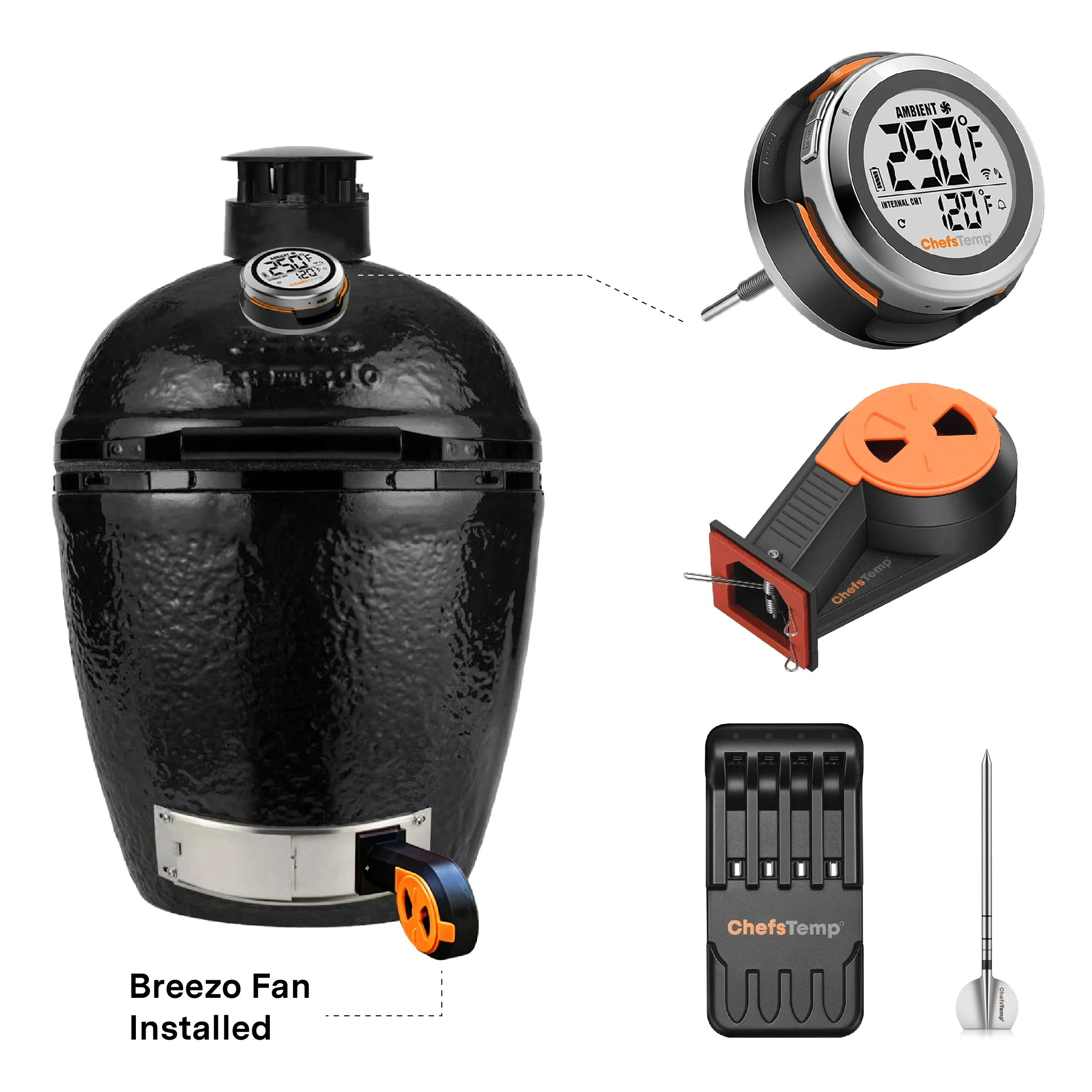
BGE Version: Designed specifically for Big Green Egg grills or other grills with smaller gauge holes like Primo Oval XL, this version has a thinner base stem diameter of 4.1 mm (0.16 inches). It’s perfect for Big Green Egg, Primo Oval XL, or similar grills with smaller ports (For the Primo XL series, since the thermometer hole diameter may vary depending on the production year, it is recommended to measure the diameter of the thermometer hole before purchasing the ProTemp S1).
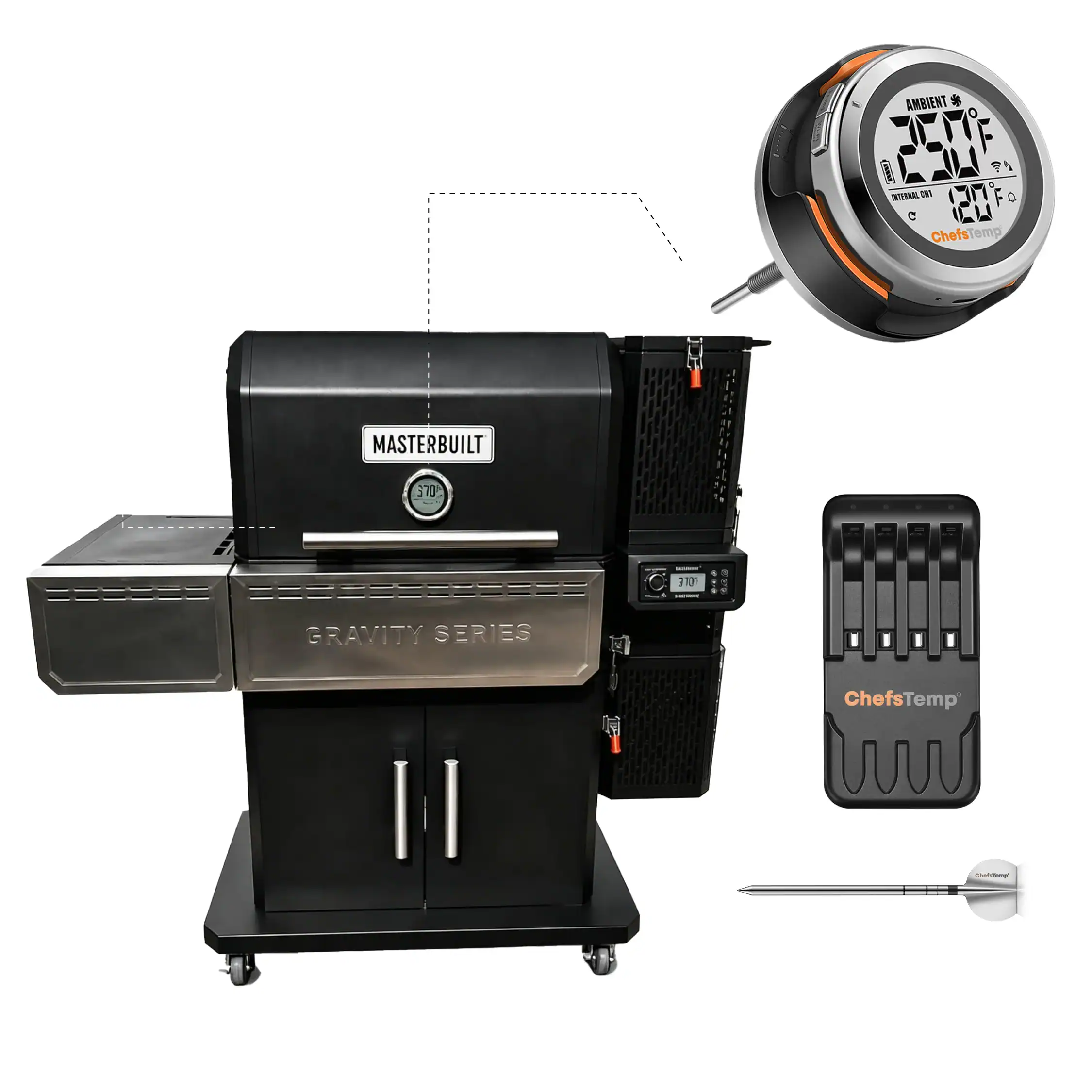
5.5” Special Edition: Its base stem diameter is the same as the Universal Version, at 7.8 mm (0.3 inches), but its stem length is longer, at 5.5 inches, making it suitable for devices where the thermometer is farther from the food, like Old Country Gravity Fed smoker.
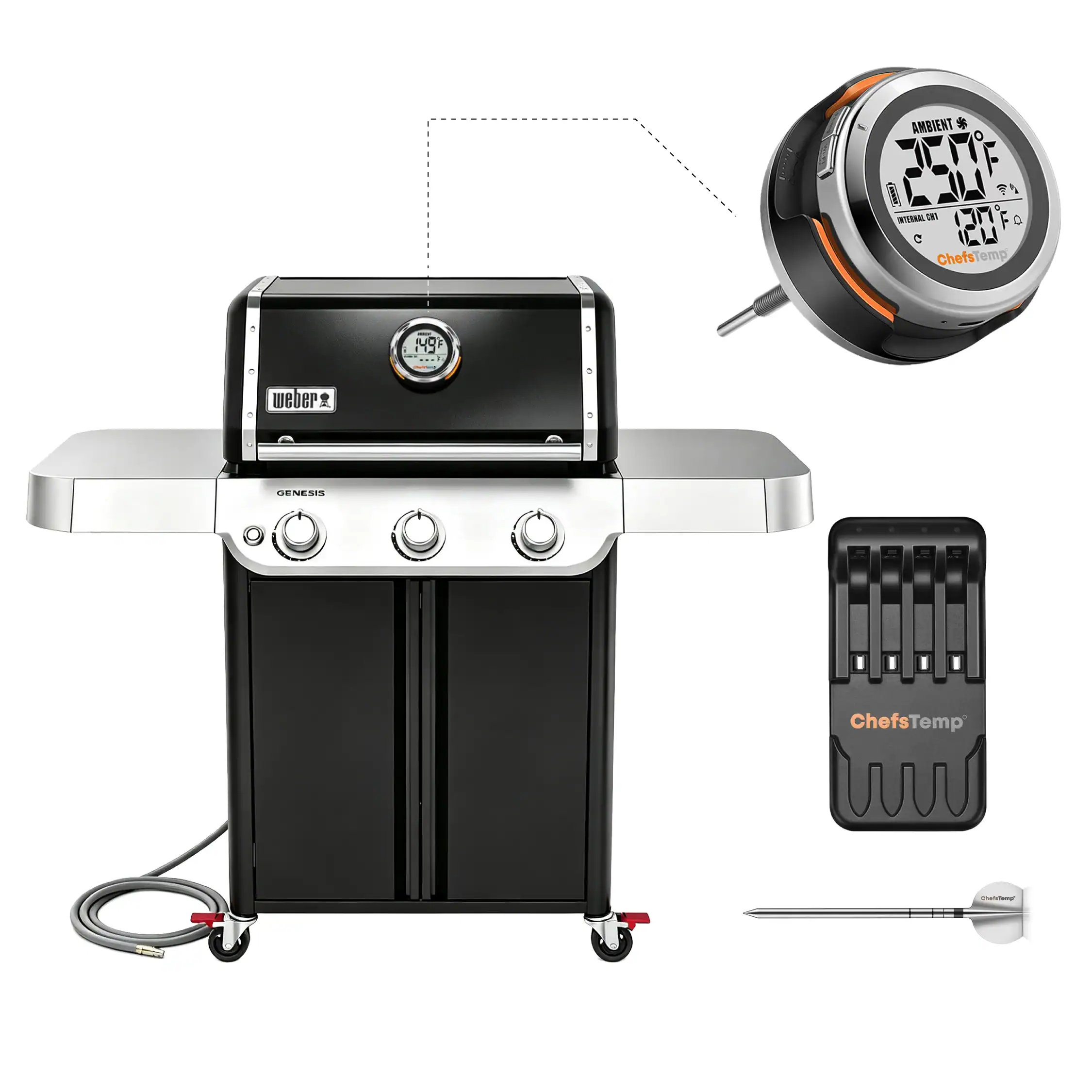
1.5″ Short Stem Edition: Retaining the same base stem diameter as the Universal Version, at 7.8 mm (0.3 inches). This model features a shorter 1.5-inch stem. The reduced length ensures better compatibility with grills requiring limited internal clearance, preventing interference with lid operation. It’s particularly well-suited for certain gas grills, such as the Weber Genesis and Napoleon Prestige PRO series.
We recommend measuring the gauge hole on your grill to ensure the perfect fit before choosing a version.
What are the outdoor operating temperature limits for the S1 thermometer and Breezo Fan?
For optimal performance and longevity, we recommend placing both the S1 thermometer and the Breezo control fan in environments where the temperature stays within safe operating limits.
- Minimum temperature: Avoid prolonged exposure below 32°F (0°C), as this may significantly reduce battery life and affect overall functionality.
- Maximum temperature: The fan is heat-resistant up to 302°F (150°C), while the S1 thermometer is rated for up to 140°F (60°C).
Given that winter temperatures can dip below the recommended minimum, and high-heat cooking zones may exceed safe limits, we advise using the product in a protected or temperature-controlled setting to ensure reliable operation. Proper placement and shielding will help extend the life of your device and maintain accurate performance.
Do I need to drill a hole to install the ProTemp S1?
No need if your grill has an analog thermometer—just replace it. If there’s no hole (like on some offset smokers), you can drill one. Just skip drilling on ceramic grills.
What is the ProTemp 2 Plus, and how does it work?
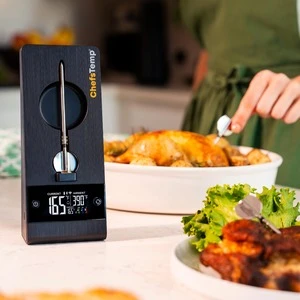
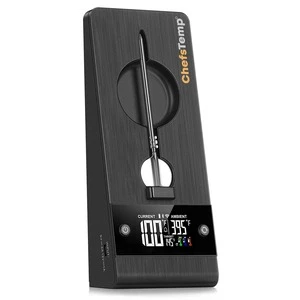
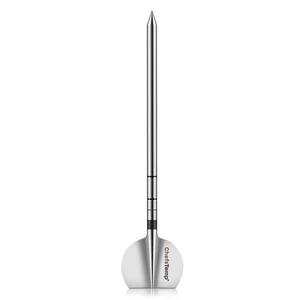
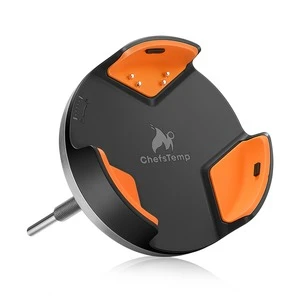
The ProTemp 2 Plus is a professional-grade wireless meat thermometer with an ultra-thin probe (just 4.55mm in diameter) that inserts easily into food for real-time internal temperature monitoring. It features five sensors in the probe tip for pinpoint accuracy and an additional sensor in the handle for ambient temperature tracking. The probe connects via Bluetooth or 2.4GHz Wi-Fi to a charging stand with a large HD display and the ChefsTemp app on your phone. This setup allows unlimited-range remote monitoring, so you can step away from the grill or oven without worry. Customers love it because it transforms cooking from a guessing game into a precise science, ensuring perfectly cooked meats and freeing up your time for other tasks—like entertaining guests during a BBQ.
Why do I have to register an APP account?
The purpose of creating an account is to facilitate seamless usage of the device among family members through a single account. Additionally, registering an account enables access to cloud storage services.
Our product utilizes Wi-Fi for cloud data transmission, ensuring seamless connectivity and allowing users to access their temperature data remotely. This is the unique aspect of our thermometer that sets it apart from other Bluetooth-based wireless meat thermometers. To maintain access to cloud data features, account registration is necessary.
Please rest assured that we prioritize the privacy and security of our customers’ personal information. We have stringent measures in place to ensure that your data remains confidential and is not disclosed to any third parties. And our app will not send advertising messages.
Does the Breezo Fan have a built-in battery, or does it need to be connected to a power source?
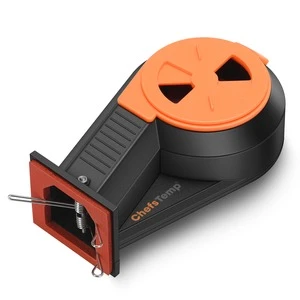
No, the Breezo Fan does not have a built-in battery. You need to power it using a power bank or connect it to a power source.
We recommend that you use the 5V 2A DC Adapter and Type-C charging cable included in the package to power Breezo Fan.