FAQs
If you have any questions about your preferred items that aren't covered here or your order, you can start a chat using the message icon in the lower‑left corner for faster assistance. You're also welcome to contact our Customer Support Team at [email protected].
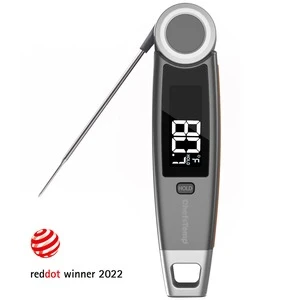
What is the auto-rotating display?
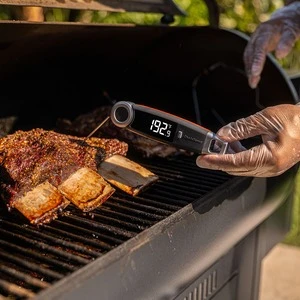
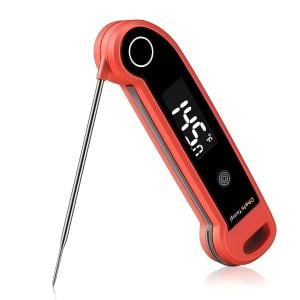
The display will rotate 180° to accommodate both left and right handed users.
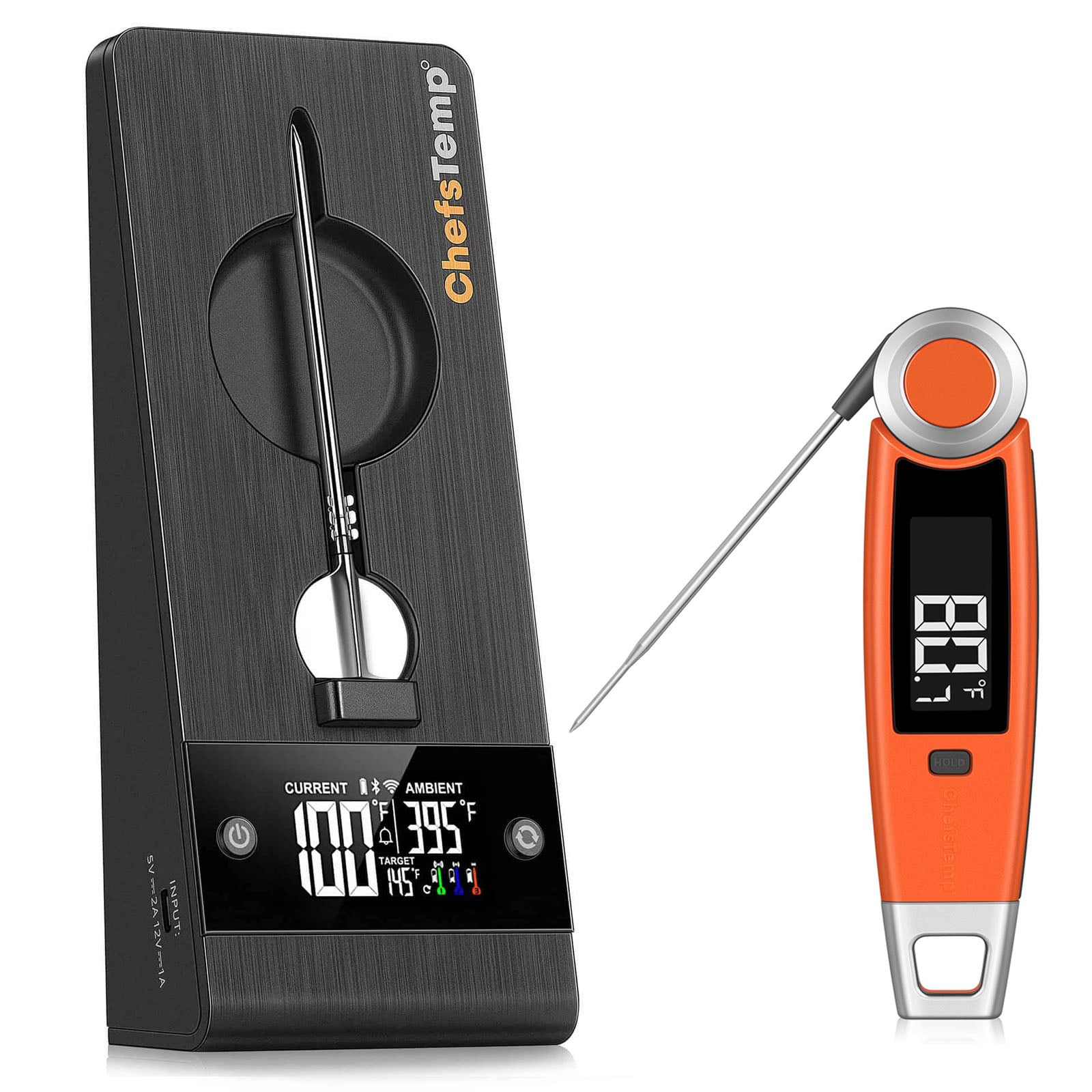
Can I re-calibrate this? (Finaltouch x10)
Yes, if you suspect it to be inaccurate, you can re-calibrate this device.
Order: Do I need to buy the temperature fan?
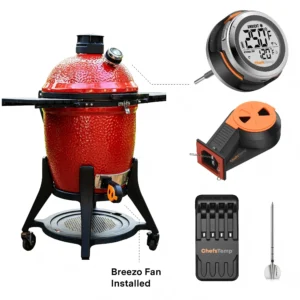
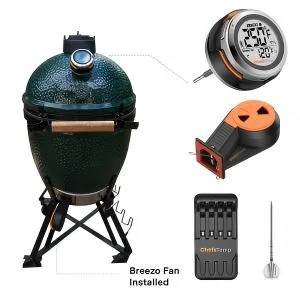
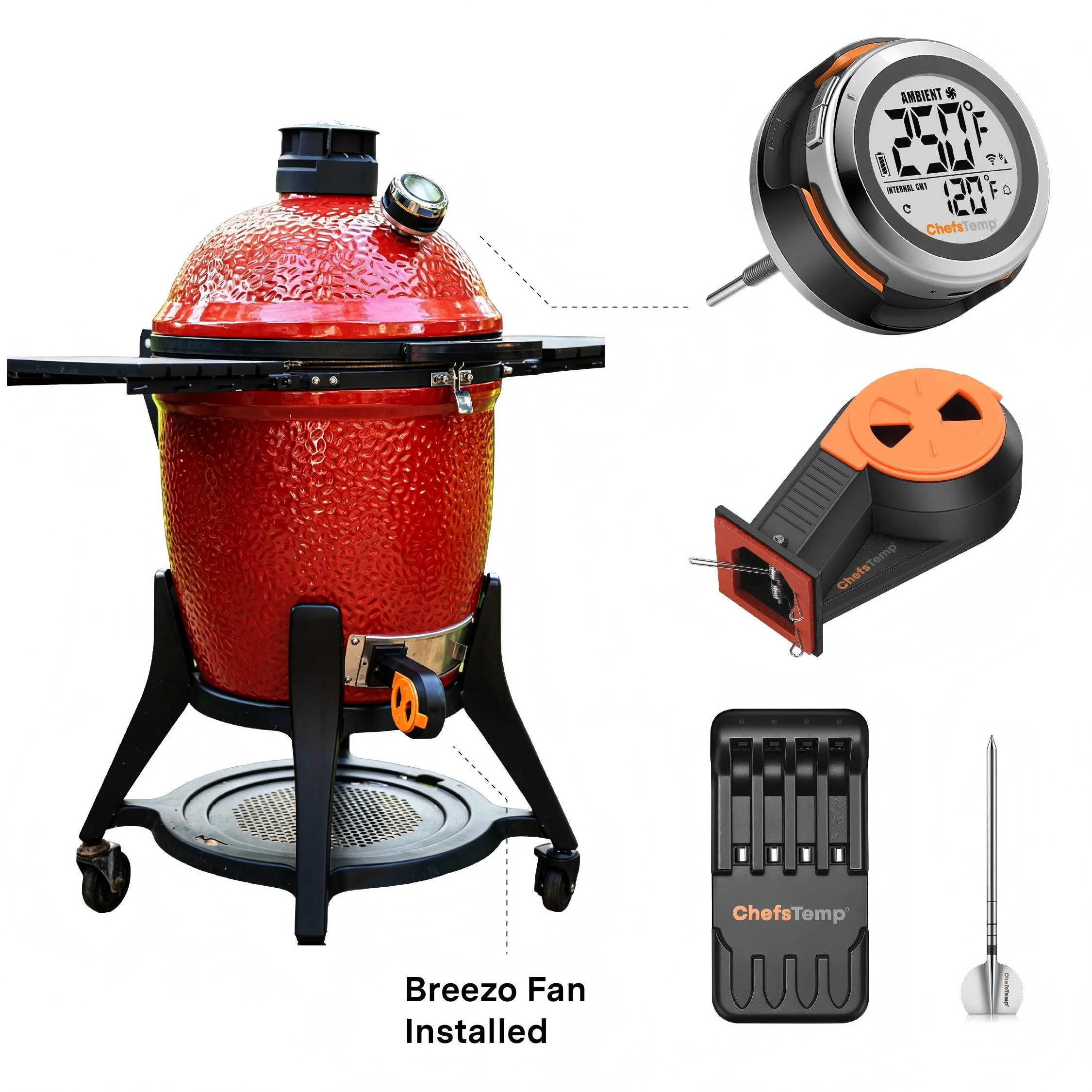
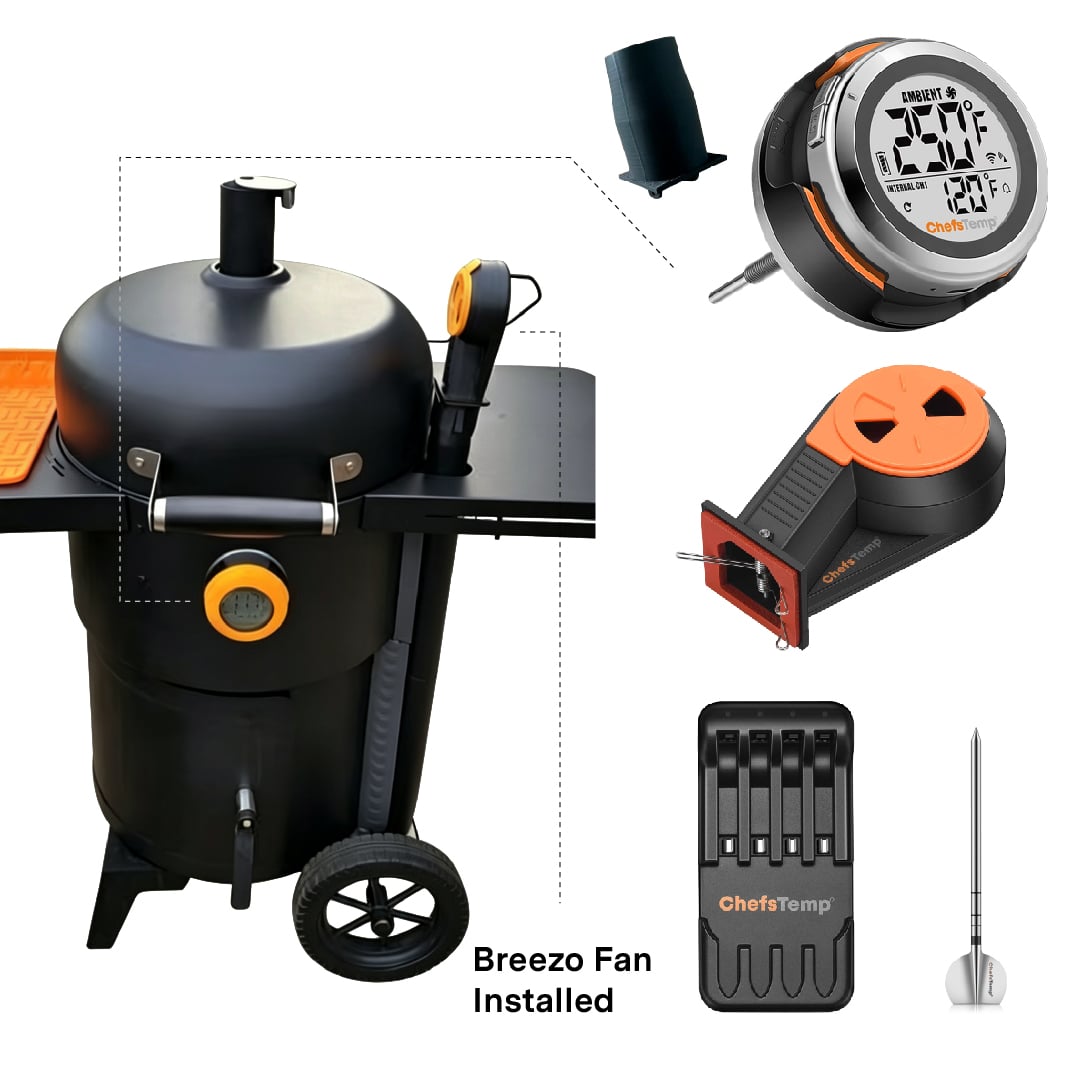
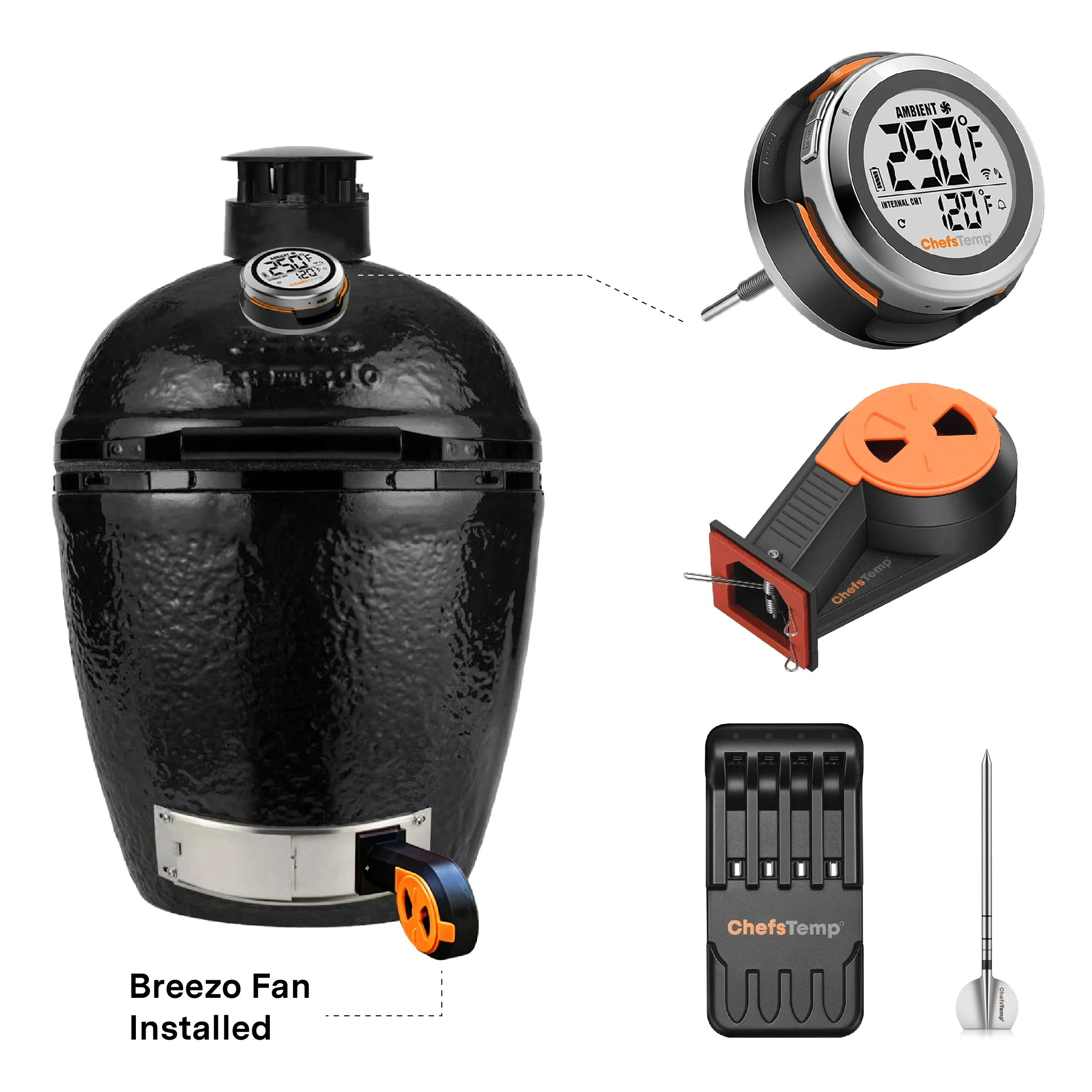
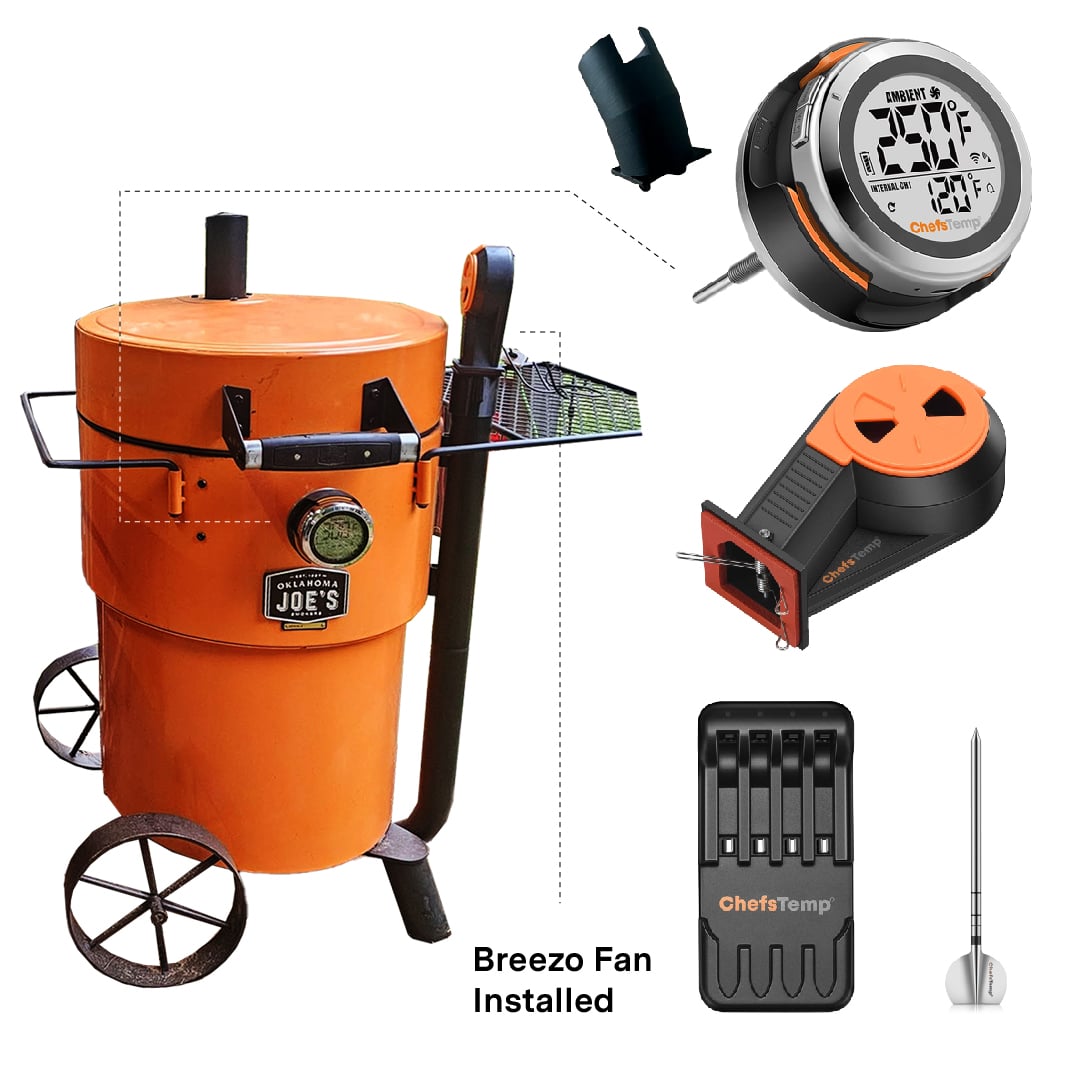
Yes. The Breezo Fan is not included in the package of ProTemp S1 or ProTemp 2 Plus, so you need to purchase it separately.
Order: Does the ProTemp S1 include the temperature fan or wireless probe?
No. The ProTemp S1 does not include the Wireless Probe or Breezo Fan, so you need to buy them separately at your own discretion.
ChefsTemp Customer Support
- If you have any questions or concerns, please feel free to call us at +1 (559) 563-8838, Monday to Friday, 8:00 AM–5:00 PM (PST/PDT).
- You can also reach our Customer Support Team at [email protected]—an agent will respond within 24 hours. Please note that replies may take slightly longer on weekends or holidays.
Breezo Fan: App keeps showing it is disconnected, or my fan is suddenly unresponsive during a cook.
1. Please follow these steps below to check first:
- Confirm that your Breezo and S1 are connected correctly. You can watch this video: How to Wirelessly Connect the Breezo Fan to ProTemp S1?
- Make sure you have used the original power adapter and cable (if using a power bank, please connect it with a C-to-C charging cable, and do not use fast charging or any charging plug exceeding 20W).
- Make sure your S1 displays temperature numbers properly.
- Check if your S1 and Breezo firmware versions have been updated to the latest version. The app is also the latest version. How to Update Firmware on ProTemp S1 & Breezo Fan | Step-by-Step Guide.
- Connect the Breezo to the charging cable to power it on, and press and hold the button on the Breezo for 4 seconds until the Breezo rotates slightly. It indicates that the Breezo has been reset and paired with S1.
- Press the button on Breezo twice to stop the Breezo, and then use the fan switch on the App to control the Breezo.
Breezo Fan: My fan does not stop after reaching the target temperature.
Please confirm that the firmware of your S1 and Breezo Fan has been upgraded to the latest version. Ensure that the app is also the latest version. After completing the firmware update, it is recommended to delete all devices and reconnect to check for any issues. How to Update Firmware on ProTemp S1 & Breezo Fan | Step-by-Step Guide
❤️For best results, we recommend keeping the top vent nearly closed and allowing the Breezo fan to add the necessary air to maintain your desired temperature. Opening the top vent too much can lead to overshooting your target temperature, especially at lower temperatures used for smoking. For higher-temperature grilling, such as searing, you may open the vent slightly more to accommodate the increased airflow needs. These settings work well across various grill sizes.
Please see our video instructions on:
1. How to Master Temperature Control on Big Green Egg or Kamado Joe with ProTemp S1 & Breezo
2. Adjusting Exhaust Vent & Damper for Perfect Grill Temps | ProTemp S1 & Breezo
Breezo Fan: My fan is unable to perform firmware updates, or fails to upgrade the firmware.
To ensure a successful firmware update for your Breezo V2 fan, please follow the steps outlined in this video: Firmware Update Guide. Please also make sure your app is updated to the latest version.
Here’s a step-by-step checklist that may help:
- Use the original charger to power the fan.
- Turn on and run the fan.
- Open the app and go to the firmware update section. If an update is available, proceed with the upgrade.
- After the update completes, fully close the app and reopen it.
- Return to the firmware page to confirm the update was successful.
- Try resetting the S1 unit.
- Disconnect and reconnect the S1 unit.
ChefsTemp app: Didn’t receive the verification code.
Just a quick note: the “60 seconds” refers to how long it takes to receive the code, but each code remains valid for 10 minutes. If you click “Send Code” multiple times within a short period, it may cause older and newer codes to mix up, making it harder to enter the correct one.
We recommend waiting for the code and using it promptly without requesting another too quickly. Please also check your spam or junk folder, as sometimes the email containing the code can be incorrectly flagged. If you still encounter the problem, please provide us with the email address you registered with the ChefsTemp app.
Breezo Fan: My fan does not respond when pressing the Power Button, or cannot be turned on.
If the fan button does not respond, please confirm you are using the included power adapter and cable. For power banks, please use Type-C to Type-C, and avoid fast-charging adapters or those exceeding 20W. If it still fails, please shoot a short video of the issue and reach our support team, [email protected].