FAQs
If you have any questions about your preferred items that aren't covered here or your order, you can start a chat using the message icon in the lower‑left corner for faster assistance. You're also welcome to contact our Customer Support Team at [email protected].
Can I use the ProTemp 2 Plus for different types of cooking, and is it durable for outdoor use?
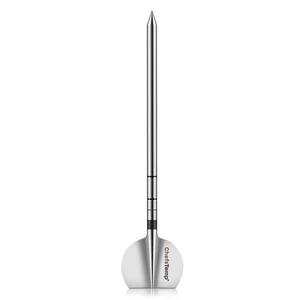
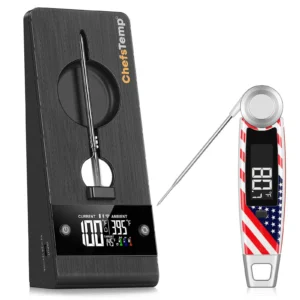
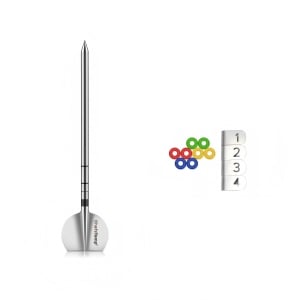
Absolutely—it’s designed for grilling, smoking, roasting, baking, deep frying, and even sous vide. The probe is made from corrosion-resistant 316-grade stainless steel and is IP68 waterproof, while the stand is IP55 water-resistant. The probe withstands extreme heats up to 1000°F, making it tougher than many competitors for rainy BBQs or messy kitchens. Customers buy it to elevate their cooking game across methods, enjoying consistent perfection that turns ordinary meals into gourmet experiences, all while its rugged build ensures long-term value without frequent replacements.
1
111
Is the ProTemp 2 Plus compatible with my devices and cooking setup?
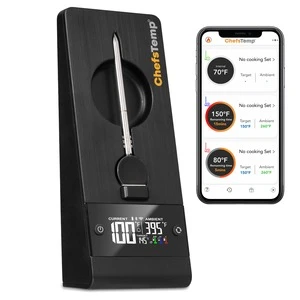
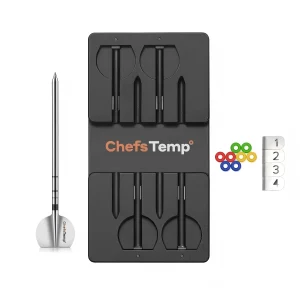
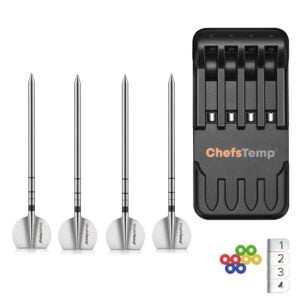
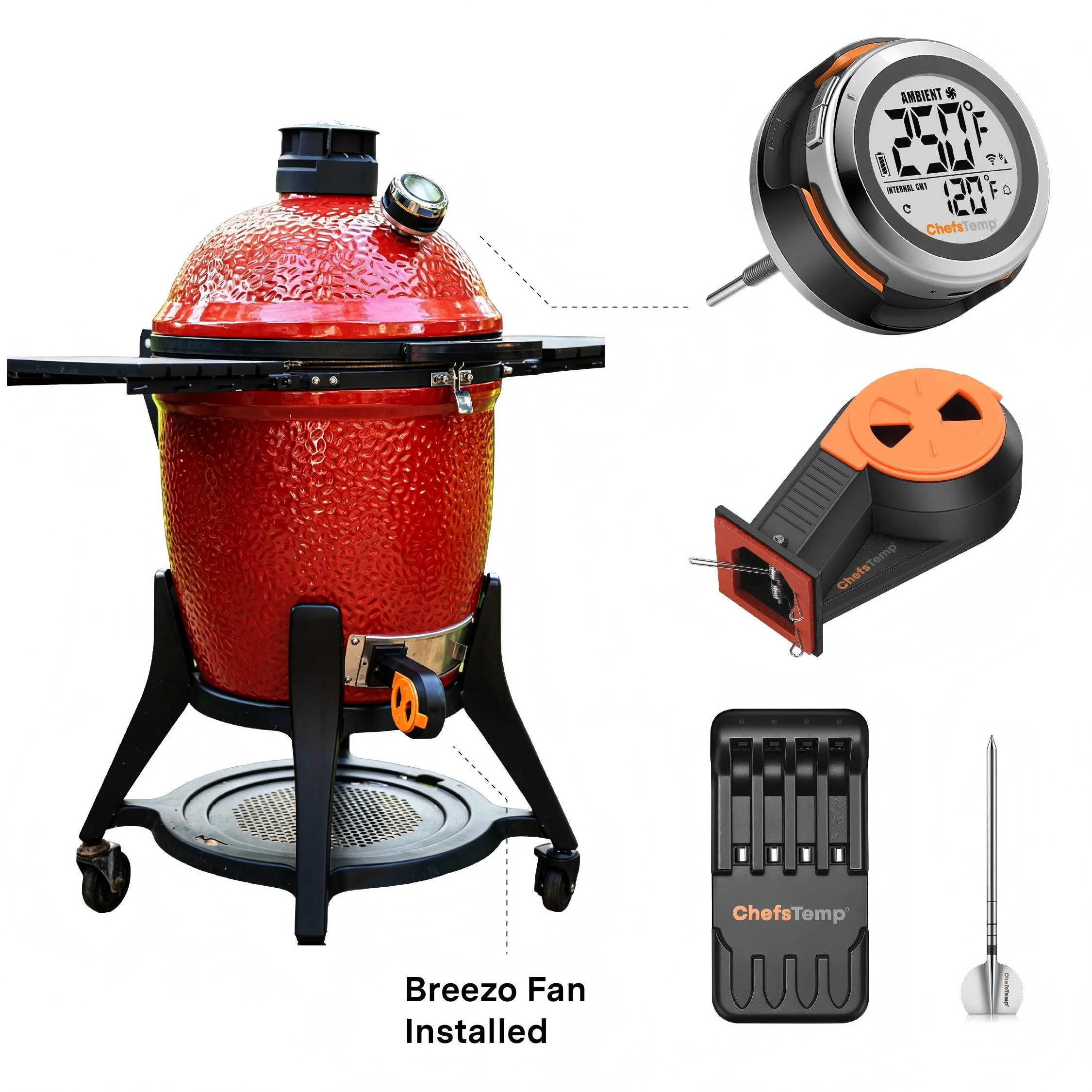
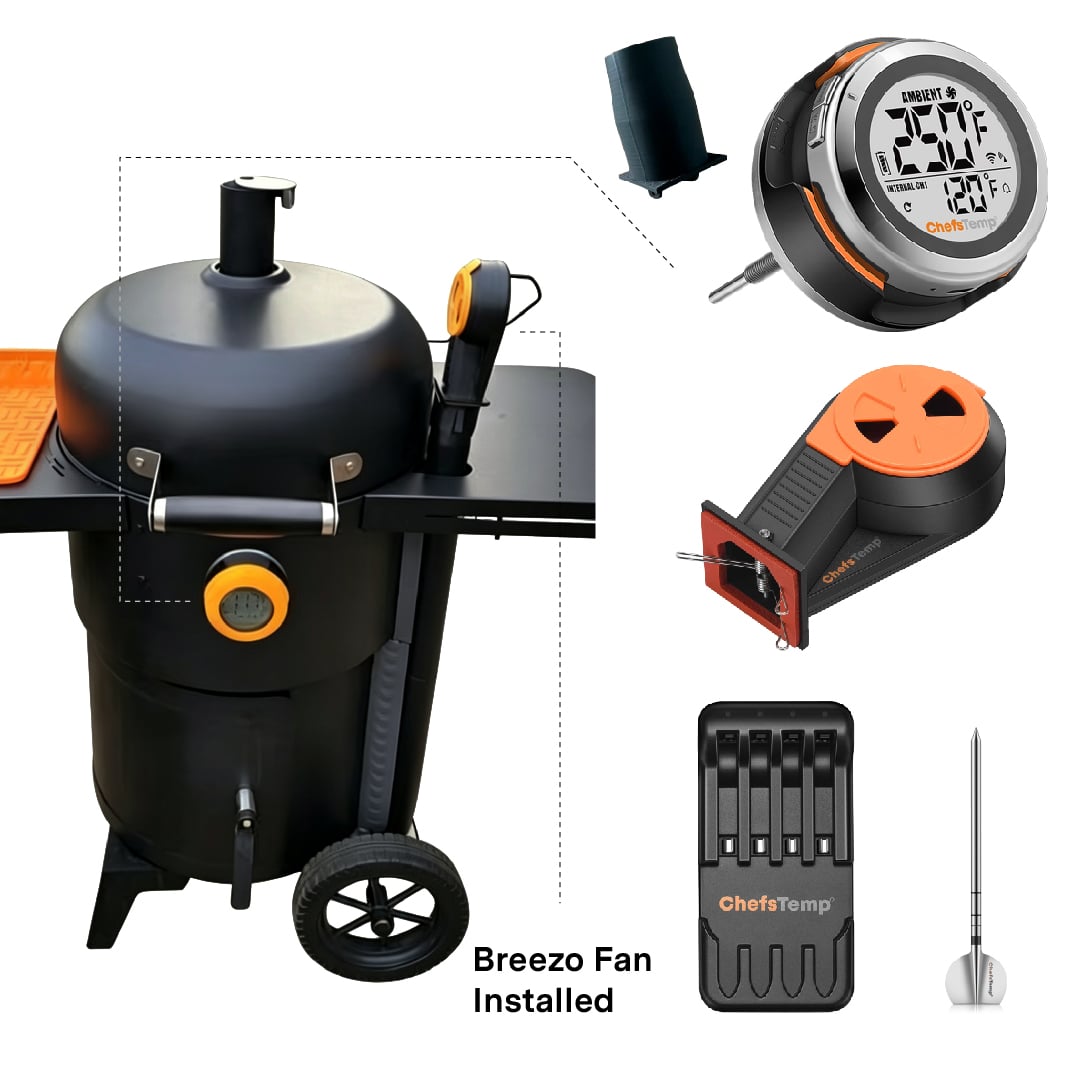
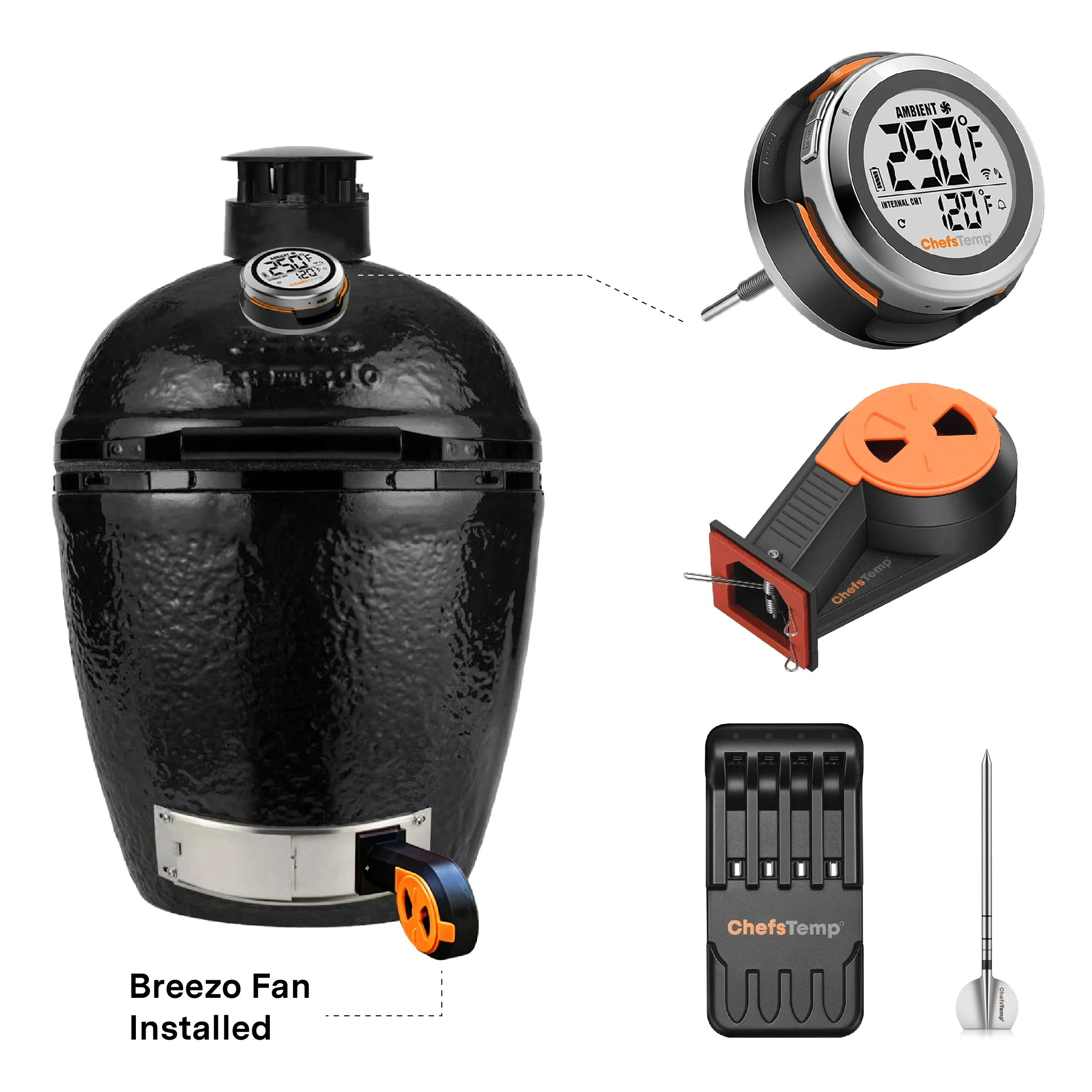
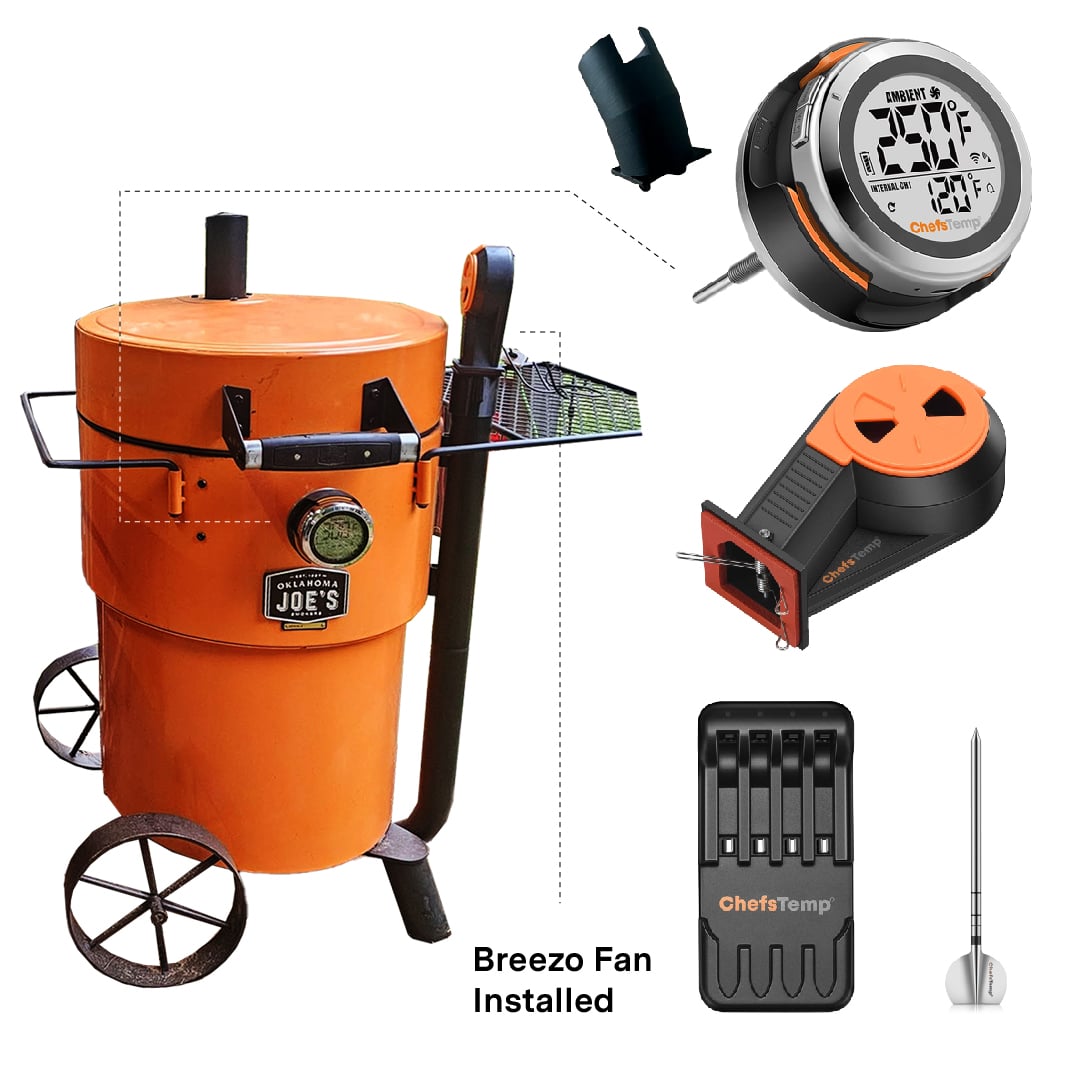
Yes, it works with iOS 11+ and Android 9.0+ devices via the free ChefsTemp app, supporting up to three probes per stand and three stands per app for monitoring up to nine items at once. It integrates with 2.4GHz Wi-Fi for cloud storage and unlimited range (not 5GHz), and pairs with the ChefsTemp Breezo V2 Fan for automated temperature control in charcoal grills. This versatility makes it a game-changer for home chefs, allowing simultaneous tracking of multiple dishes—like a steak and veggies on the grill—resulting in efficient, stress-free meals that save you time in the kitchen.
Does the ProTemp S1 include the temperature fan or wireless probe?
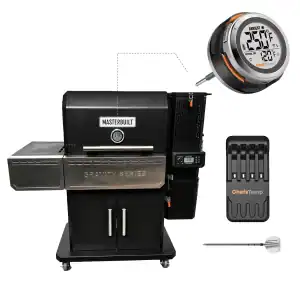
No, the ProTemp S1, priced at $99.99 USD, does not include the wireless probe or Breezo Fan. The ProTemp S1 is a smart, accurate, digital grill thermometer hub that works with an app to remotely monitor your grill’s temperature and set high and low-temperature alerts.
What is the battery life, and how does it support long cooking sessions?
The probe lasts 30 hours on a single charge and recharges fully in just 10-15 minutes, while the stand’s 10,000mAh rechargeable battery provides up to 80 hours of use when fully charged. This extended life is perfect for all-day smokes or roasts, where traditional wired thermometers might fail due to short batteries or cords. It offers dependable performance for outdoor adventures and long cooking sessions, providing uninterrupted monitoring that results in better-tasting food—no constant recharging required.
I have a ProTemp Plus/ProTemp 2 Plus. Can I monitor it together with the ProTemp S1?
Yes, you can monitor both ChefsTemp devices simultaneously. Simply find the “Add Device” option in the app and follow the steps to pair. Once successfully added, you can easily switch between different devices with a simple swipe on the screen.
How accurate is the ProTemp 2 Plus compared to traditional thermometers?
It offers exceptional accuracy of ±0.9°F (±0.5°C), far superior to many basic dial or instant-read thermometers that can vary by several degrees. The internal probe measures from 32°F to 220°F, while the ambient sensor handles up to 1000°F, making it ideal for high-heat scenarios like direct grilling. Its patented design ensures the ambient sensor isn’t affected by cold proteins, avoiding common inaccuracies in competitors. This precision means you’ll never overcook or undercook again, delivering juicy, safe results that impress family and friends—ultimately making you a more confident cook and reducing costly mistakes with expensive cuts of meat.
Bluetooth won’t connect/Bluetooth connection is stuck on C-1.
If your S1 is unable to connect to Bluetooth or is stuck on C-1 during pairing, please follow these steps to resolve the issue:
- 1. Check App Permissions: Make sure the ChefsTemp app has all required permissions—especially location access—enabled on your device.
- 2. Clear Existing Connections: Ensure all previous connections are removed from the ChefsTemp app. Then, reconnect by following our tutorial video: How to Pair Your ProTemp S1 with Bluetooth and Wi-Fi | Step-by-Step
- 3. Reset the S1: Press the RESET button next to the charging port.
- 4. Test with LightBlue App: If the issue persists, download the LightBlue app and check for “ProTemp S1 Base” in the device list.
If there are still issues, please contact our customer service via phone or email for support.
Can not connect the ProTemp S1 to Wi-Fi.
Please watch our tutorial video to ensure you’re following the correct Wi-Fi setup process: How to Pair Your ProTemp S1 with Bluetooth and Wi-Fi | Step-by-Step.
If you are still stuck on the Wi-Fi connection step, please check the following tips:
- 1. Confirm the Wi-Fi icon on your S1 screen is solid (not flashing). A missing icon indicates Wi-Fi is off, while a flashing icon suggests an unstable connection.
- 2. Check App Permissions: Make sure the ChefsTemp app has all required permissions—especially location access—enabled on your device.
- 3. Check Wi-Fi Settings: Ensure your Wi-Fi is on a 2.4GHz network. If 5GHz Wi-Fi only, simply create a guest 2.4GHz Wi-Fi network in the router app, making it easier for smart devices to join.
- 4. Password and SSID: Use the orange magnifying glass to auto-detect the SSID, and double-check that the Wi-Fi password is entered correctly, as spell-check may alter it.
- 5. Router Settings: Disable fast roaming (e.g., 802.11r) on your router, as it may prevent the S1 from connecting.
I cannot connect the ProTemp 2 Plus to Bluetooth/stuck on C-1.
To ensure everything is set up correctly, please watch this video on How to Fix Bluetooth & Wi-Fi Pairing Issues on ProTemp Plus or ProTemp 2 Plus and follow the checklist below to troubleshoot:
1. Check App Permissions: Make sure the ChefsTemp app has all required permissions—especially location access—enabled on your device.
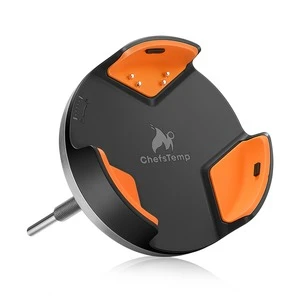
2. Charge the devices: Low battery or no power will prevent Bluetooth detection. Use the original charger to fully charge the Probe and Stand. Clean the probe to remove any debris. Adjust the metal plate in the Stand’s charging slot to ensure contact with the probe properly.
3. Remove the probe from the Stand: The probe must be removed from the charging base to activate Bluetooth pairing. Bluetooth cannot be detected while the probe is charging on the Stand.
4. Check for existing pairings: Ensure the probe is not already paired with another device. A probe can only be connected to one device at a time (including ProTemp S1 and ProTemp Plus Series).
5. Restart and reset: Power off the Stand completely, and restart it. Try pairing again from the beginning. Otherwise, reset your Stand via the Reset Button on the backside.
If needed, simply delete all existing connections in the app, reconnect your device, and add your extra probes. If it is still not working, please download the LightBlue app to test whether the “Probe” and “ProTemp Stand” are broadcasting Bluetooth signals.